How to Add Custom Fields (Including Belt Ranks)
Zipper has two ways to track custom customer data: Custom Customer Fields (for any freeform data) and Rank Systems (a dedicated belt/rank tracking module). Here's when to use each.
Option A: Custom Customer Fields
Use for: any custom data that doesn’t need rank progression — emergency contacts, t-shirt sizes, allergies, intake responses, or belt rank as plain text.
How to add custom fields
- Navigate to: Contacts > Custom Customer Fields
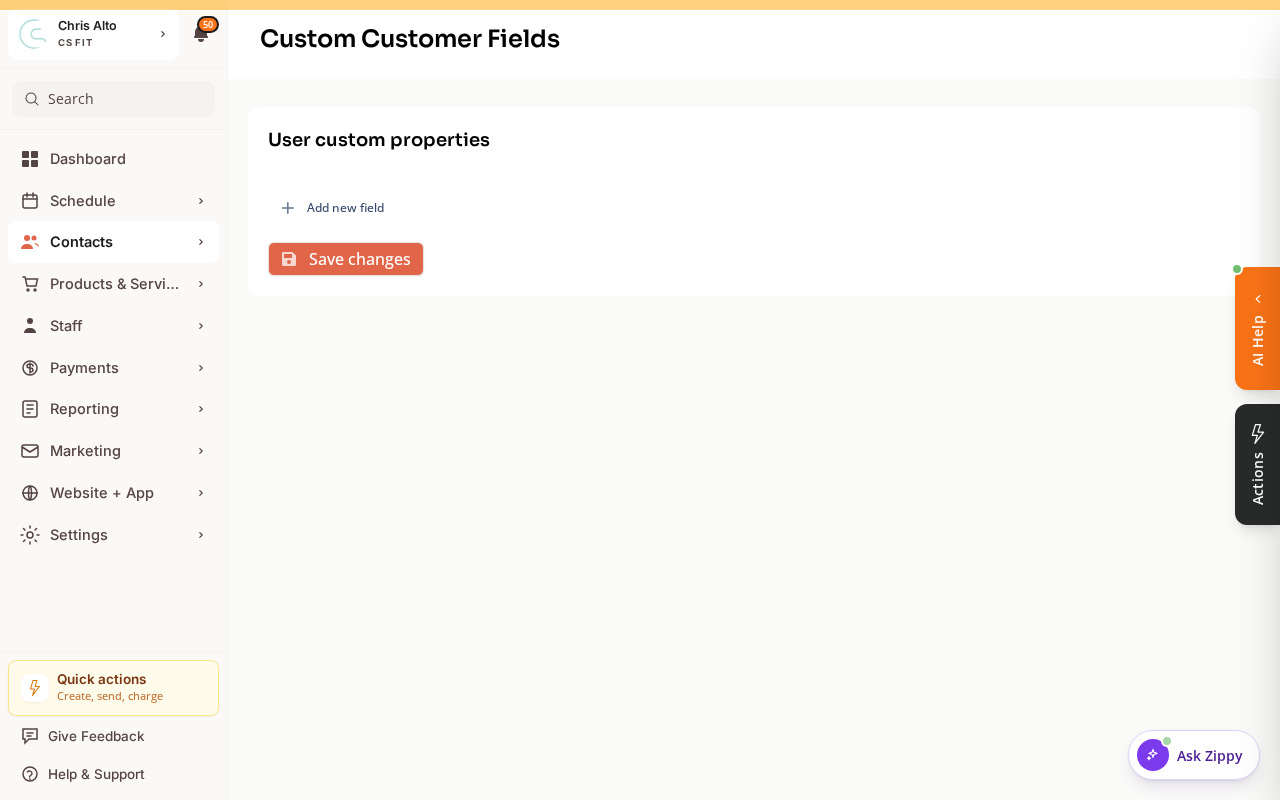
- Click: Add new field, then set the field name, type (text, date, number, dropdown), and visibility.
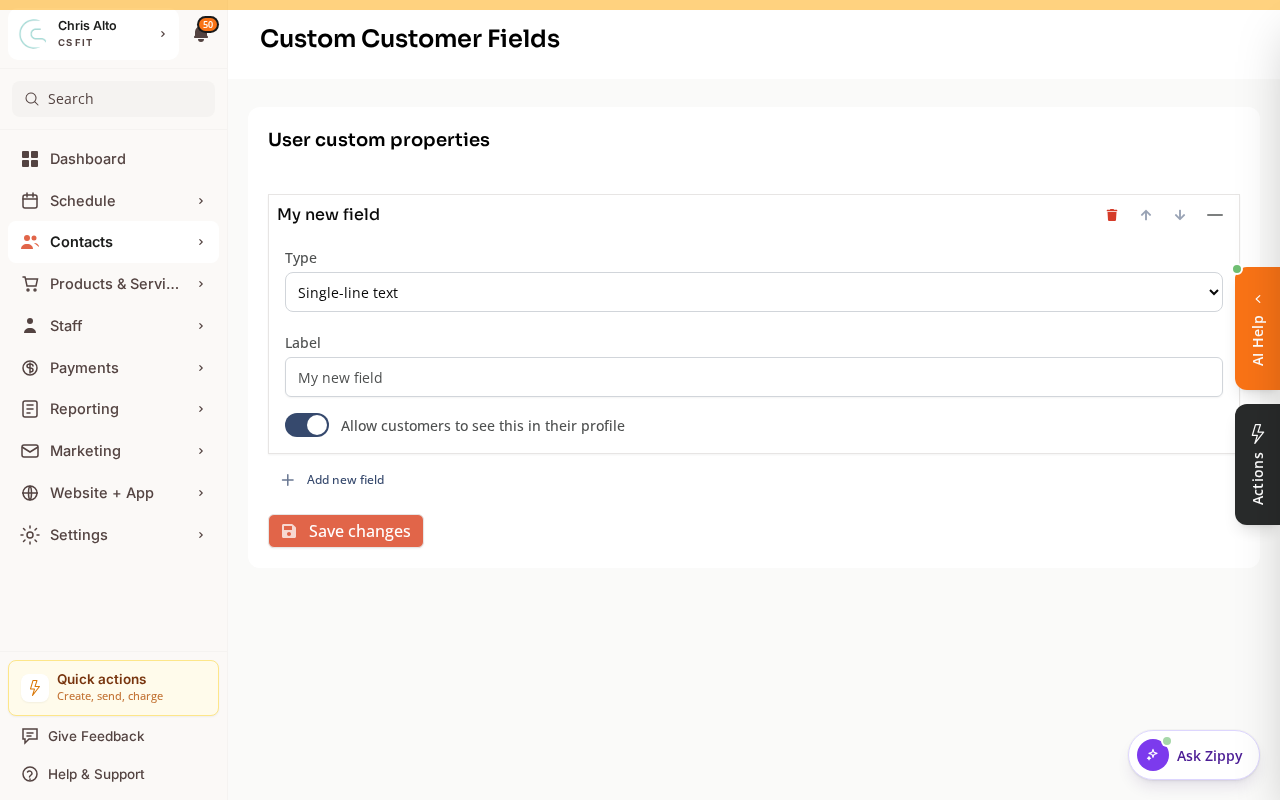
- Click: Save changes
- Expected: Field now appears on every customer’s profile
Where custom field data shows
- On each customer’s profile in CRM (visible to staff with appropriate permissions)
- On the customer’s own profile view (if you set visibility to “Customer visible”)
- Available as filter/column in the Contacts table
Option B: Rank Systems (Belt Tracking)
Use for: structured rank progression — belts in martial arts (BJJ, karate, judo), swimming levels, climbing grades, or any tiered progression system.
Note: Rank Systems requires the
manage-rank-systemspermission claim. If you don’t see this feature, contact your Zipper admin or Zipper support.
How to set up a rank system
- Navigate to: Settings > Rank Systems
- Click: New Rank System
- Name the system (e.g., “BJJ Belts”, “Swimming Levels”)
- Add rank levels in order (White → Blue → Purple → Brown → Black)
- For martial arts, add stripes/degrees within each belt if applicable
- Click: Save
How to assign and promote ranks
- Open a customer’s profile in CRM
- Find the Rank section
- Select their current rank from the system
- When they’re promoted, update their rank — the history is logged automatically
Belt Rank as a Custom Field (Simpler Alternative)
If you don’t need promotion history or the full rank tracking workflow, you can add belt rank as a Custom Customer Field with a dropdown type:
- Field name: “Belt Rank”
- Type: Dropdown
- Options: White, Blue, Purple, Brown, Black (add your stripes as separate options if needed)
This is simpler to set up but doesn’t track promotion dates or history.
Tips
- Use Rank Systems for logging: If you want to track when someone got promoted and who promoted them, use the full Rank System. Custom fields are just data — no history log.
- Make fields visible to customers: For fields customers should see (like their belt rank or membership tier), enable “Customer visible” so they can view it in their app profile.
Troubleshooting
I don’t see the Rank Systems option.
Your account may not have the manage-rank-systems permission. Ask your admin to grant it, or contact Zipper support if it’s not available in your plan.
A custom field isn’t showing on customer profiles. Check that the field was saved and that the visibility setting isn’t set to hidden. If it’s a new field, try refreshing the page.
Need a hand?
Email our team at support@joinzipper.com and we'll usually reply within a few hours.
Was this article helpful?
Thanks for your feedback.