How to Add Class and Attendee Notes
Write a staff note for one class session or add an attendee note with the option to pin it on the client profile.
Add a note for a specific class session, or attach a note to one attendee’s record from the roster.
Add a class session note
-
Open Schedule → Calendar and select the dated class session.
-
In Notes, choose Add note.
-
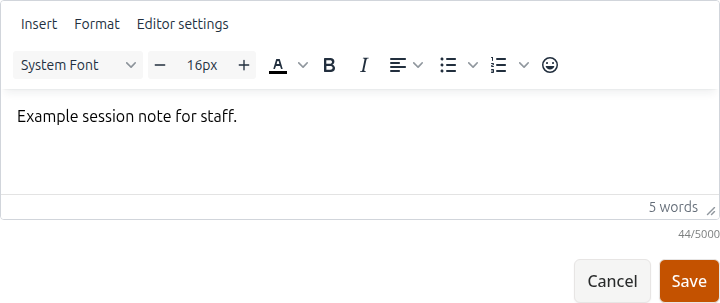
Write the note and select Save. Look for it in the Notes section for that session.
Add a note about one attendee
-
In the same roster, find the attendee. Select the client notes line below their name. It reads View client notes when the client has no notes yet.
-
In the Client notes section for this session, choose Add note.
-
Choose a Type to organize the note, then enter the text. Select Pin on client profile if it should also be prominent in the client’s profile.
-
Select Save.
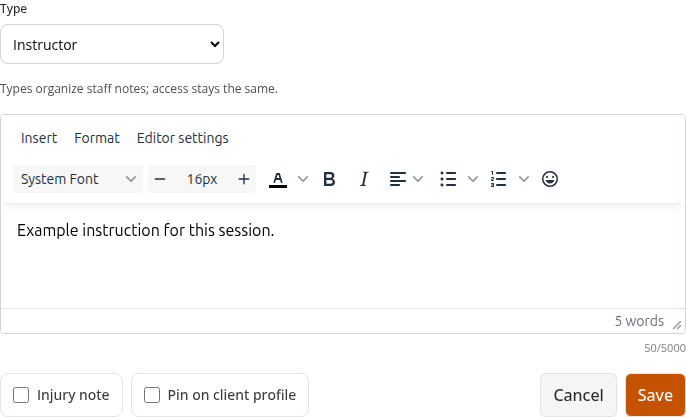
The note type organizes staff notes. If client notes are unavailable for an attendee, check whether the registration has a linked customer profile. For notes entered from the customer record, see How to Add Notes to Customers.
Need a hand?
Email our team at support@joinzipper.com and we'll usually reply within a few hours.
Was this article helpful?
Thanks for your feedback.