How to Add an Event or Workshop Highlight to a Page
Showcase an upcoming event or workshop on any page of your Zipper website using a content block that pulls live event data from your calendar.
Steps
- Navigate to: Website + App > Site Editor.
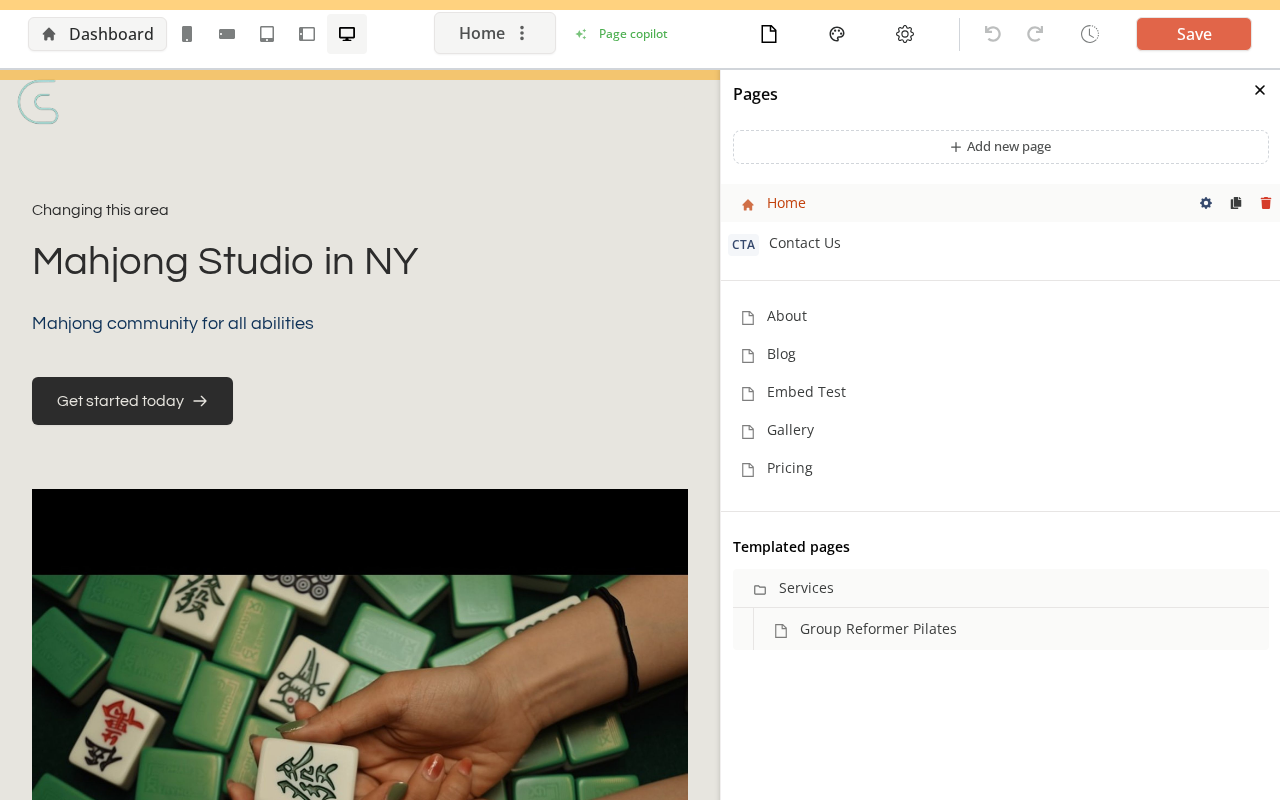
- Open the page you want to add the event block to
- Click: the + (Add block) button where you want the block to appear
- Browse to the Events category
- Select one of the event display block types:
- Events list — shows multiple upcoming events
- Event spotlight / highlight — features one specific event prominently
- Upcoming events — shows a compact list of next events
- The block pulls from your live Calendar events automatically
- Configure the block: select which events to show, how many, styling options
- Save, then Publish to make the block live
Tips
- Events in the block update automatically: When you add new events to your Calendar, they appear in the block without editing the page again.
- Feature one event: Use the spotlight block to drive registrations for a specific workshop or one-off event.
Troubleshooting
No events are showing in the block. Confirm you have upcoming events in your Calendar that are published and have registration open. Draft or past events won’t appear.
Need a hand?
Email our team at support@joinzipper.com and we'll usually reply within a few hours.
Was this article helpful?
Thanks for your feedback.