How to Add a Recurring Class Registration for a Customer
Book a customer into matching class sessions for a set number of registrations or keep their series active until you end it.
Use the roster of a scheduled class to book a customer into future sessions in the same timeslot. Start with the date you want the customer to attend first.
-
Go to Schedule → Calendar and open the class session. Select Manage registrations → Add registration.
-
Choose Book customer, then search for and select the customer.
-
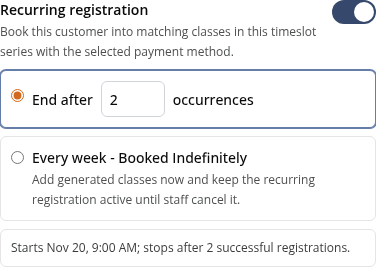
Turn on Recurring registration and choose how it ends.
- End after counts successful registrations. Enter a whole number from 1 to 52.
- Every week - Booked Indefinitely follows the selected timeslot’s schedule. Zipper adds matching sessions that have been generated and keeps extending the booking as future sessions become available.
-
Review the payment method and follow the prompts to finish. Check the result to see which dates were booked or waitlisted, and whether any were skipped, failed, or are pending until future sessions are generated.

Recurring registration is available when you book a customer into a recurring class timeslot. Book one date at a time for guests, classes with spot selection, or when you choose to book over capacity.
To check upcoming dates or end the series, see How to Find and Manage Recurring Bookings.
Need a hand?
Email our team at support@joinzipper.com and we'll usually reply within a few hours.
Was this article helpful?
Thanks for your feedback.