How to Add a Link to the App on Your Website
Zipper is a Progressive Web App (PWA) — customers access it via a URL, not an App Store download. "The app" for your customers is your studio's Zipper customer portal URL.
What Link to Use
Your customer-facing Zipper URL (the booking page) is the “app link”:
- If your website is a Zipper site with a custom domain:
yourdomain.com/app - If your website is hosted somewhere else:
https://yourbusiness.site.joinzipper.com/app
You can grab copyable links to your booking pages under Website + App > Direct Links & Embedding (each link has a Copy URL button).
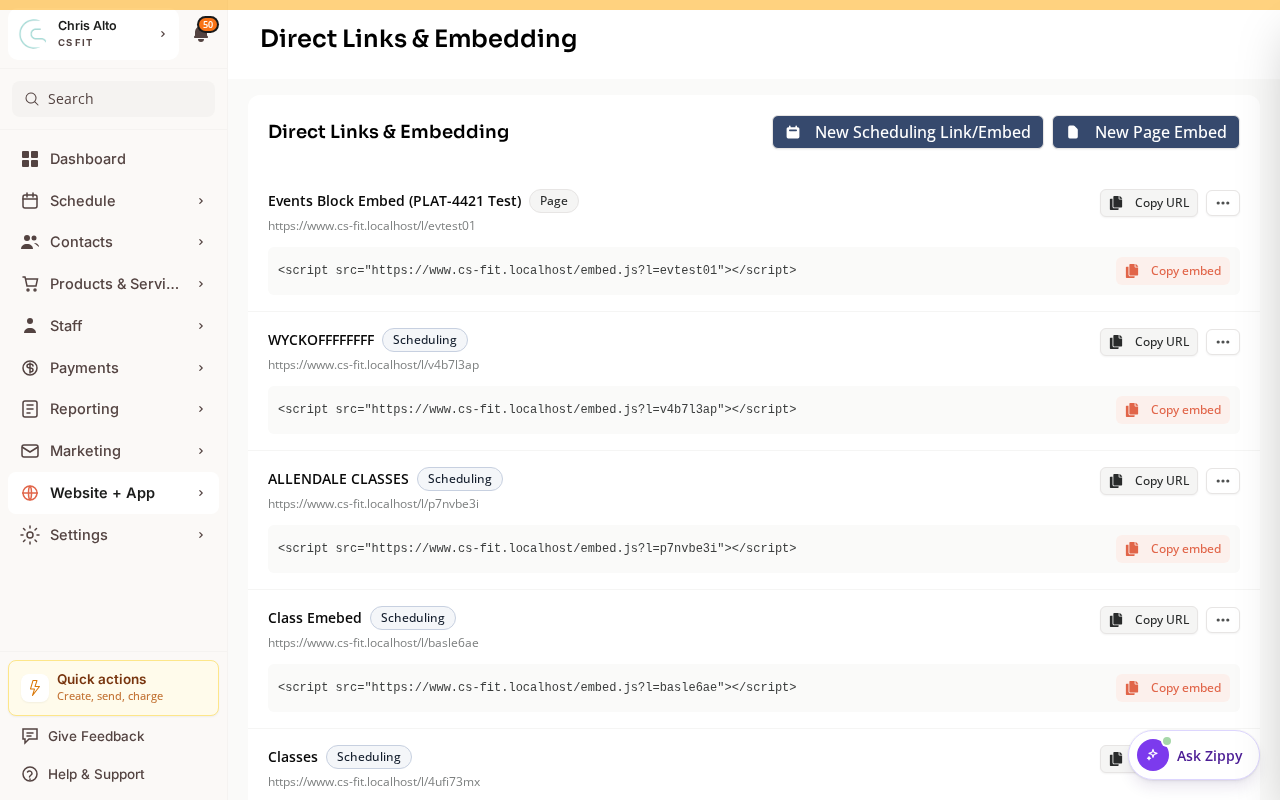
Adding the App Link to Your Site Navigation
- Navigate to: Website + App > Site Editor
- Open Site settings → Menu
- Click: Add menu item
- Label: “Book Now” or “Open App” or “Member Login”
- URL: your Zipper customer portal URL
- Save and Publish
Adding an App Install Button or CTA Block
- In the Site Editor, open a page
- Add a button block or CTA section
- Set the button text: “Download the App” or “Book a Class”
- Link the button to your Zipper portal URL
- Save and Publish
Tip: How Customers “Install” the App
Since Zipper is a PWA, customers on mobile can add it to their home screen:
- Visit your Zipper portal URL on their phone
- Tap Share → Add to Home Screen (iOS) or the install prompt (Android)
- The app icon appears on their home screen
Consider adding a short note on your website explaining this, especially for tech-shy members.
Need a hand?
Email our team at support@joinzipper.com and we'll usually reply within a few hours.
Was this article helpful?
Thanks for your feedback.