How to Add a Custom Charge at Point-of-Sale
Enter an amount and description for a custom POS charge and review the total before payment.
Use Custom amount to charge for something that has no catalog item, such as workshop supplies.
-
Open Payments → Point-of-Sale. Select a customer or choose Guest (Walk-in) for a Terminal sale.
-
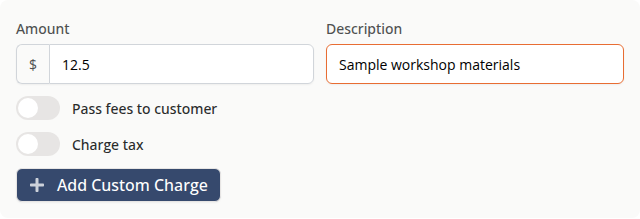
Choose Custom amount. Enter a positive Amount and a Description.
-
If applicable, turn on Pass fees to customer or Charge tax. Complete the tax fields when they appear.
-
Select Add Custom Charge.
-
Check the amount and description in Cart Summary. Choose your payment method and select Calculate total.
-
Review Total Due Today before completing the sale. Use Clear if you want to remove the draft cart.

You can add more than one custom line before payment. Custom charges show as Point-of-Sale Charge in payment records. For a catalog item, see How to Sell Merchandise at Point-of-Sale.
Need a hand?
Email our team at support@joinzipper.com and we'll usually reply within a few hours.
Was this article helpful?
Thanks for your feedback.