How Members Update Their Own Payment Method
Members can update the card charged for their subscription directly from their account — no need to contact the studio.
Steps
Step 1: Add your new card
- Log in to your studio’s customer site, then open Settings → Payment methods from the sidebar.
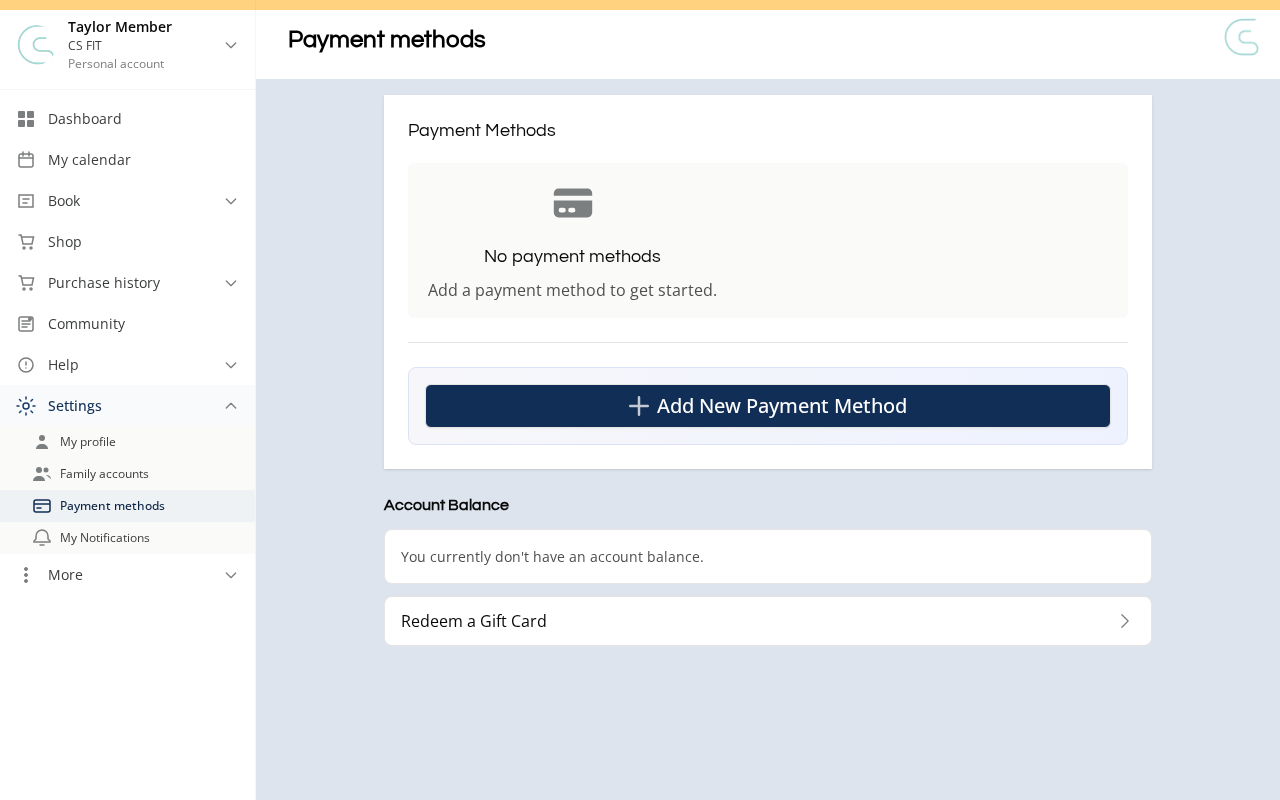
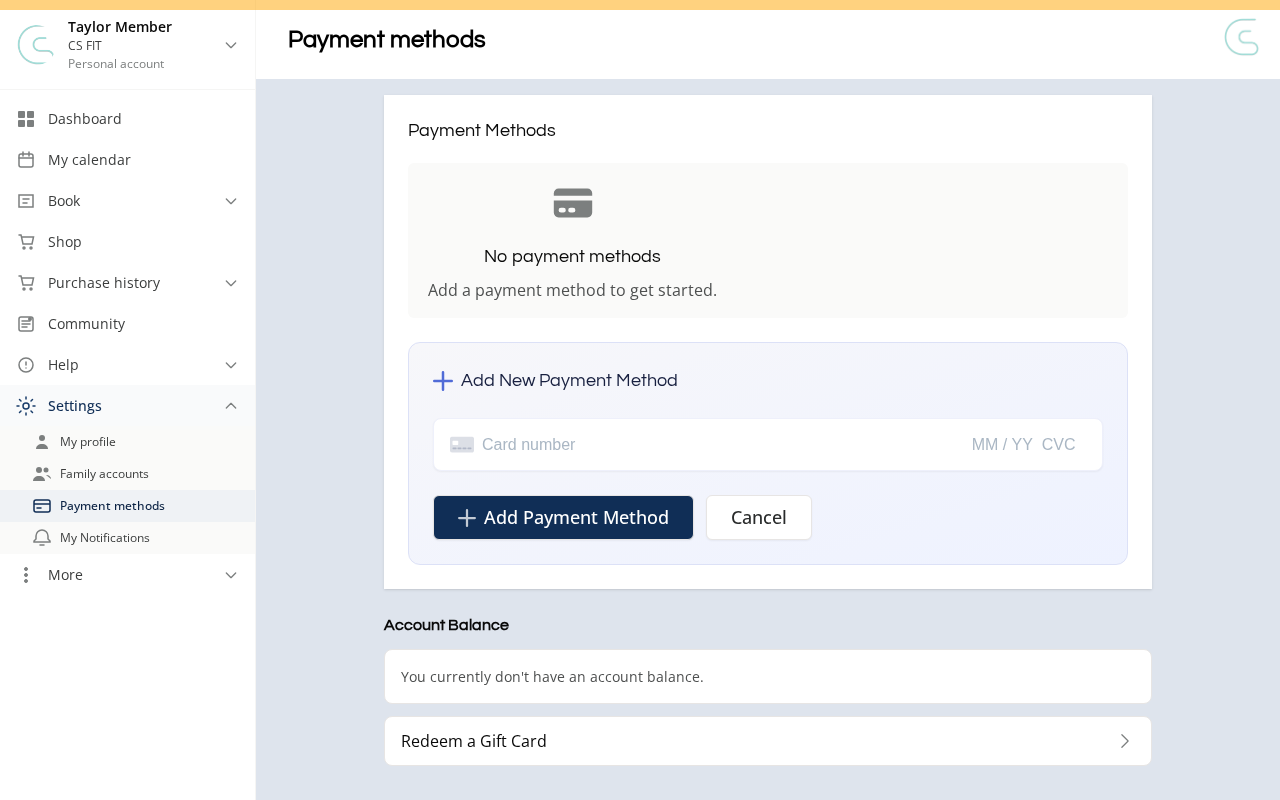
- Click Add New Payment Method, enter card details, then click Add Payment Method.
Step 2: Update your subscription
- Find the subscription you want to update and click Change payment method / Update card.
- Select your new card (or enter details) and click Save / Confirm.
If you want to replace your only card, add the new one first, then assign it to your subscription.
Troubleshooting
No option to update payment method? Check Purchase History or My Account — the label varies by studio. If you can’t find it, contact the studio to update it from the admin panel.
Updated card but subscription still failed? If the payment failed before you updated, the studio needs to manually retry the charge.
Need a hand?
Email our team at support@joinzipper.com and we'll usually reply within a few hours.
Was this article helpful?
Thanks for your feedback.