How Late-Cancel and No-Show Charges Process
When a member cancels too late or doesn't show up, Zipper can automatically apply a fee or hold the charge for staff review. Here's how it works.
How Fees Get Applied
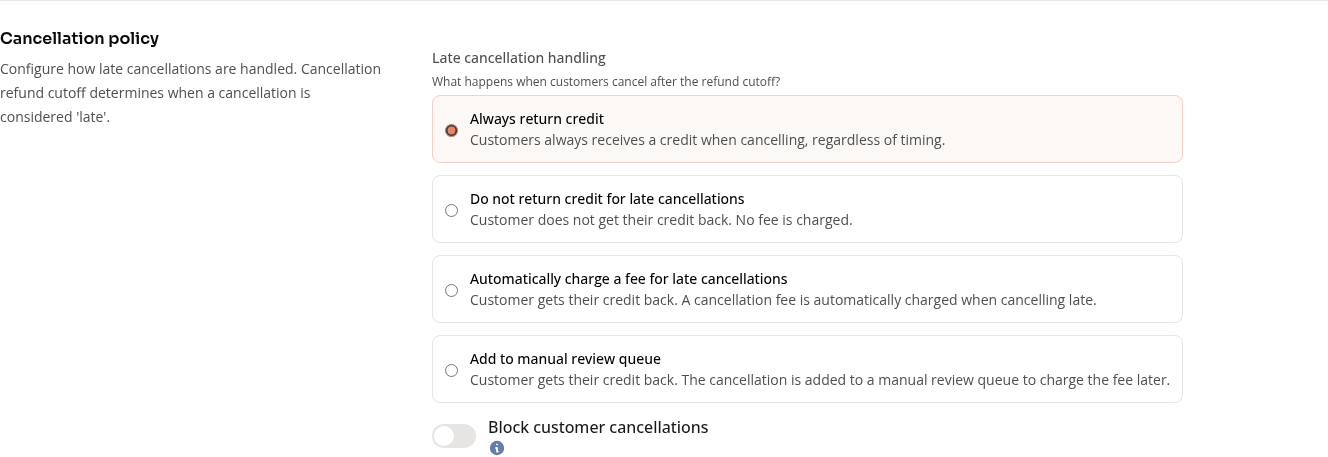
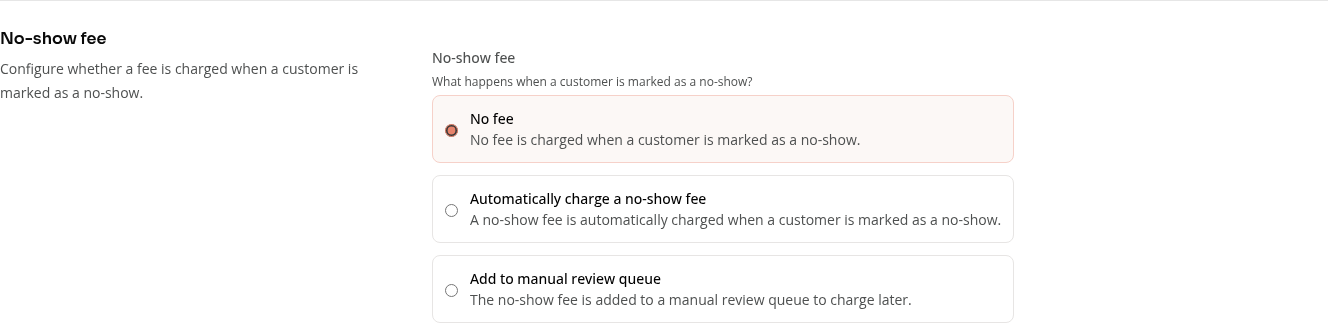
The fee amounts and rules are set per class in Edit Class → Registration details (Refund policy and No-show fee).
There are two modes for late-cancel and no-show fees:
- Automatic charging — after an eligible late cancellation, or after staff marks a booking as a no-show, Zipper attempts the configured fee using the applicable saved payment source. A successful charge is recorded as charged. A missing payment method or unsuccessful collection can leave a queued or failed fee for staff review.
- Queued fees (Payment Collector) — a policy set to manual review records the configured fee for staff to charge or dismiss. It does not charge merely because the fee is in the queue.
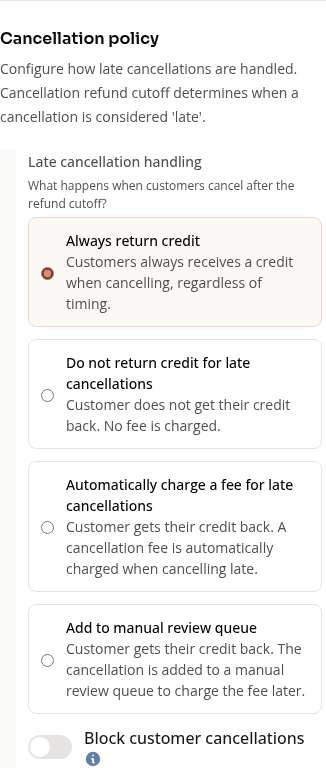
A late cancellation does not always create a cash fee. Always return credit and Do not return credit for late cancellations do not themselves create a default cancellation fee. For class credit packs, the return/forfeit credit rule is separate from configured cash fees; all-access and private-session bookings can use their own fee rules. Private sessions use the host class or appointment type’s cancellation cutoff.
Where Fees Show Up
Payment Collector is where all pending fees land:
- Navigate to: Payments > Payment Collector
- The Unpaid Fees tab shows queued and failed late-cancel and no-show fees within the selected date range. Adjust From and To to find older fees.
- Choose Charge to review the payment method and amount, then Charge Fee to submit. Appointment fee amounts can be edited; the class/event registration fee amount is read-only.
- Choose Dismiss, review the waiver, optionally add a reason, then choose Dismiss Fee to waive it without collecting that fee.
- If a failed charge says payment reconciliation is required, resolve that status before retrying; do not assume a failed row proves that no payment was captured.
Class/Event Late Cancellations and No-Shows
For an individual class/event cancellation after its cutoff, Zipper evaluates the applicable booking policy. Automatic charging attempts a configured positive fee; manual review queues it. A return-credit or keep-credit rule alone does not queue a cash fee. Class registrations can retain a policy saved at booking, so the current editor may differ from the policy on an older booking.
For a class/event no-show, staff chooses Mark no-show in the registration table and reviews the confirmation’s credit consequence and fee action. The fee action can charge, queue, or waive the configured fee; a class credit-pack policy can determine whether its used credit returns or remains used. Zipper does not automatically mark unchecked-in registrations as no-shows just because a class ends.
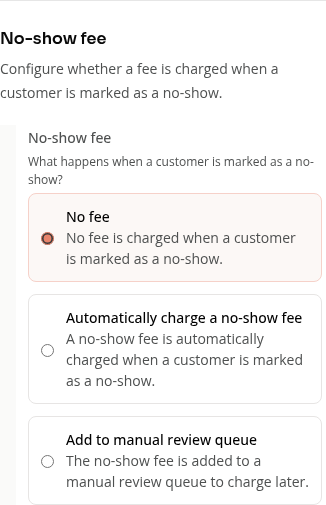
For an appointment, staff chooses Mark no-show in its action menu and confirms. This triggers the applicable appointment type or private-session no-show fee rule.
On Mobile
The appointment policy choices are available in a mobile browser:
Tips
- Check Payment Collector regularly: Review unpaid fees and adjust the date range when looking for older fees. Dismiss fees you intend to waive.
Troubleshooting
Late cancel fee didn’t charge automatically? Check the booking’s applicable policy, a positive configured fee, an eligible payment method, and cancellation after the cutoff. Review Unpaid Fees for queued/failed collection.
Unrecognized fee in Payment Collector? Review its customer, booking, date, status, and details. Use Dismiss to waive a fee when appropriate. For a failed charge needing reconciliation, confirm the payment outcome before retrying or assuming it was never collected.
Need a hand?
Email our team at support@joinzipper.com and we'll usually reply within a few hours.
Was this article helpful?
Thanks for your feedback.