How Gift Cards Work in Zipper
Gift cards let customers buy store credit to give as a gift. The recipient gets an email with a code they redeem at checkout — adding credit to their Zipper account. Here's how to enable them and what to expect.
Before You Start
- Owner or Admin level permissions are required to manage gift card settings
Enabling Gift Cards
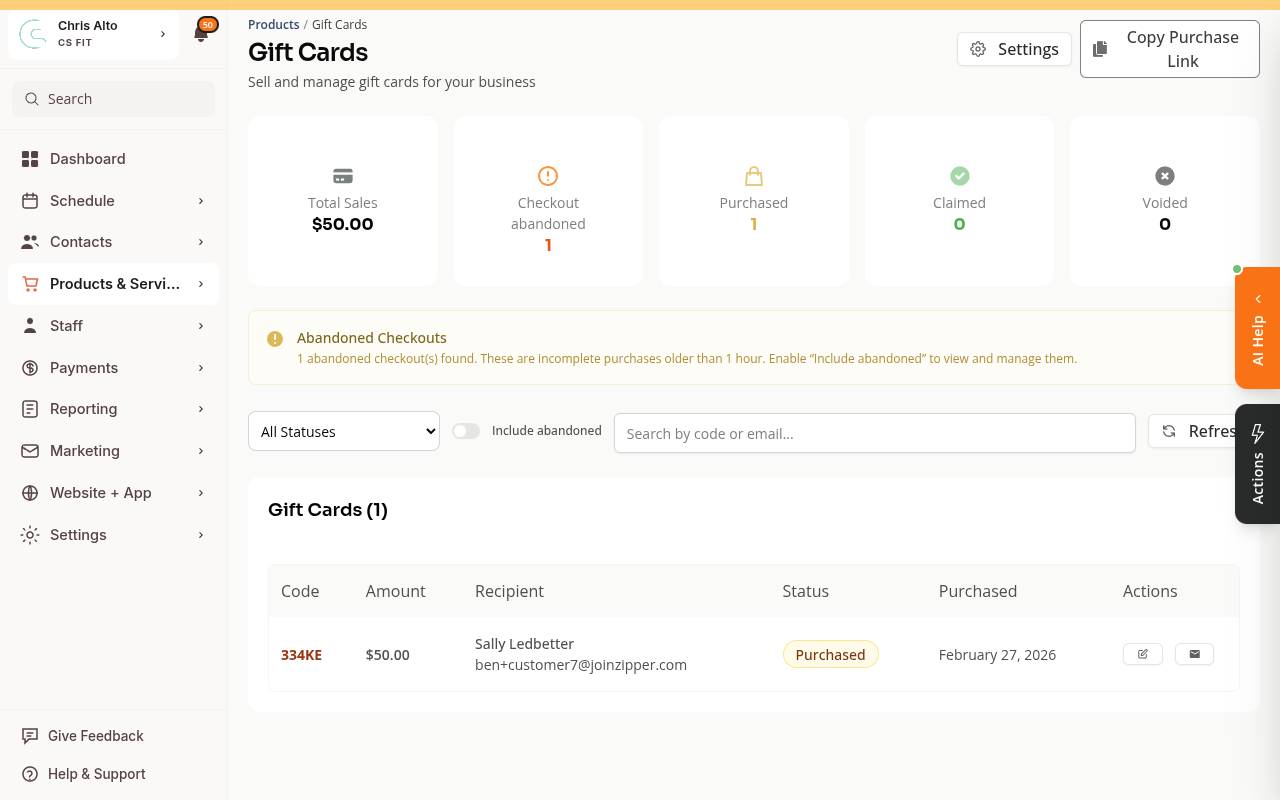
Step 1: Go to Products & Services → Gift Cards
The page shows your gift card stats (total sales, purchased, claimed, voided) and a list of all sold gift cards.
Step 2: Open Gift Card Settings
Click the Settings button (gear icon, top right of the page).
The Gift Card Settings modal opens with three options:
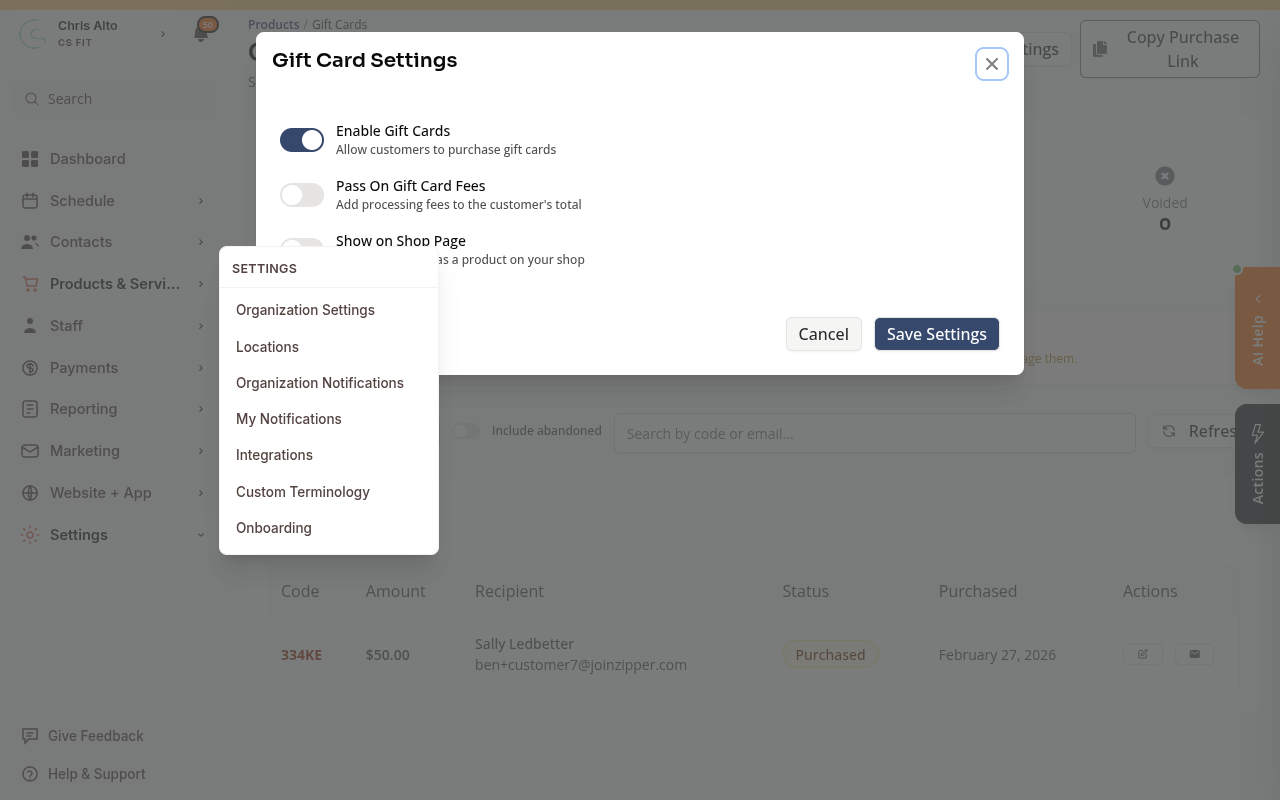
- Enable Gift Cards — turns gift cards on. Customers can now purchase them
- Pass On Gift Card Fees — adds Stripe processing fees to the customer’s total (optional)
- Show on Shop Page — displays gift cards as a product in your website or app (optional)
Turn on Enable Gift Cards at minimum, then click Save Settings.
How Customers Buy a Gift Card
Once enabled, customers can buy gift cards in three ways:
- From your Zipper website’s pricing page (if you’re using a Zipper site and “Show on Shop Page” is toggled on): they browse to your shop and select Gift Card
- Through a direct link: click the Copy Purchase Link button in the top right and share it via email, social media, or as a direct link anywhere on your website (note: if your website is hosted outside of Zipper, you’ll want to add this link to your website)
- In person: an admin sells a gift card through Point-of-Sale during checkout
At checkout, the buyer enters:
- The gift card amount ($5–$1,000)
- Their name and an optional personal message
- The recipient’s email address
Gift Card Statuses
| Status | Meaning |
|---|---|
| Processing Payment | Payment is being confirmed by Stripe |
| Purchased | Payment confirmed, email sent to recipient |
| Claimed | Recipient redeemed the code, credits added |
| Voided | Gift card cancelled by admin |
| Checkout Abandoned | Buyer started but didn’t complete purchase |
How Recipients Redeem a Gift Card
The recipient gets an email with a unique code. They enter the code at your studio’s checkout page. Once redeemed:
- The gift card amount is added as credits to their Zipper account
- They can use those credits on any product at your studio
Managing Gift Cards
On the Gift Cards page you can:
- Filter by status — use the All Statuses dropdown to view only Purchased, Claimed, etc.
- Search — find a specific gift card by code or recipient email
- Resend the email — click the envelope icon on any Purchased gift card to resend the delivery email
- Copy the code — click the external link icon to copy the redemption code to share manually
- Void — cancel a gift card if needed (contact support for refund questions)
Tips
- Gift card amounts must be between $5 and $1,000
- Use Copy Purchase Link (top right) to share a direct purchase link with customers via email or social media
- If a gift card was sold directly to a known customer via Point-of-Sale, they may see a one-click Claim button in their account — no code entry needed
Troubleshooting
Recipient didn’t get the email Check the email address on the gift card record. Use the envelope icon to resend. Ask the recipient to check their spam folder.
A gift card shows as “Checkout Abandoned” The buyer started but didn’t finish the purchase. The gift card was never paid for. You can toggle on Include abandoned on the Gift Cards page to see and manage these.
Need a hand?
Email our team at support@joinzipper.com and we'll usually reply within a few hours.
Was this article helpful?
Thanks for your feedback.