Confirmation and Receipt Notes Explained
Add different email, SMS and push notes to the product or booking they belong to.
Confirmation and Receipt Notes Explained
Additional notes add instructions after a standard confirmation, reminder or receipt. The notes belong to the product, class, event or appointment setting you edit. They are separate from a marketing campaign or a customer’s private profile notes.
For example, add parking directions to a class confirmation or collection instructions to a product purchase receipt.
Example: Add a Product Receipt Note
- Open Products & Services > Manage Plans and find the product on the Products page.
- Click Edit and open Settings.
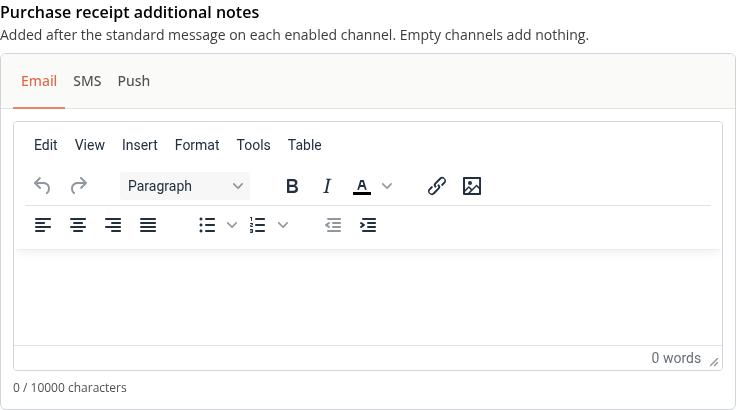
- Under Workflow, find Purchase receipt additional notes.
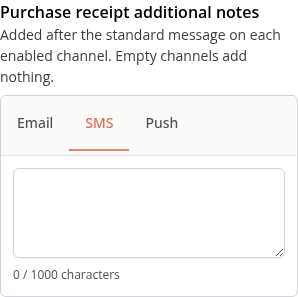
- Choose Email, SMS or Push and enter the message for that channel.
- Review the other channels, then Save the product.
Write Each Channel Separately
| Channel | Format and limit |
|---|---|
| Rich text, up to 10,000 characters | |
| SMS | Plain text, up to 1,000 characters |
| Push | Plain text, up to 180 characters |
New text entered in Email does not automatically fill the SMS and Push fields. Older email-only reminder notes can appear as converted SMS text, so review every available channel before saving. An empty channel adds no note. Keep SMS and push instructions short, and check the counter in the editor.
Adding a note does not enable a delivery channel or override a customer’s notification preferences. Check the relevant notification and reminder settings as well.
Notes for Bookings and Reminders
Use the additional-notes controls on the relevant class, event, program or appointment configuration. Check the editor’s label so you are changing the intended confirmation, reminder or receipt. Appointment, class, event and program reminder-note editors offer Email and SMS; the available channels depend on the message. A product purchase note is not a global note for every class booking.
Keep reusable studio-wide information in the appropriate shared configuration, and specific instructions with the class or appointment they concern. Review any inherited settings before changing a shared type.
On Mobile
Open the same editor and select the channel tab. Scroll to Save when the notes are ready.
Troubleshooting
The note did not appear in an SMS. Check that you filled the SMS field on the correct product or booking setting, saved it and have SMS delivery enabled for that message.
The note appears on the wrong message. Check whether you edited a receipt note, a confirmation note or a reminder note. These are separate uses.
Save failed. Check the character limit and any validation message. Correct the draft and retry; do not assume the note was saved.
Need a hand?
Email our team at support@joinzipper.com and we'll usually reply within a few hours.
Was this article helpful?
Thanks for your feedback.