Booking Window Settings Explained
Control when customers can book, including earlier access for eligible products.
Booking Window Settings Explained
A booking window controls when a customer can book a service. It is separate from staff availability, capacity and whether the customer has a product that pays for the booking.
Appointment Windows
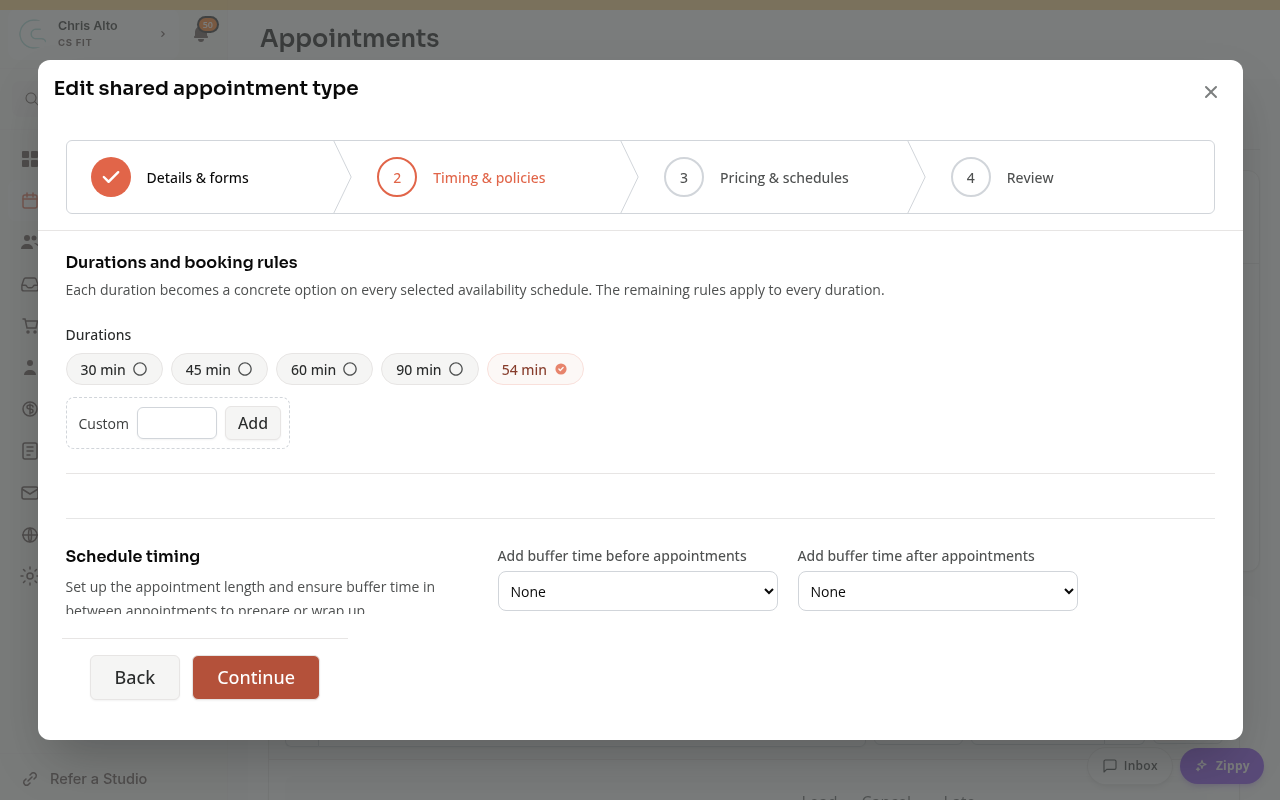
Open Schedule > Appointments > Appointment Types and edit the type. For a shared type, open Timing & policies and find Booking windows.
Default booking window sets how far ahead a customer can book. For example, a two-day window allows dates within the next two days. Set 0 for no booking-window limit. A finite appointment window currently allows up to thirty days.
Earlier Booking for Members
Set Product-specific booking windows on the service. First choose a finite default window, then add an eligible product with an earlier booking window.
For example, a service can open two days ahead for drop-in customers and seven days ahead for customers with a selected membership.
These windows do not add together. If a customer has several eligible products, the earliest eligible window wins. Product-specific booking windows do not by themselves give free access or booking credits.
Classes and Events
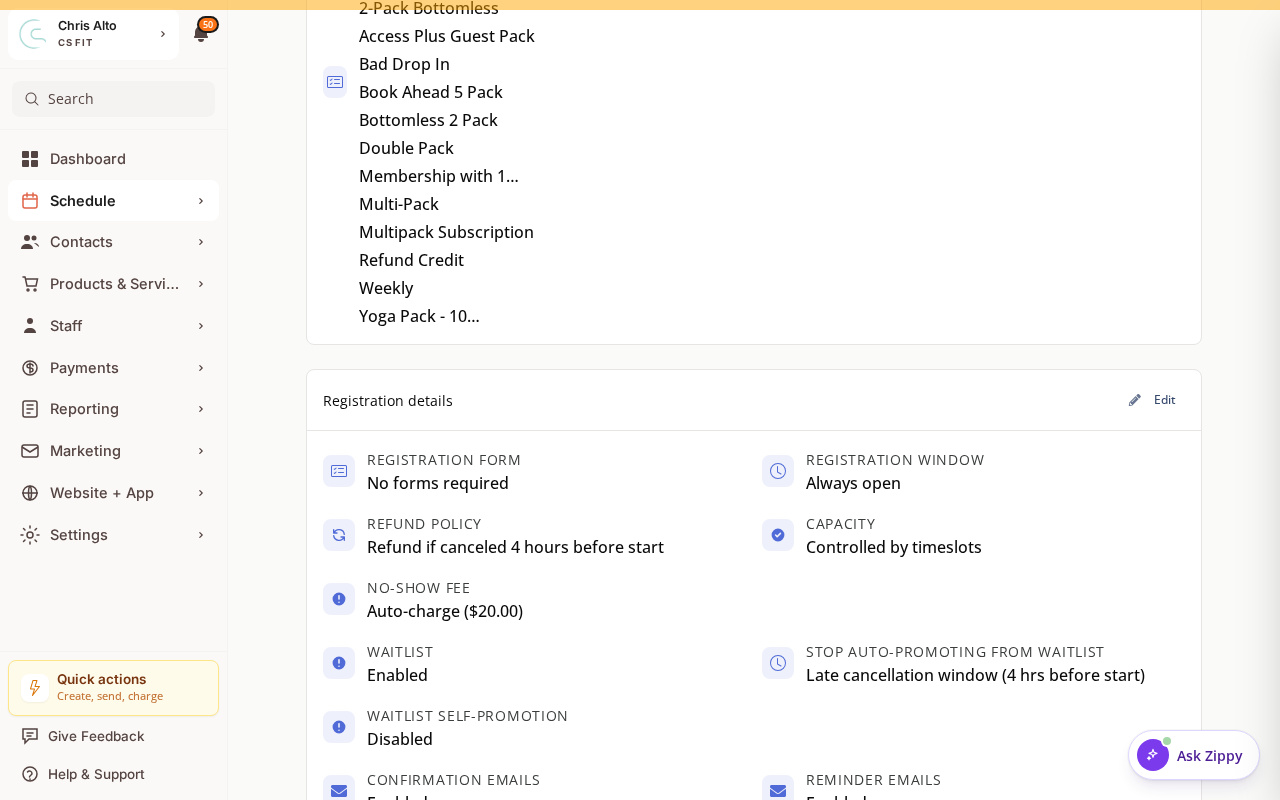
For recurring classes with Restrict registration window enabled, the registration settings control when bookings open and close relative to the occurrence.
- Registration opens controls how early booking becomes available.
- A positive Registration closes value closes booking before the start.
- A zero close offset closes registration when the class starts.
For one-time events, set the opening and closing dates directly. With Restrict registration window turned off, customer booking can remain open until the occurrence ends.
A service’s booking window does not override its capacity, customer eligibility or other access restrictions.
On Mobile
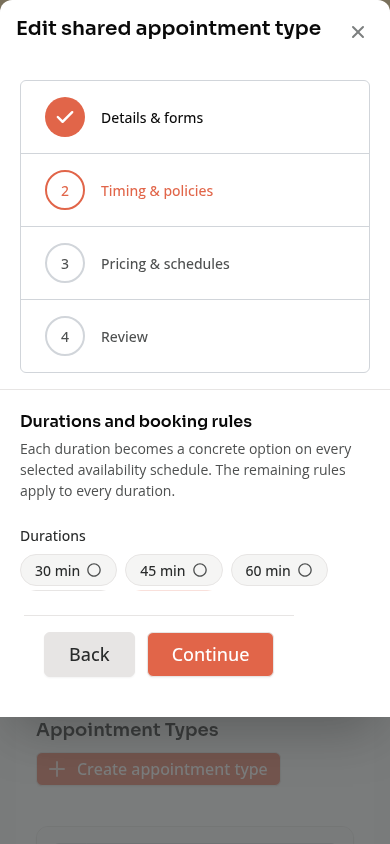
The appointment wizard stacks timing and policy fields. Scroll to Booking windows to check the default and product-specific settings.
Troubleshooting
A slot exists but the customer cannot book it. Check its booking window, the customer’s eligibility, staff availability and capacity.
I cannot add an earlier product window. Set a finite default window first. An always-open default cannot be made earlier.
One member can book earlier than another. Check the eligible products they own. The service chooses the earliest window each person qualifies for.
Need a hand?
Email our team at support@joinzipper.com and we'll usually reply within a few hours.
Was this article helpful?
Thanks for your feedback.