Automations Explained
Understand triggers, actions, draft status, delays and execution history.
Automations Explained
An automation connects a trigger to one or more actions. For example, a new customer can trigger a welcome email. A delay or condition can control when the action runs and who receives it.
Where to Find Them
Open Marketing > Automations. The list shows each workflow’s status and activity. A draft is not ready to run simply because it appears in this list.
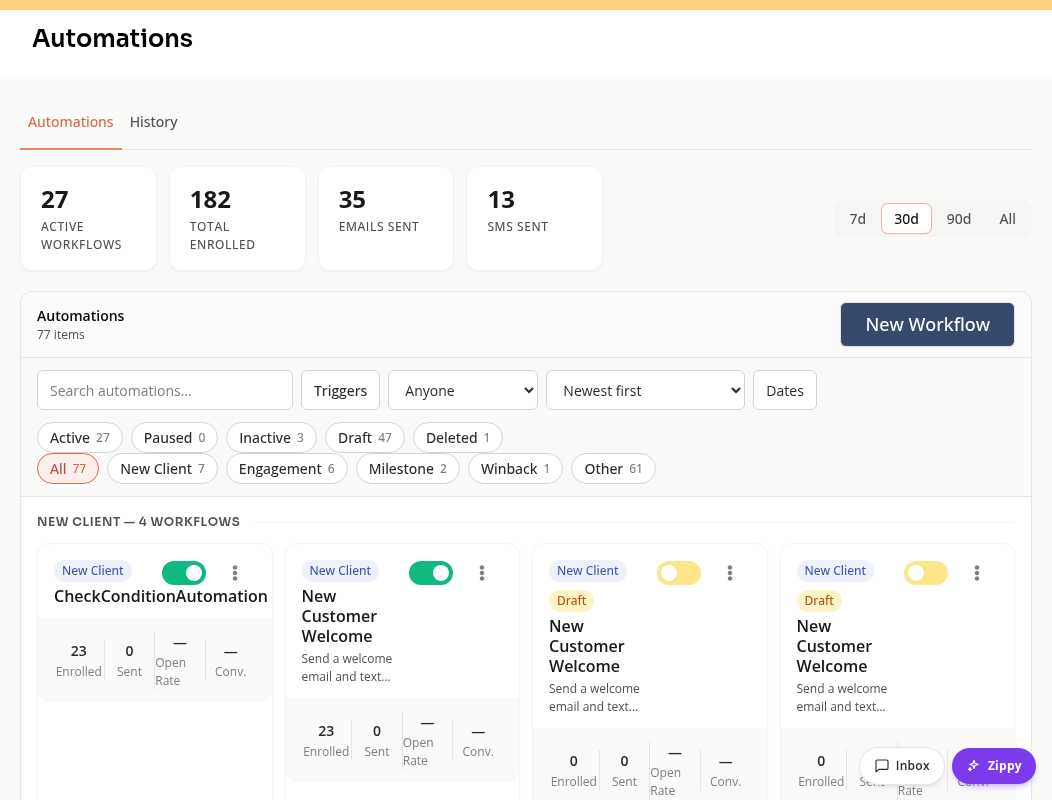
Use New Workflow to start a workflow, or open an existing name to inspect its flow.
Triggers and Actions
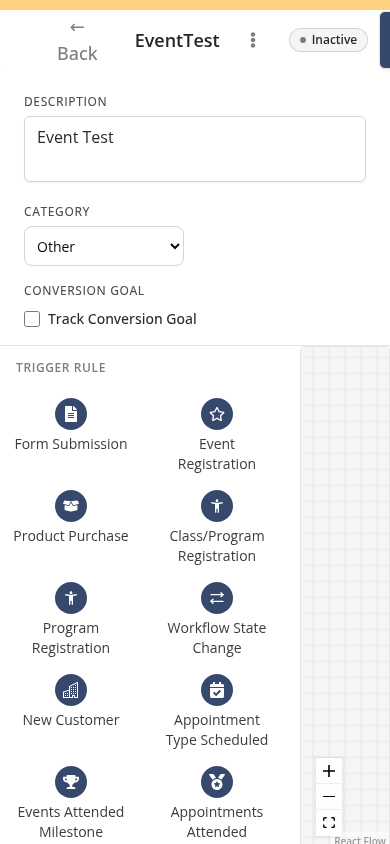
A trigger starts the workflow. Examples include Form Submission, Product Purchase, New Customer, Credit Expiration, Low Cash Balance, and Before/After Class.
An action does the work. Examples include Send Email, Send SMS, Add Tag, Issue Booking Credits, Create Coupon, and Create Task.
Connect the flow so the trigger reaches the intended actions. Use Delay time to wait, or Condition to check a rule before continuing.
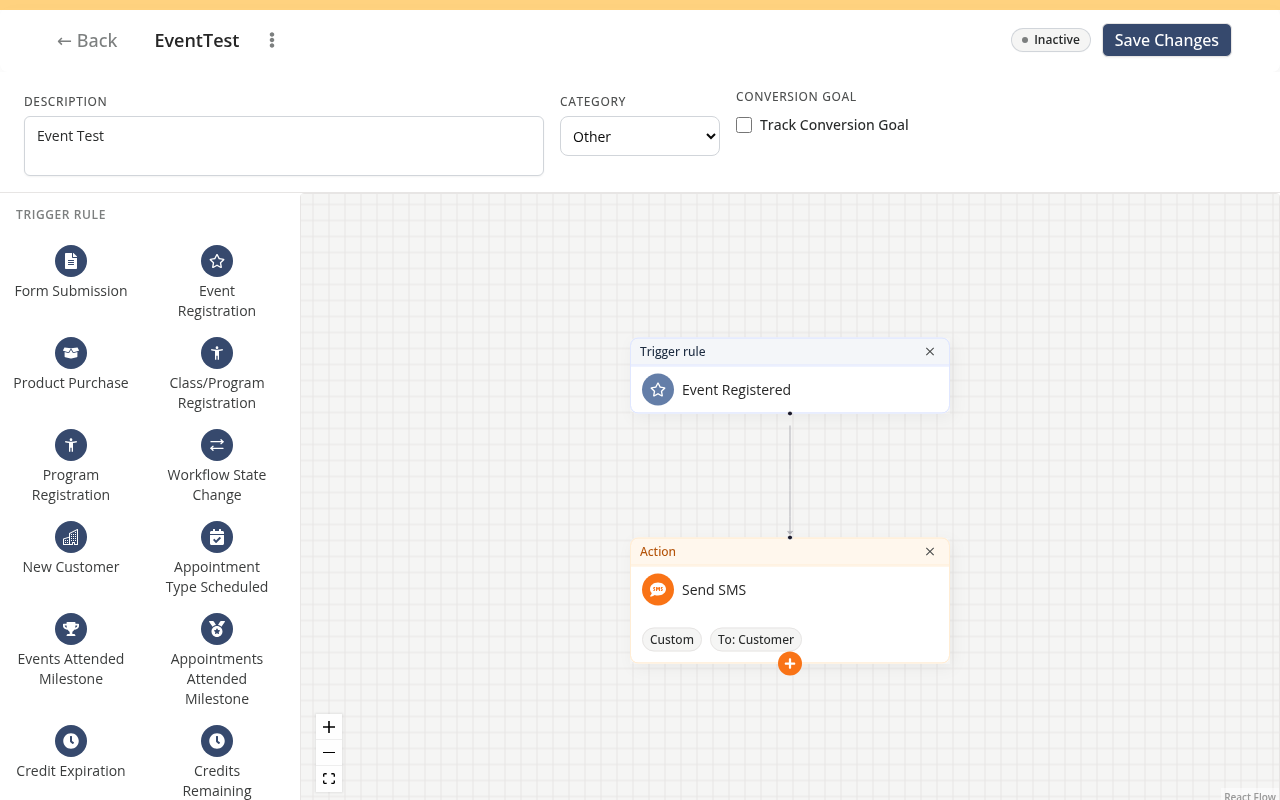
Review the selected customer, product, form or service on each step. A trigger for any product has a wider scope than a trigger for one product.
Anniversary Timing
For an anniversary trigger, set Months After Signup / First Booking to a positive whole number and choose Signup date or First booking date under Anniversary Based On.
It runs once at that exact number of calendar months. Setting 12 runs at month 12; it does not repeat at months 24 or 36. A first-booking anniversary is skipped when the customer has no bookings.
Draft, Active and Inactive
A Draft is still being prepared. Publish a valid draft before enabling it. An active workflow can respond to matching triggers; an inactive workflow does not start new work in the same way.
Saving an edit and activating a workflow are separate decisions. Check the status after saving. The editor validates required settings such as a custom email body.
When an Action Runs
An immediate trigger starts work without a planned delay. It does not promise that an email or text arrives at the same instant as the customer’s booking or purchase.
Some actions run in the background. A delayed or in-progress run is different from a failed run. Check history before repeating a trigger or creating a second workflow.
Read History
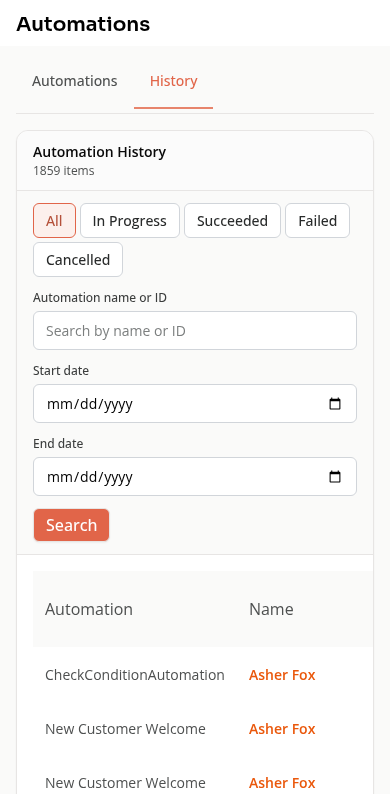
Choose History on the Automations page. Filter by In Progress, Succeeded, Failed, or Cancelled. Search by name or ID and check the date range.
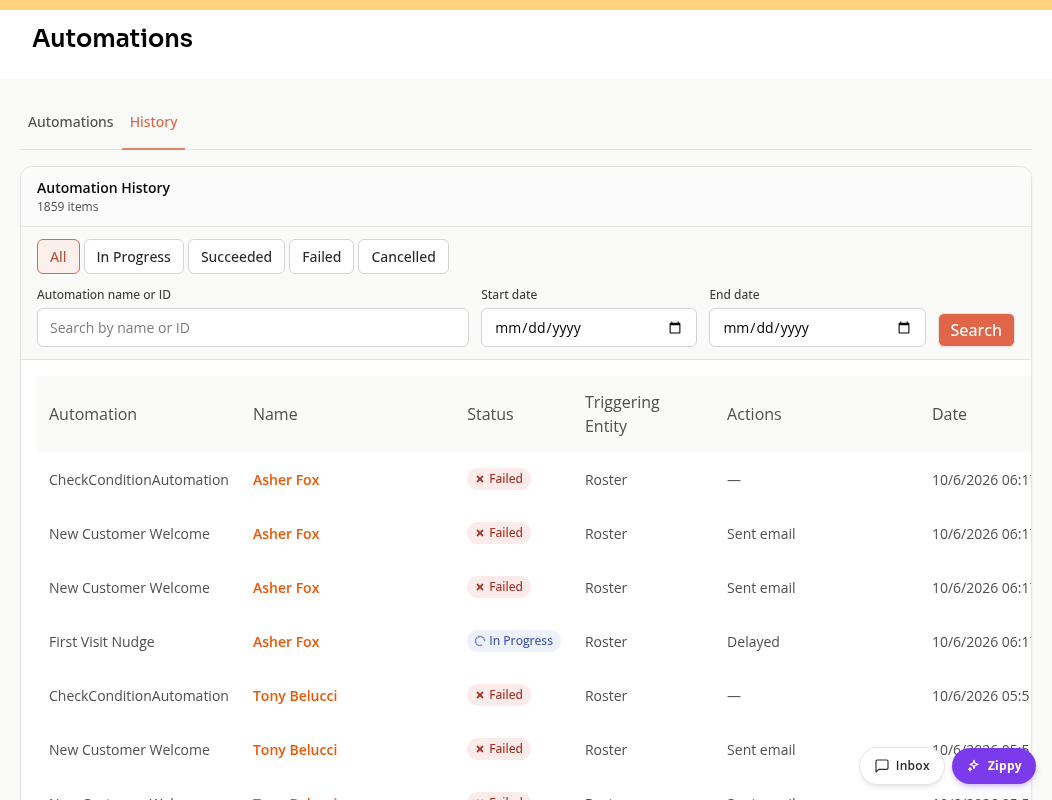
History shows the triggering record and actions. A successful workflow action is not the same as proof that a recipient opened an email. Check message delivery information for that question.
On Mobile
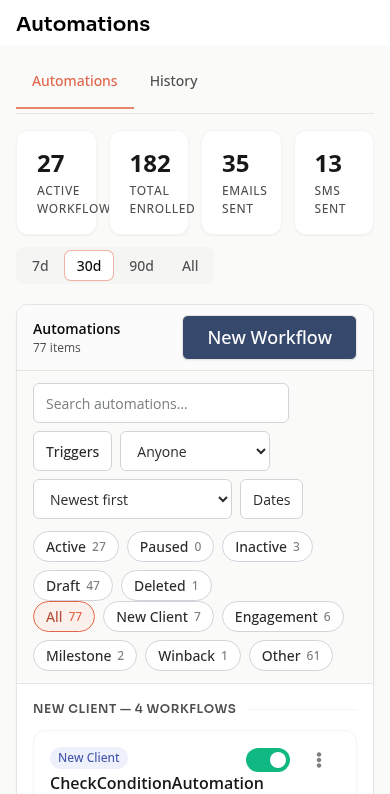
Use the same list and history tabs. The flow editor has a wide canvas; use its zoom and fit controls to inspect connected steps.
Troubleshooting
Nothing ran. Check the workflow’s status, trigger, connected steps and timing. A once-per-customer rule can prevent a repeat run.
A message did not arrive. Check the action’s result, sender setup, contact details and email or SMS permission.
A run failed. Review its error and fix the related setting or data before trying again.
Need a hand?
Email our team at support@joinzipper.com and we'll usually reply within a few hours.
Was this article helpful?
Thanks for your feedback.