Appointment Availability Explained
Use weekly hours and date-specific adjustments while keeping existing bookings in place.
Appointment Availability Explained
An availability schedule sets when a staff member can offer appointments. Weekly hours provide the normal pattern. Adjusted availability replaces that pattern for a selected date.
Changing availability controls new booking choices. It does not cancel appointments customers already booked.
Open the Schedule
Open Schedule > Appointments > Availability Schedules. Edit the schedule you want to change. Check its staff member and time zone.
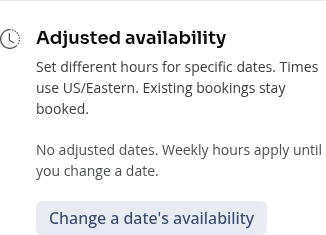
In Manage schedule, scroll below the weekly hours to Adjusted availability.

Change One Date
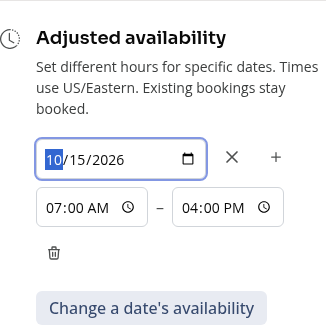
Choose Change a date’s availability, then enter the date. Its normal weekly hours load as a starting point.
Edit the start and end times, or use Add time range for another period that day. These hours replace the normal hours for this date; they do not add hours to a second weekly schedule.

The times use the schedule’s time zone. End times must be after start times on the same date, and ranges must not overlap.
Make the Whole Day Unavailable
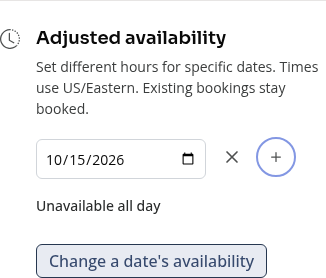
Remove every time range for that adjusted date. The row shows Unavailable all day. Keep the dated adjustment to keep that day closed.
Removing the whole adjustment has a different effect: the date goes back to the weekly pattern.
Choose Save when the dates and times are correct. Choose Cancel to discard the draft.
Check Existing Bookings Separately
Appointments already booked stay booked, even if the new hours do not cover them. Review the calendar and cancel or reschedule those appointments separately if needed.
Internal blocked time is also separate from a customer-facing appointment service. It reduces available time; it should not be offered as an appointment type to customers.
On Mobile
The same dated rows stack in the schedule editor. Scroll below the weekly hours.
Troubleshooting
Save shows a date error. Use one valid adjustment per date. Fix invalid or overlapping time ranges.
The day reopened. Check whether the whole adjustment was removed. To close the day, keep the date and remove its time ranges.
A customer still has a booking outside my new hours. That booking stays in place until you change it separately.
Need a hand?
Email our team at support@joinzipper.com and we'll usually reply within a few hours.
Was this article helpful?
Thanks for your feedback.