How to Create a Discount Code
There are two types of discounts in Zipper: an inline Point-of-Sale discount (admin-applied at checkout, no code) and a Stripe promo code (a code customers enter themselves). Here's how each works.
Option A: Apply a Discount in the Point-of-Sale (Admin-Side)
Use this when you’re checking out a customer in person and want to give them a one-time discount. No code needed — you set it directly in the cart.
Step 1: Open the Point-of-Sale and add a product
- Navigate to: Payments > Point-of-Sale
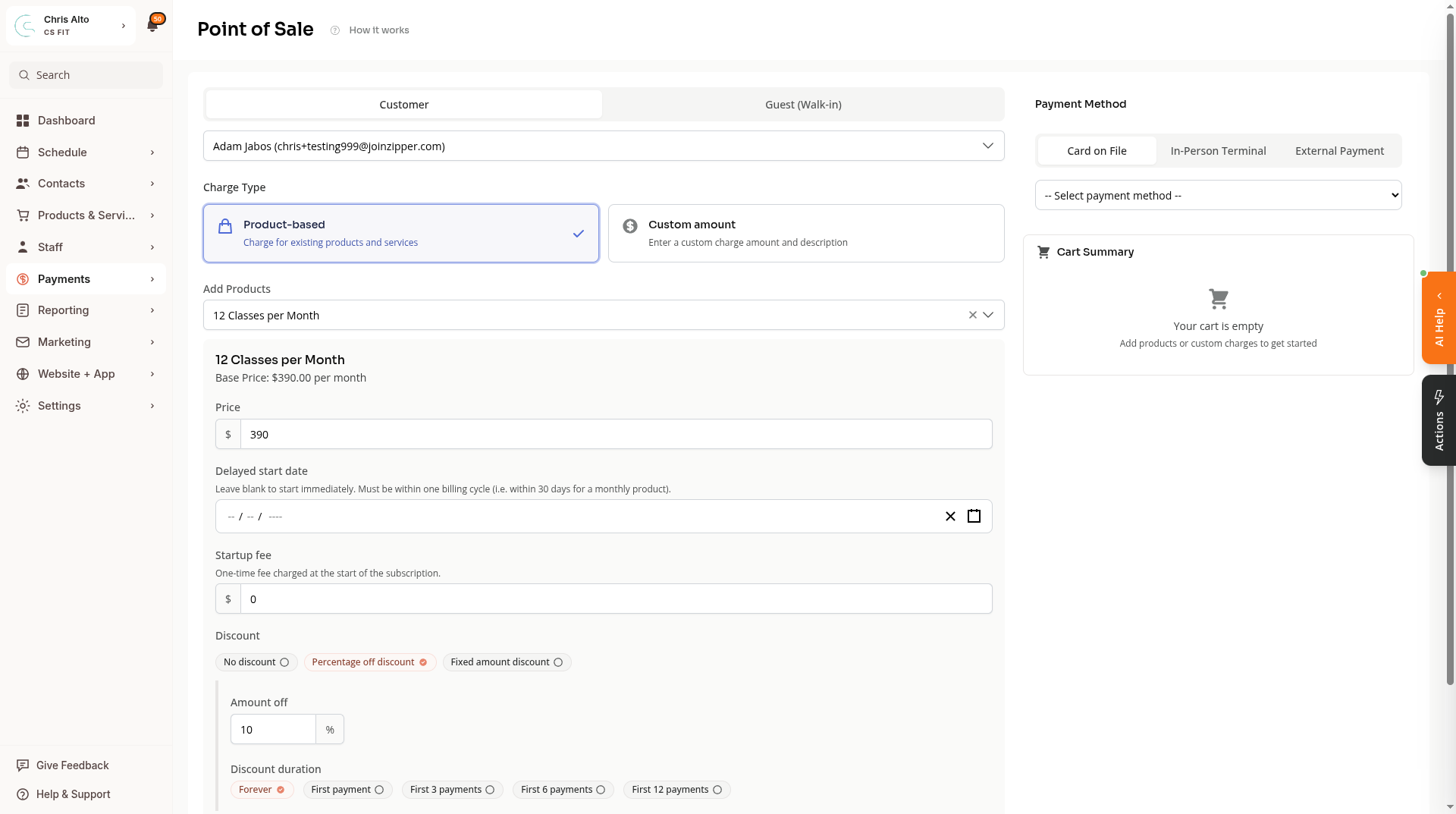
- Select the customer, then add the product they’re purchasing
Step 2: Set the discount type
In the product configuration, find the Discount section:
- No discount — no discount applied (default)
- Percentage off discount — enter a percentage (e.g., 50%)
- Fixed amount discount — enter a dollar amount off (e.g., $20)
Click Percentage off discount or Fixed amount discount to enable the discount.
Step 3: Enter the discount amount
- In the Amount off field, enter the percentage or dollar amount
- For subscriptions, a Discount duration option appears — choose how long the discount applies: Forever, First payment, or a specific number of payments
Step 4: Add to cart and complete checkout
- Click: Add to Cart
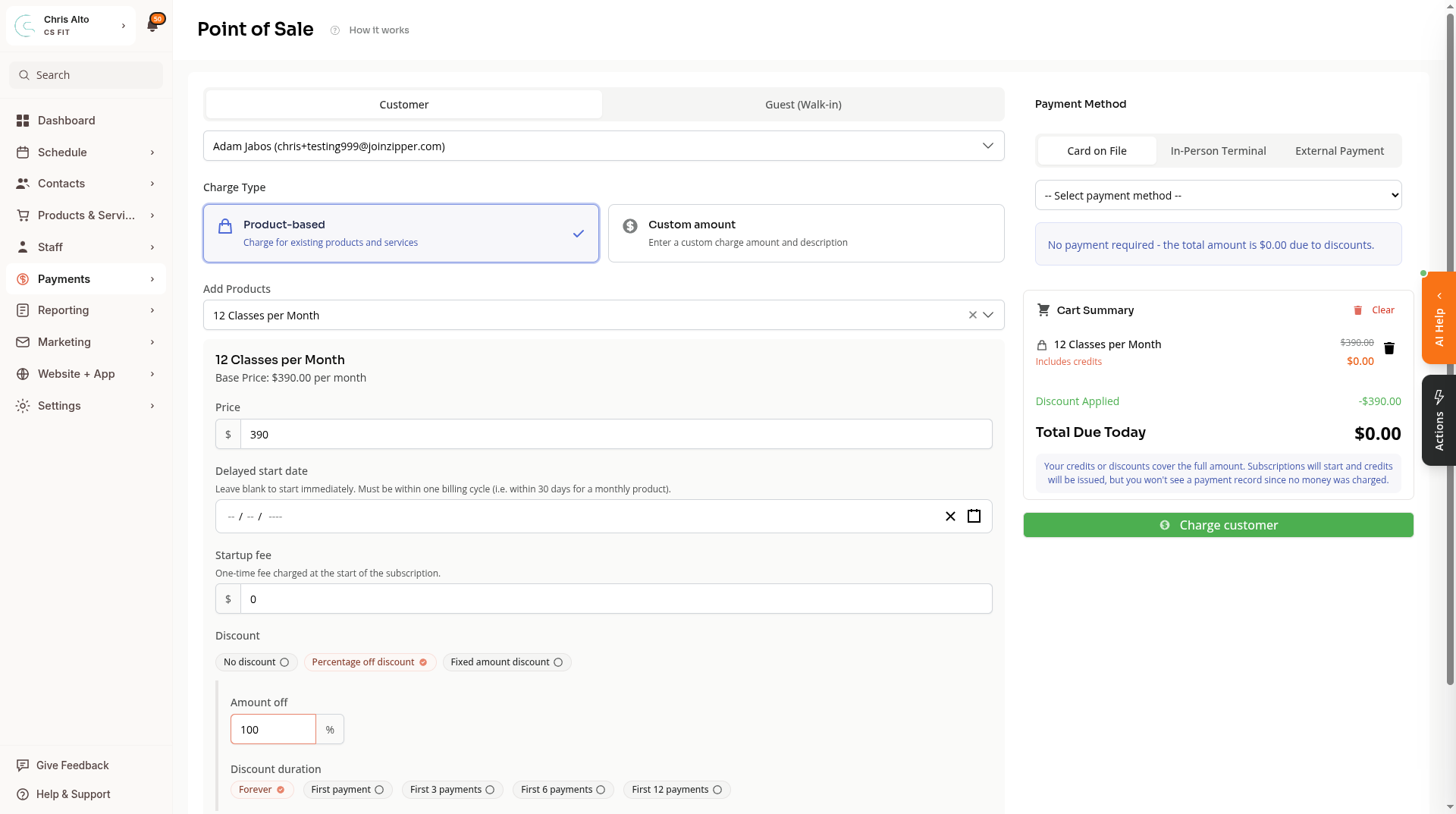
If the discount brings the total to $0, a message confirms no payment is needed:
Option B: Create a Promo Code for Customer Self-Checkout
Use this when you want to share a discount code that customers enter themselves on your website or in your app.
Promo codes are created in the Stripe Dashboard — not in Zipper’s admin.
Step 1: Log into the Stripe Dashboard
- Go to dashboard.stripe.com
- Make sure you’re in the correct Stripe account connected to your Zipper org (if you have more than one Stripe account, you can toggle between them in the top left of your dashboard)
Step 2: Create a coupon
- Navigate to Product Catalog → Coupons → Create coupon
- Set:
- Type: Percentage off or Amount off
- Value: The discount amount (e.g., 25 for 25% off)
- Duration: Once, Repeating, or Forever
- Click: Create coupon
Step 3: Create a promotion code
- With the coupon open, click Create promotion code
- Enter the code customers will type (e.g.,
SUMMER25) - Optionally set: expiration date, max redemptions
- Click: Save
Step 4: Share the code
Send the code to customers via email, social media, or in-person. When they check out on your website or app, they’ll see a promo code field — they enter the code and the discount applies.
On Mobile
Point-of-Sale discounts work the same on mobile. Navigate to Point-of-Sale via the hamburger menu.
Tips
- Inline Point-of-Sale discount vs. promo code: Point-of-Sale discounts are one-off, immediate, and admin-controlled. Promo codes are shareable, trackable, and customer-entered.
- 100% discount = free: Set a percentage discount of 100 to comp an item entirely. The cart will show $0 and no payment method is required.
- Duration for subscriptions: “Forever” keeps the discount on every billing cycle. “First payment” applies only to the first charge — useful for intro offers.
Troubleshooting
The promo code isn’t working for a customer. Check the code in Stripe for: expiration date, whether it’s exceeded the max redemptions, and that it’s marked Active. Also confirm the customer is entering the code exactly (case-sensitive).
The Point-of-Sale discount section isn’t showing. The discount section appears after selecting a product. Add the product to see the configuration options.
Stripe Subscription Coupons (Advanced)
For subscription-specific coupons (recurring discounts, duration in months, max redemptions per customer), Stripe’s own dashboard offers more granular controls. See Stripe’s documentation: Subscription coupons.
Need a hand?
Email our team at support@joinzipper.com and we'll usually reply within a few hours.
Was this article helpful?
Thanks for your feedback.