How to Apply a Gift Card Balance at Checkout (Point-of-Sale)
When a customer has gift card credits on their account, their balance shows up automatically when you check them out through the Point-of-Sale. You choose how much to apply.
Before You Start
The customer must have already claimed their gift card so the balance shows in their account.
How to check whether a gift card has been claimed:
- Open the customer’s profile and go to Billing & Payments → Cash Balance. A positive balance means the gift card has been claimed and is ready to apply.
- Or, go to Products & Services > Gift Cards and find the gift card in the list. A status of Claimed confirms the credit has been added to the customer’s account.
How to claim it for them (if it still shows as Purchased):
- On the Products & Services > Gift Cards page, click the envelope icon to resend the redemption email to the recipient, or click the external-link icon to copy the redemption code and enter it at checkout.
For full details on how gift cards are redeemed, see How Gift Cards Work in Zipper.
Steps
Step 1: Open the Point-of-Sale and select the customer
- Navigate to: Payments > Point-of-Sale
- In the Select a customer field, search for and select the customer
Step 2: Add the product to the cart
- In the Add Products field, search for and select the product
- Configure any options (price, billing start date, etc.)
- Click: Add to Cart
Step 3: Apply the gift card credit
With a customer selected and a product in the cart, the Customer Cash Balance section appears automatically.
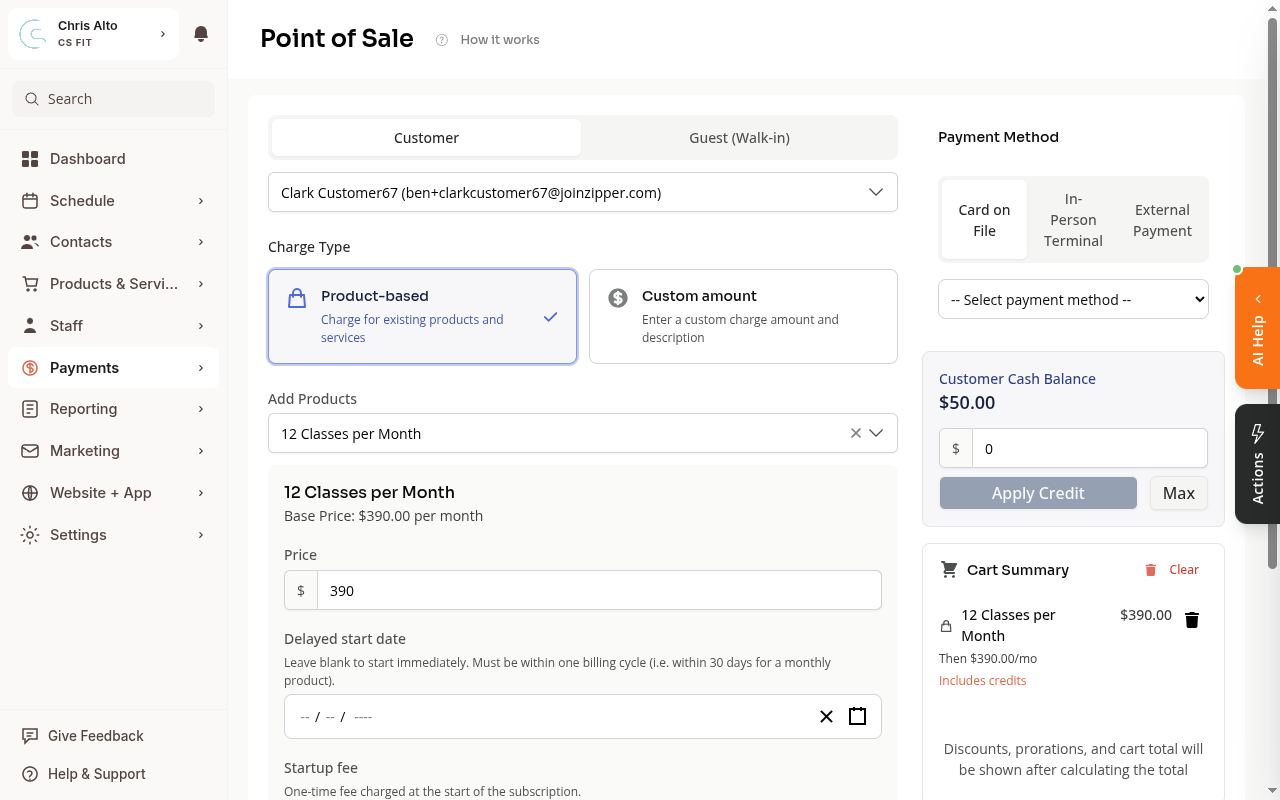
- Enter an amount to apply, or click Max to apply the full balance (up to the cart total)
- Click: Apply Credit
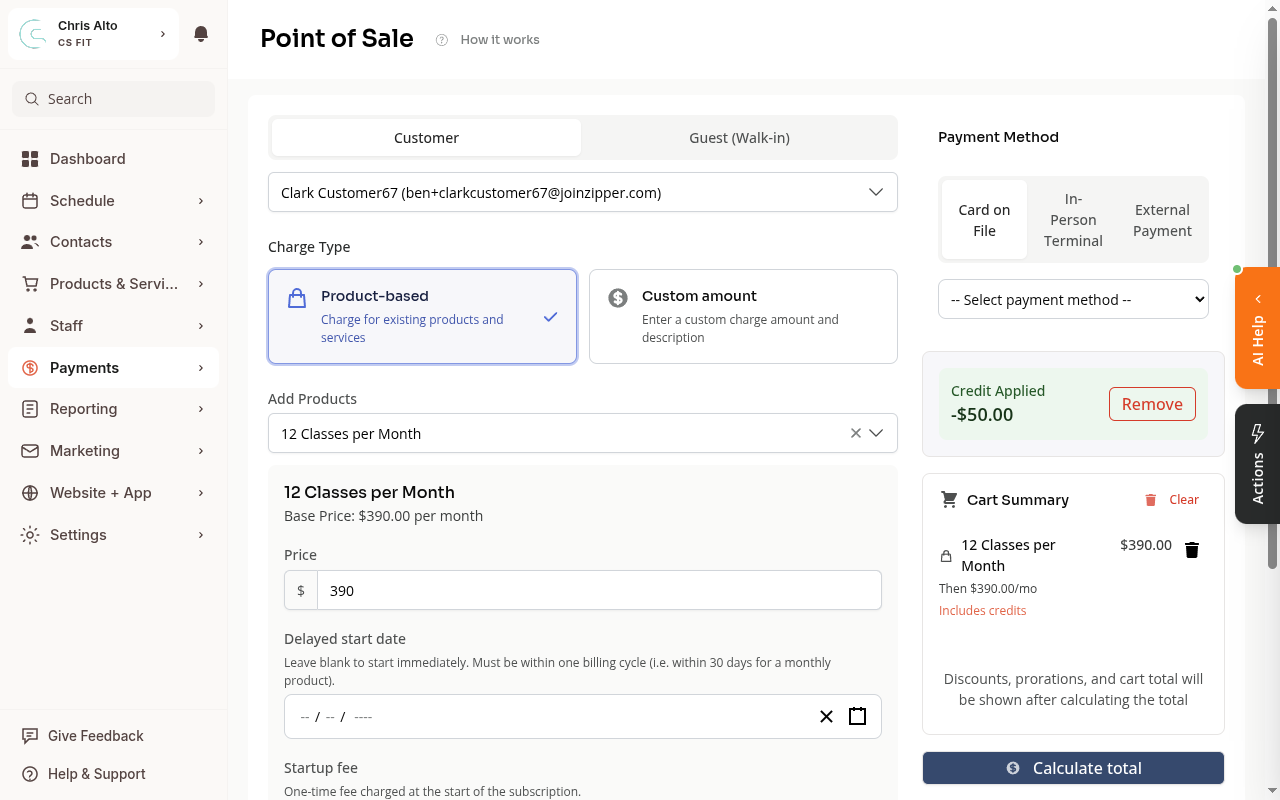
Step 4: Complete checkout
- If credit covers the full total: a message confirms no payment is required — proceed to complete the order
- If credit is partial: select a payment method (card, terminal, or external) for the remaining balance, then complete checkout
Tips
- The Max button automatically fills in the maximum applicable amount (won’t exceed the cart total)
- If the customer has credit holds from a previous incomplete checkout, a warning appears — click Cancel next to the hold to release it before applying new credit
- You can remove credit after applying by clicking the Remove button next to the “Credit Applied” line
Troubleshooting
The Customer Cash Balance section isn’t showing. This section only appears when the customer has a positive gift card credit balance. If it’s not visible, the customer’s balance may be $0. Ask them to confirm they’ve claimed their gift card — they receive an email with a redemption link when it’s purchased.
The credit isn’t covering the full amount. The credit can only be applied up to the cart total. If the balance is less than the total, pay the remainder with a card or other method. If you expected a higher balance, check the customer’s balance in their CRM profile → Billing & Payments → Cash Balance.
Need a hand?
Email our team at support@joinzipper.com and we'll usually reply within a few hours.
Was this article helpful?
Thanks for your feedback.