How to Update a Customer's Subscription Payment Method
Choose the card for a subscription and its pending and future invoices without charging it immediately.
How to Update a Customer’s Subscription Payment Method
Changing a subscription’s card updates the payment method for that subscription and its pending and future invoices. The update does not charge the card immediately.
Before You Start
You need permission to manage the subscription. It must support Stripe billing and must not be canceled. Check who owns its billing account, especially for a family membership.
Open the Editor
Open Contacts > Customers, choose the customer, then open Billing & Payments. Find the subscription, open its Actions menu, and choose Change payment method.
Select a saved card, or choose Create new payment method and complete the secure card form. Choose Update Payment Method when ready.
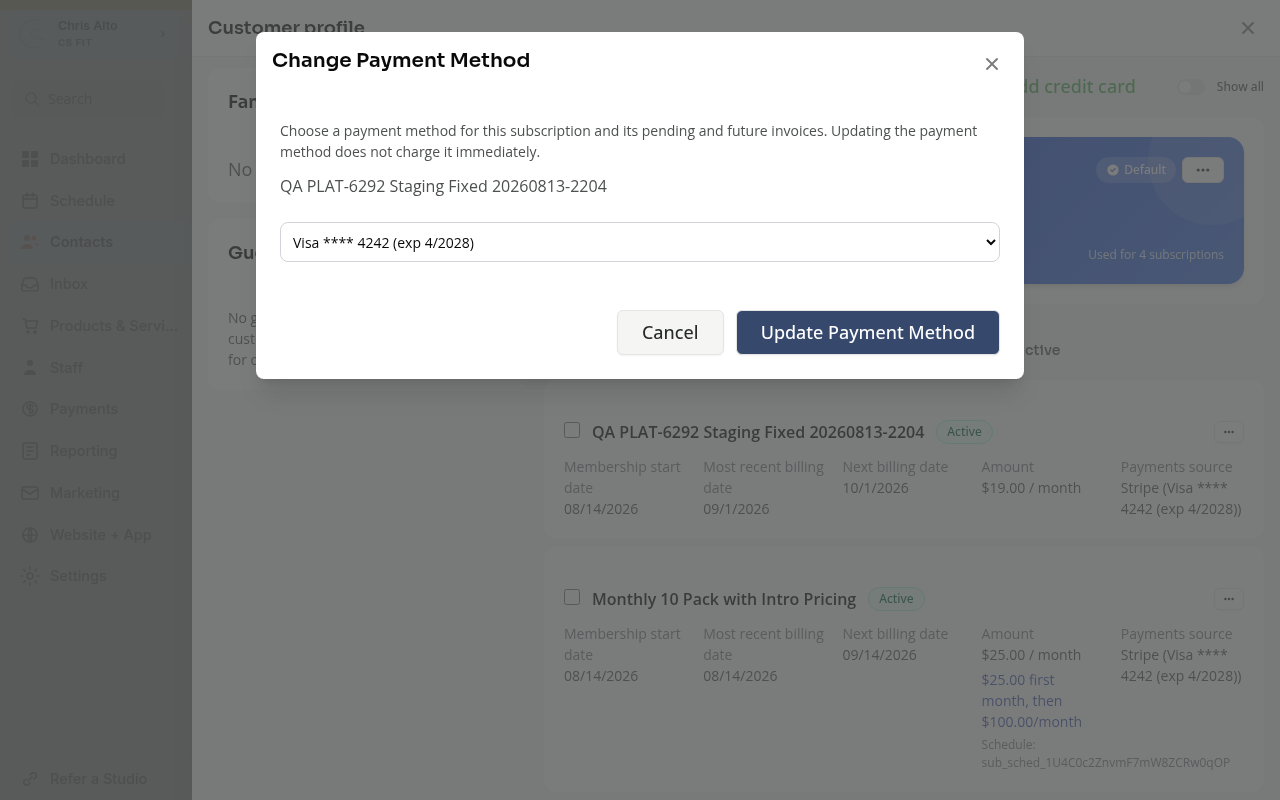
Review the card and billing owner before saving. A card belonging to a different billing account may be rejected even when it appears through a family relationship.
Pending Invoices
The change also applies to the subscription’s pending invoices. It does not by itself retry a failed payment. Check the invoice or collection tools separately when you need to collect money now.
Changing one subscription does not automatically change every other subscription owned by the customer.
On Mobile
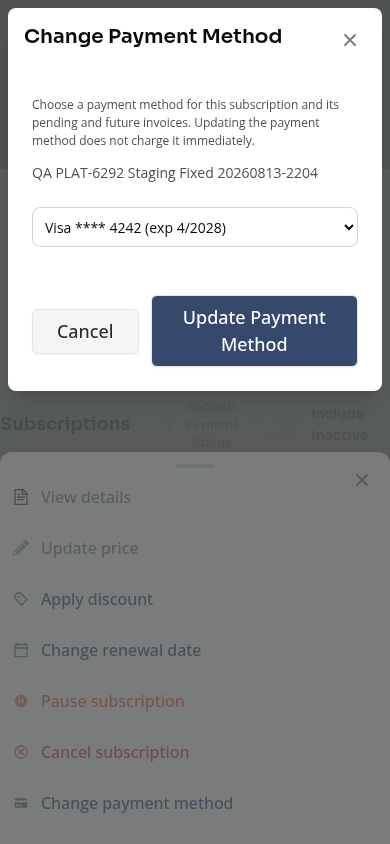
Open the subscription’s Actions dialog, then Change payment method. Review the card and choose Update Payment Method.
Troubleshooting
The action is missing. Check your permission, whether the subscription supports Stripe billing and whether it is canceled. An external cash or check subscription uses a different billing path.
The card cannot be used. Check the billing owner named in the editor or error. Choose a card under that account or add a new one there.
Saving reports an error. Read it, reopen the editor if needed, and explicitly save the correct card. The displayed card alone does not prove every pending invoice was updated.
Need a hand?
Email our team at support@joinzipper.com and we'll usually reply within a few hours.
Was this article helpful?
Thanks for your feedback.