How to Set Up the Stripe Card Reader (Terminal)
Connect a physical Stripe card reader to Zipper so you can take in-person payments at your front desk or events. Setup takes about five minutes once you have the reader in hand.
Before You Start
- Ensure you have owner or admin permissions
- Ensure your Stripe account is connected to Zipper
- Have a physical Stripe Terminal device (such as the Stripe Reader S700 or BBPOS WisePOS E)
- Have your studio’s physical address ready
Steps
Step 1: Go to Payments > Terminal Readers
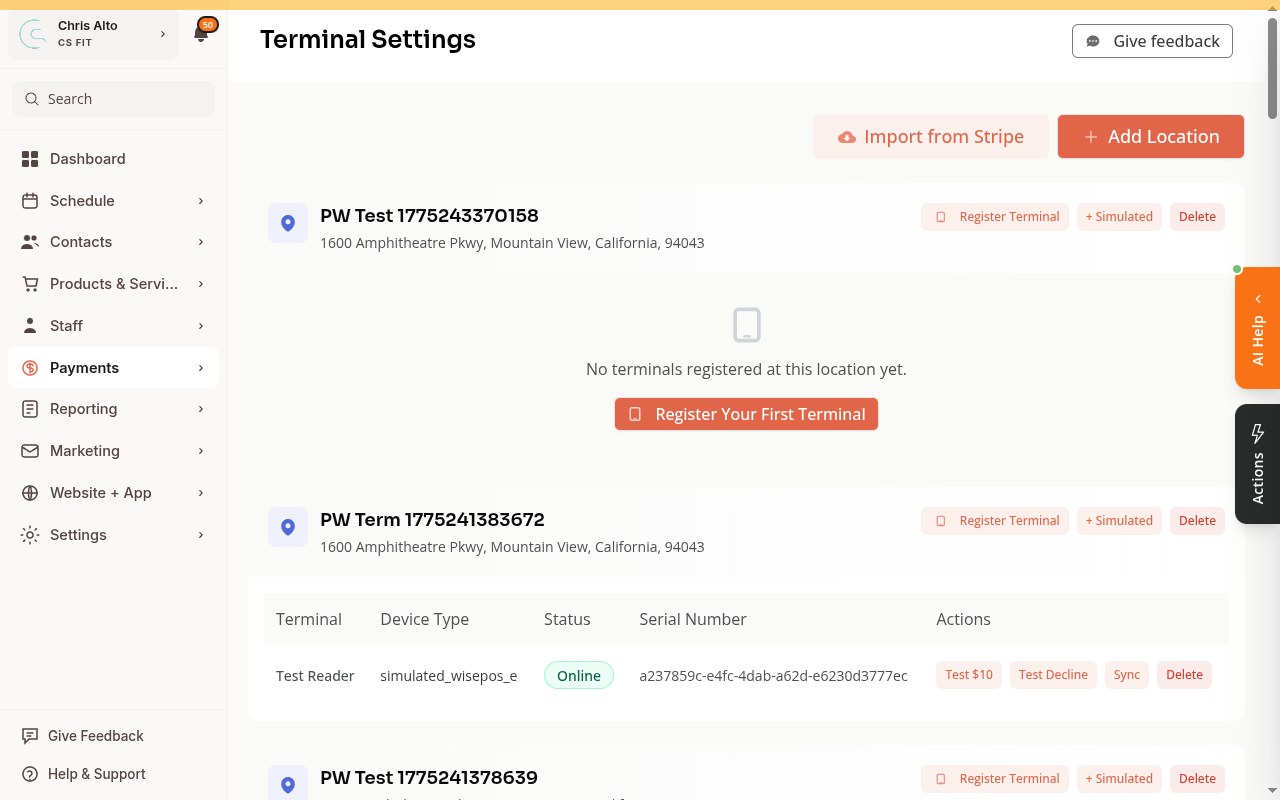
Go to Payments > Terminal Readers.
The page shows any existing locations and readers. If this is your first setup, you’ll see an Add Your First Location button.
Step 2: Add a location
Click Add Location (or Add Your First Location). A location ties your reader to a physical address — Stripe requires this for in-person payments.
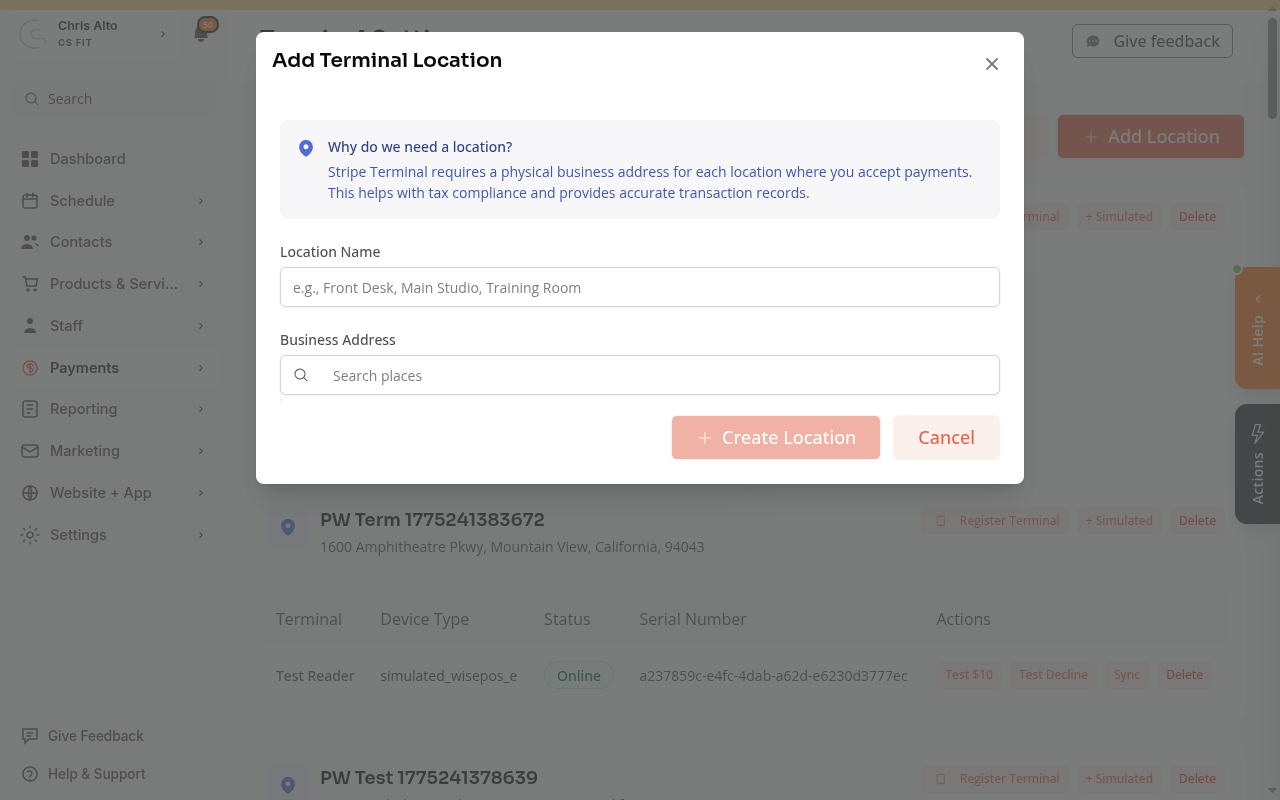
Type your business address in the search field, select it from the autocomplete, then click Add Location. Your location card will appear on the page.
Step 3: Get a registration code from your device
On the physical Stripe Terminal device (not in Zipper):
- Go to Settings on the device
- Tap Generate Registration Code
- Note the code shown (example:
seashell-palm) — it expires quickly, so move to the next step right away
Step 4: Register the terminal in Zipper
On your location card, click Register Terminal.
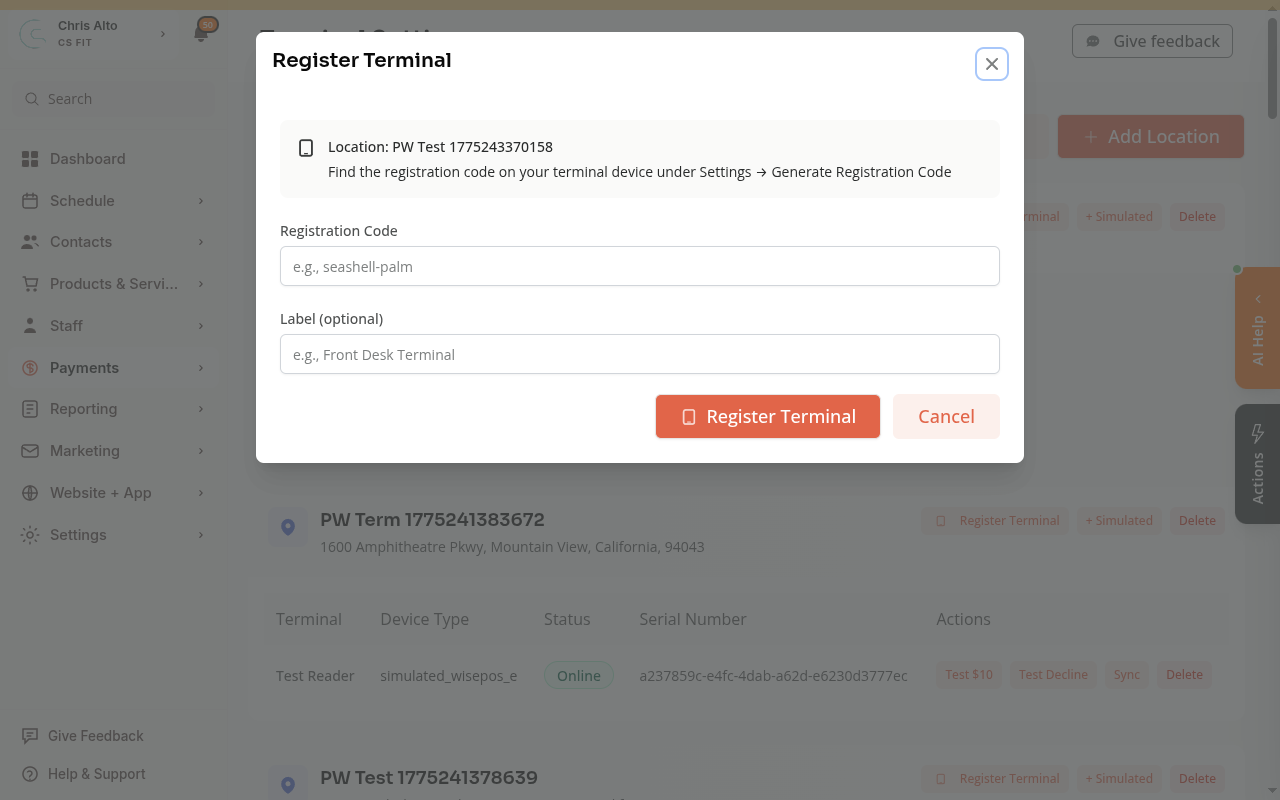
Fill in:
- Registration Code — enter the code from your device
- Label (optional) — give the reader a name like “Front Desk Terminal”
Click Register Terminal. You’ll see a success message and the reader will appear on the location card with its status (Online or Offline).
Tips
- Multiple locations: Use Add Location to add each address separately, then register a reader to each
- Import existing readers: If you already set up terminals in the Stripe Dashboard, click Import from Stripe to sync them into Zipper
- Test mode: If a yellow “Test Mode” badge appears, your Stripe account is in test mode — switch to live keys before taking real payments
Troubleshooting
“Failed to register terminal. Check the registration code.” The code was mistyped or expired. Go back to the device and generate a new registration code, then try again immediately.
Reader shows as Offline The terminal may be sleeping. Wake it by pressing any button, then check that it’s connected to Wi-Fi. The status updates automatically once it reconnects.
Registration code expired These codes are short-lived (a few minutes). If yours expires before you can enter it, generate a new one on the device and register again right away.
Need a hand?
Email our team at support@joinzipper.com and we'll usually reply within a few hours.
Was this article helpful?
Thanks for your feedback.