How to Set Up Taxes in Zipper
Choose manual or Stripe tax settings for products and set defaults for custom point-of-sale charges.
How to Set Up Taxes in Zipper
Zipper offers Manual sales tax and Stripe Tax settings. Choose the setting for each product, and set studio defaults for new custom point-of-sale charges.
Before You Start
You need permission to manage products and organization settings. Have the tax rate or category you intend to use ready before changing a setting.
Product Tax Settings
Open Products & Services > Manage Plans, edit a product, then open Pricing. In Tax & fees, choose the Sales tax source.
For Manual sales tax, enable Charge sales tax and enter the rate as a percentage. For Stripe Tax, choose the appropriate Tax code and ensure your connected Stripe account is set up for Stripe Tax.
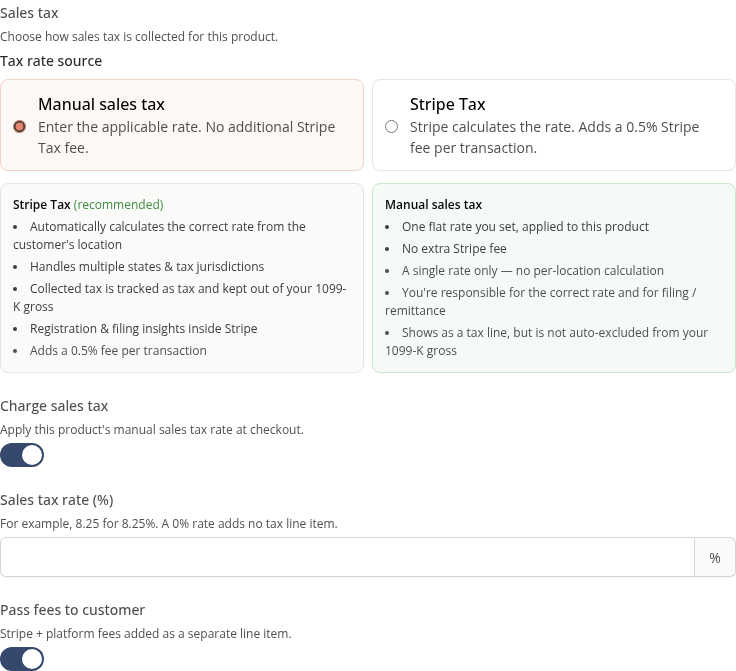
Review the product’s settings, then choose Save. Tax and Pass fees to customer are separate controls.
Defaults for Custom Charges
Open Settings > Sales Tax. Choose a default source and enter the default rate or Stripe tax category. Use Save default when ready.
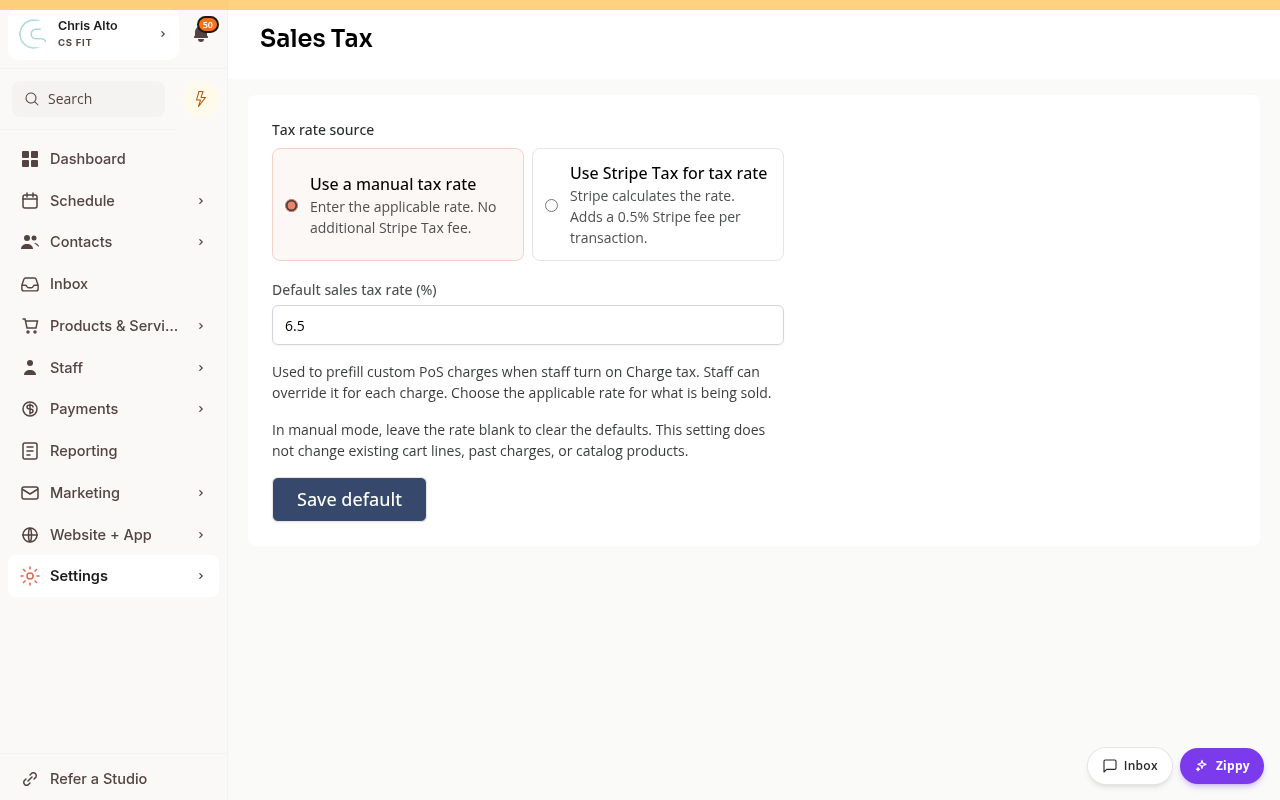
These defaults prefill new custom POS charges when Charge tax is enabled. They do not change existing cart lines, past charges or tax settings on catalog products.
Point-of-sale Overrides
A custom POS charge can use its own source and rate or category. Stripe Tax requires an active Stripe Tax configuration and a customer invoice. Use a manual rate for cash, checks or walk-in sales. Review the tax shown on the new charge before collecting payment. Do not assume a default changed an item already in the cart.
On Mobile
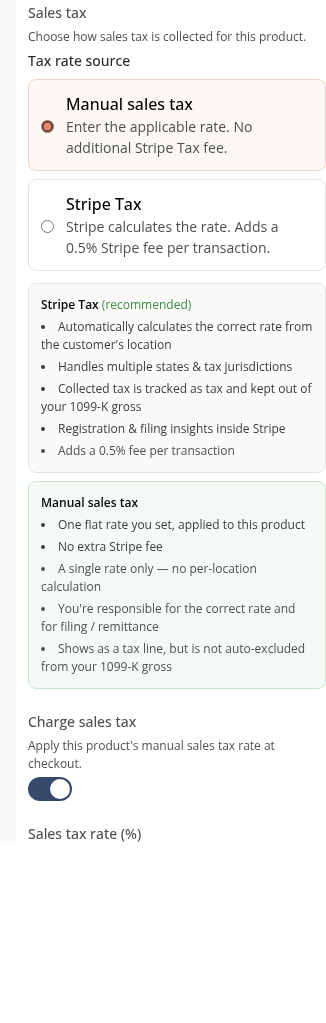
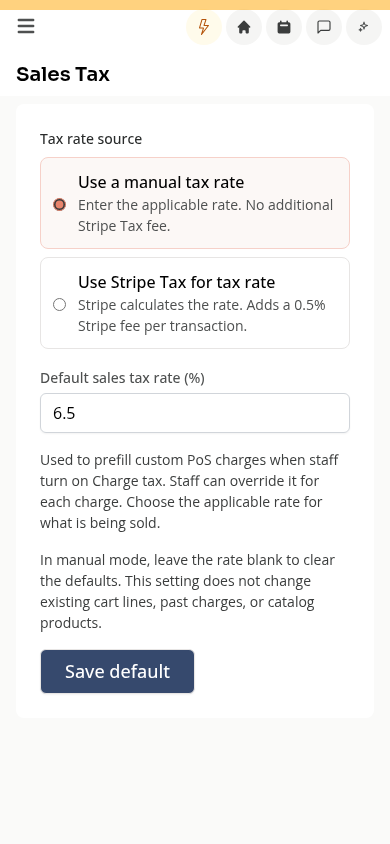
The same fields stack vertically. Check both the source and the rate or category before saving.
Troubleshooting
A product does not collect the expected tax. Check that product’s source, tax setting and rate or code. Studio defaults do not update existing products.
A custom cart still uses the old default. Review the tax on that line. Defaults fill new custom charges; they do not rewrite existing cart lines.
The tax source differs from fee settings. That is expected. Sales tax and payment fee passthrough are configured separately.
Need a hand?
Email our team at support@joinzipper.com and we'll usually reply within a few hours.
Was this article helpful?
Thanks for your feedback.