How to Set Up and Test Kiosk Mode
Turn a tablet or shared device into a self-service check-in station — customers can check themselves in for classes without staff involvement.
How to Set Up and Test Kiosk Mode
Kiosk mode lets customers check in for kiosk-enabled classes and events on a shared device. It does not display appointment bookings.
Enable the Desired Classes
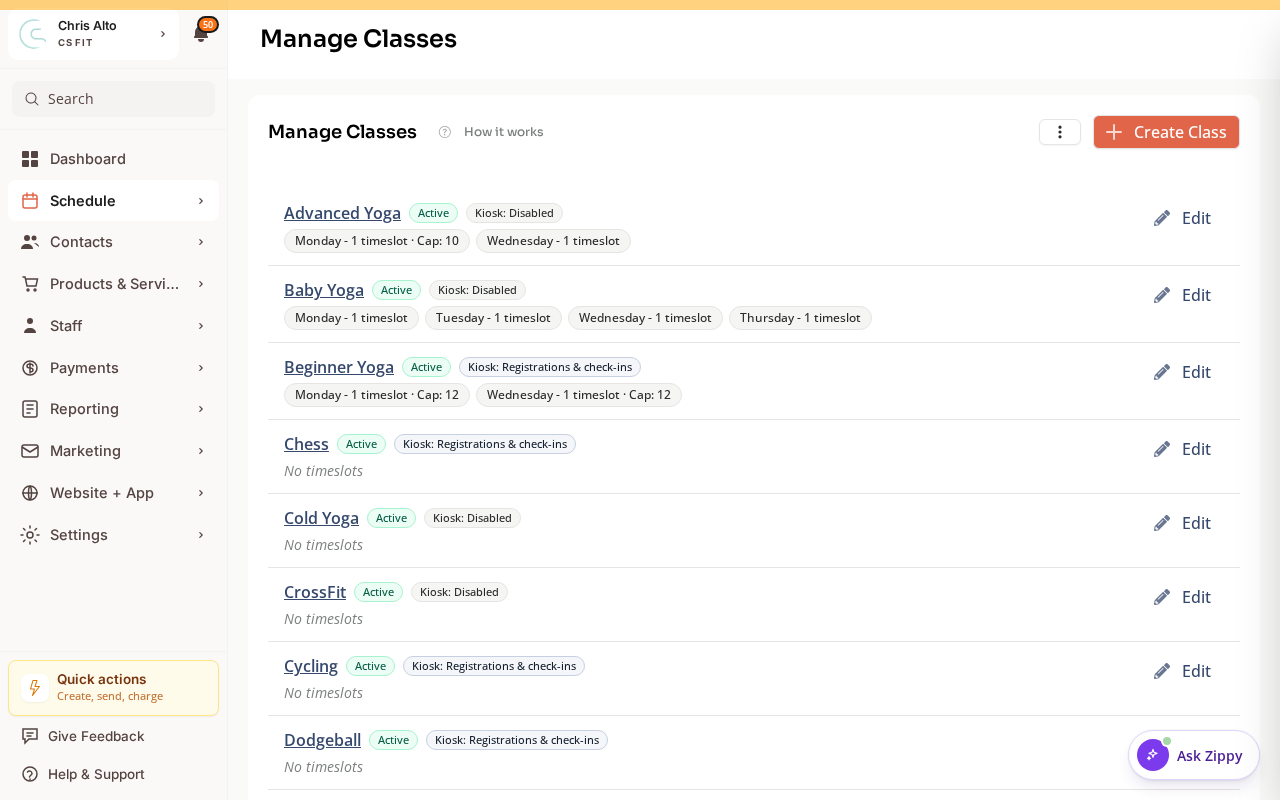
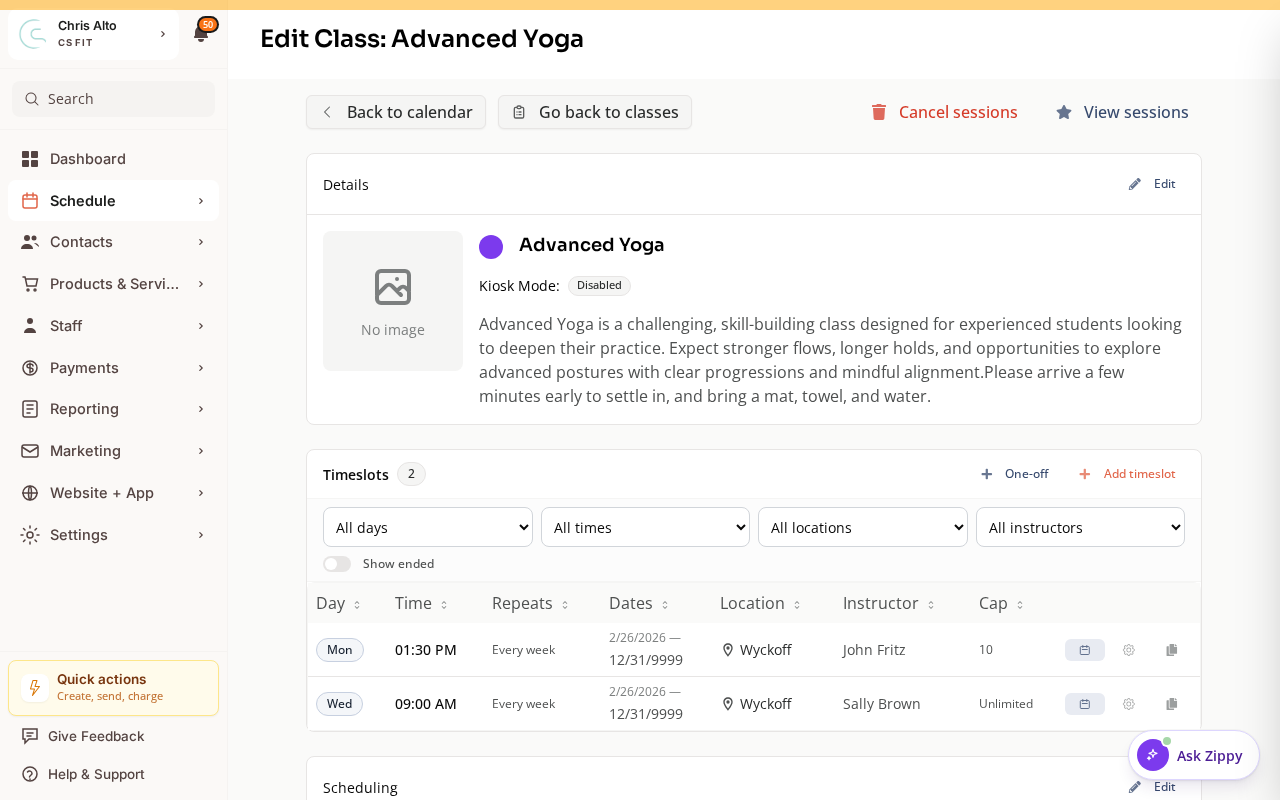
Open Schedule > Classes and edit the class. In its details, choose Disabled, Check-ins only, or Registrations & check-ins for Kiosk Mode. Review and save when ready.
Open the Kiosk
Log into the shared device with the appropriate staff account. Open the account menu and choose Enter kiosk mode.
The kiosk shows eligible class/event check-ins and registration when that mode is enabled. Use the normal appointment calendar to view that day’s appointments.
Test the Intended Flow
Check that the correct class appears and that the customer can find their profile. Confirm the recorded check-in in the admin calendar when performing an actual test.
A tablet’s device-lock settings are separate from Zipper’s kiosk controls. Do not use Payments > Terminal Readers as a kiosk-settings page.
On Mobile
Kiosk mode uses the browser on a tablet or phone. Review the class setting and account menu in the same way.
Troubleshooting
An appointment is missing. Appointments are not displayed in this kiosk; use the appointment calendar.
A class is missing. Check its kiosk mode and the actual dated class occurrence.
A customer cannot find their profile. Check the email/name on the correct customer account before adding another person.
Need a hand?
Email our team at support@joinzipper.com and we'll usually reply within a few hours.
Was this article helpful?
Thanks for your feedback.