How to Require Clients to Re-Sign an Updated Waiver
Attach the correct new waiver and choose whether a response is required for every registration or can be reused.
How to Require Clients to Re-Sign an Updated Waiver
Use a distinct form when you need a new waiver to have its own responses. Removing and reattaching the same form is not a reliable way to require a new signature.
Prepare the New Form
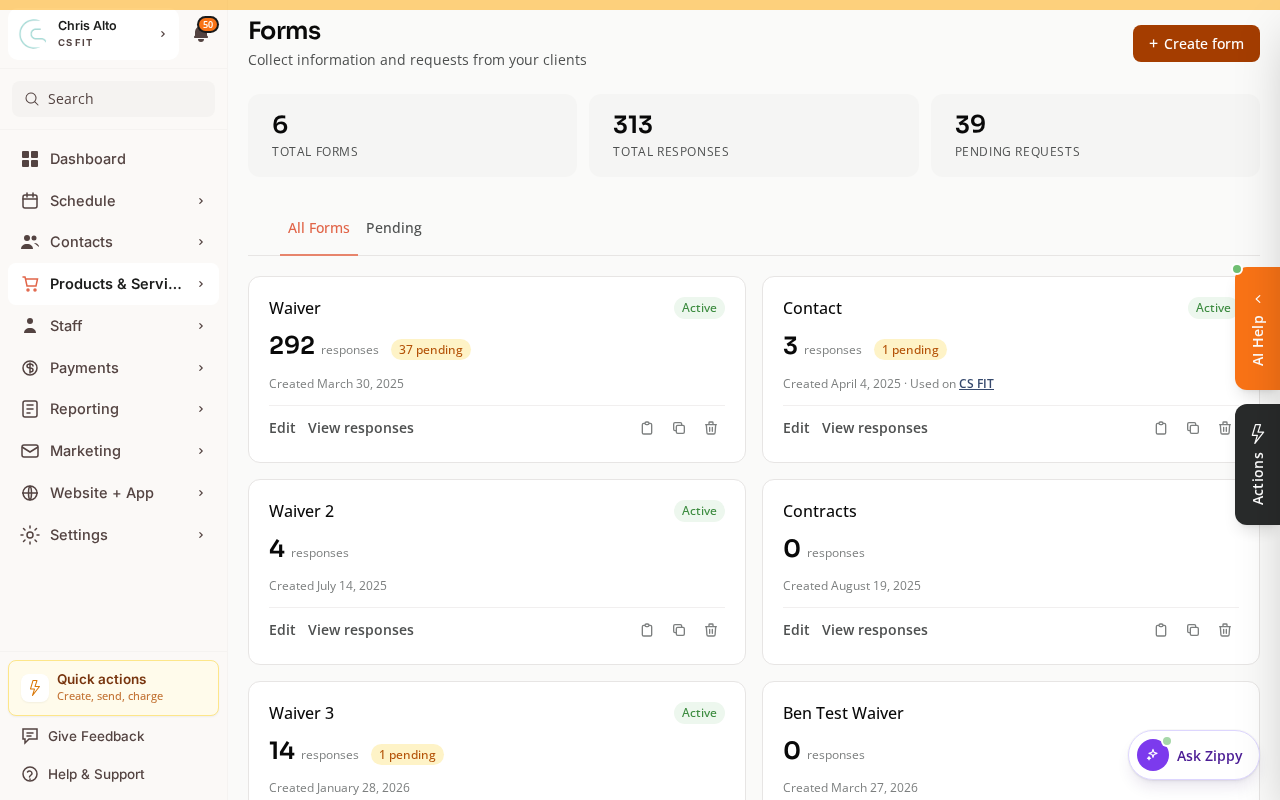
Open Products & Services > Forms and create the new waiver. Give it a clear name and complete its required questions. Keep the older form and responses for history.
Attach It to the Service
Edit the class or appointment type and open its form settings. Select the new waiver.
Choose Require for every registration if every registration needs a response, or Require once, then re-use if a valid response to that form can be reused. Save the selector, then save the service.
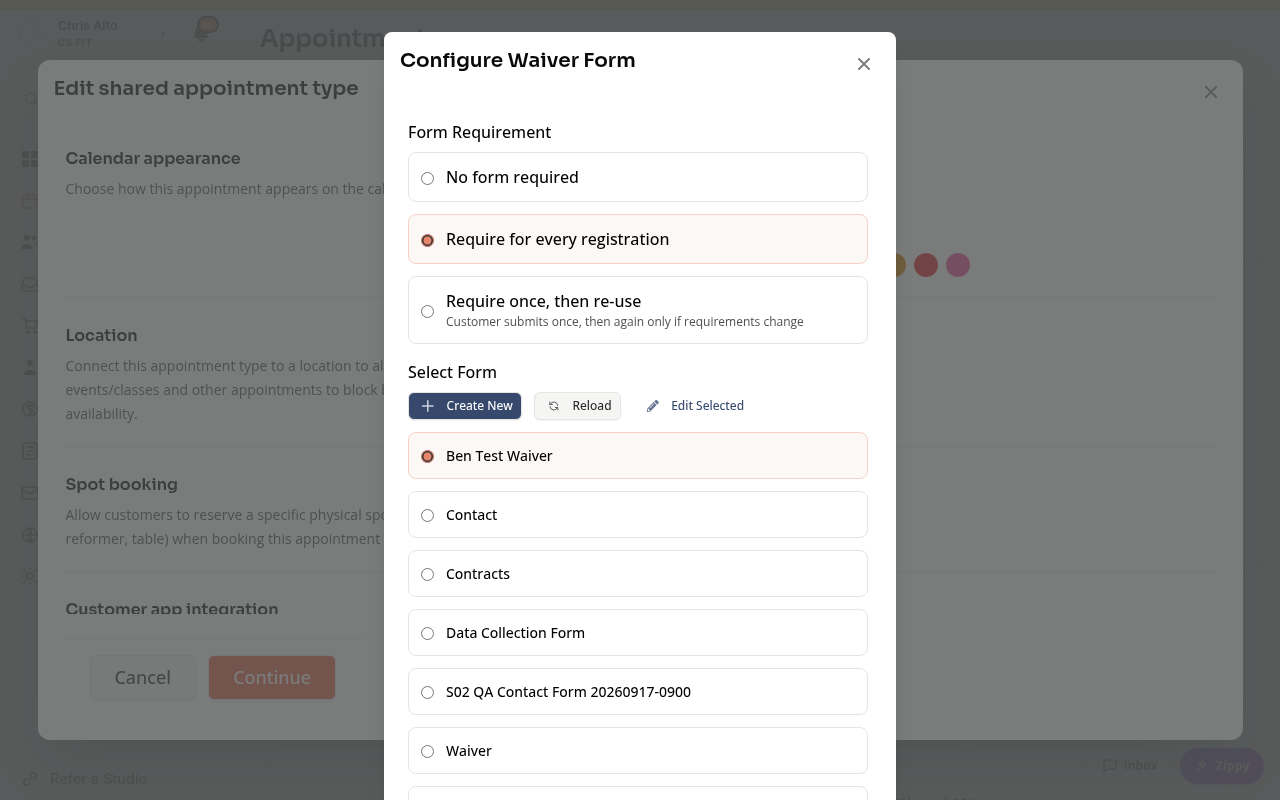
Repeat this for each service that should require the new waiver. Existing bookings need a separate review; editing the requirement does not by itself prove that every earlier booking now has a new response.
If You Edit the Same Form
Zipper checks whether an existing response satisfies the current required questions. New required questions can make an earlier response incomplete.
Changing wording alone does not guarantee a fresh response from every signer. Reattaching the same form keeps the same form ID, so an existing valid response can still be reused.
On Mobile
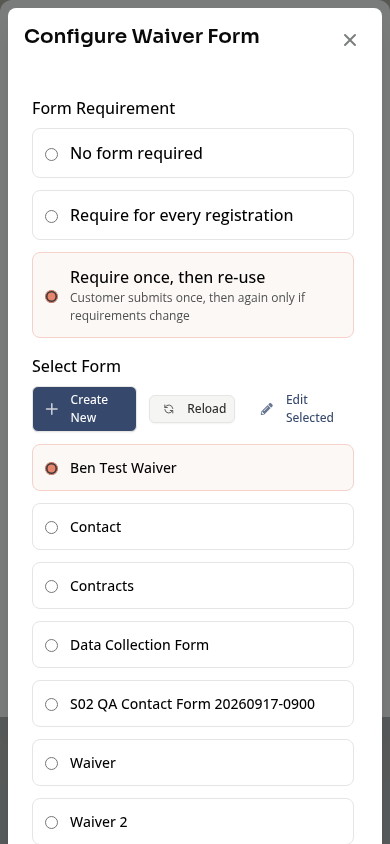
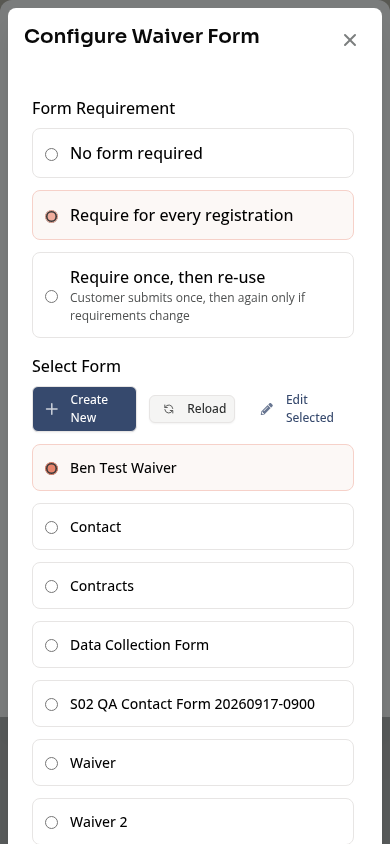
The same choices appear in the form selector. Check the form name as well as the requirement.
Troubleshooting
Customers still reuse an earlier answer. Check whether the service still points to the same form and permits reuse. Attach the intended new form if you need a distinct response.
A child sees a parent’s details. Check the attendee and response owner before submission. See Required Forms and Family Waivers Explained.
Need a hand?
Email our team at support@joinzipper.com and we'll usually reply within a few hours.
Was this article helpful?
Thanks for your feedback.