How to Process a Walk-In With a Guest
Register a walk-in and their guest for a class, and understand when to use a separate in-person Point of Sale transaction.
How to Process a Walk-In With a Guest
When two people arrive for a class, each person needs their own class registration. A Guest (Walk-in) Point of Sale transaction takes an in-person payment without creating a customer account or adding anyone to a class roster.
Register Both People for a Class
- Go to Schedule > Calendar and open the class session.
- In the Registered roster, click Add registration.
- Choose Book customer to register the primary customer. Search for their account, or use Create new if needed, and complete the booking with an available payment option.
- Add another registration for the friend. To use the primary customer’s eligible guest credits, choose Book guest, select that customer as the Credit owner, then select their linked guest or click Add guest.
- Review the attendee and payment option, finish the registration, and confirm that both people appear on the roster.
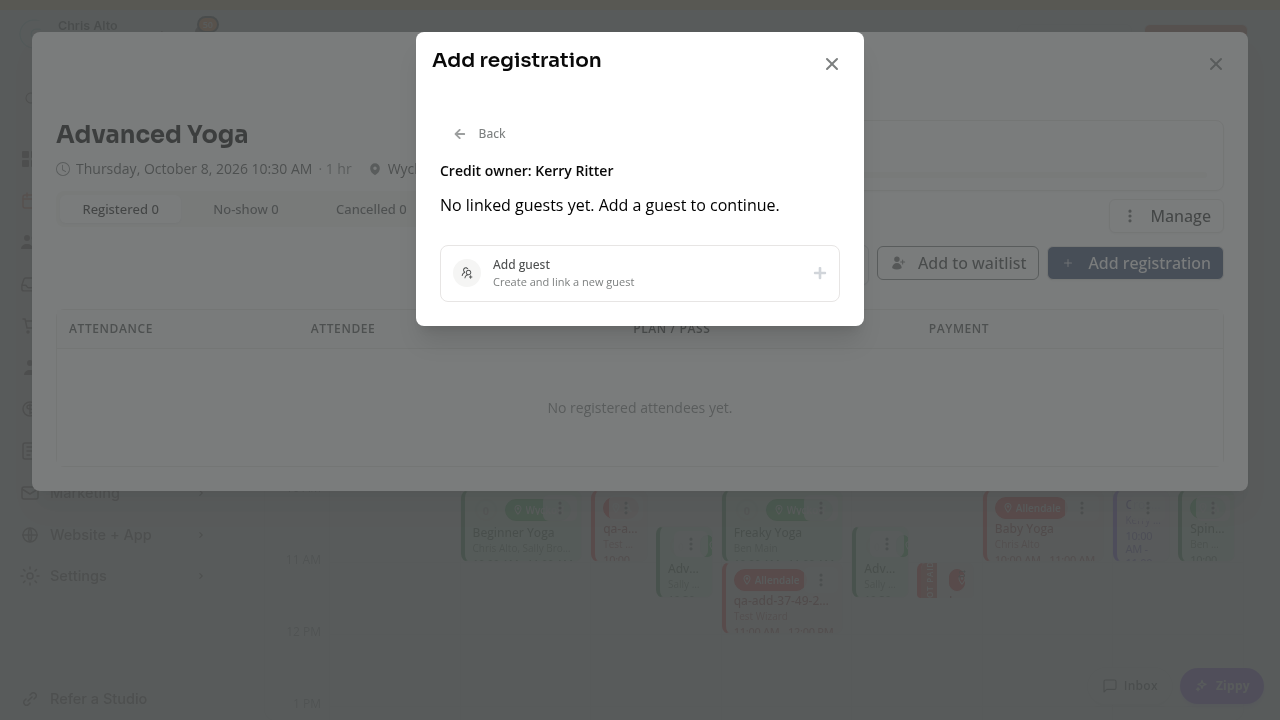
For the complete guest and credit-owner flow, see How to Add a Member’s Guest to a Class.
Buying two drop-in items in one customer’s Point of Sale cart does not register two different attendees. Use the class booking flow to track each person’s attendance and payment correctly.
Take a Separate Walk-In Sale
For an in-person sale that does not need a customer account:
- Go to Payments > Point-of-Sale and choose Guest (Walk-in).
- Leave the contact fields blank for an anonymous sale. If you enter a name, also enter a valid email; a name by itself is rejected. Contact details help with a receipt or sale lookup and do not create a customer profile.
- Add the appropriate one-time product, or use Custom amount and enter the amount and description.
- Select an available Terminal reader. Guest checkout supports Terminal payments only.
- Click Calculate total, review the total, then click Charge customer and have the payer complete payment at the reader.
- Confirm that payment succeeded before starting the next sale. After success, the cart resets and stays in guest and Terminal mode, ready for the next walk-in.
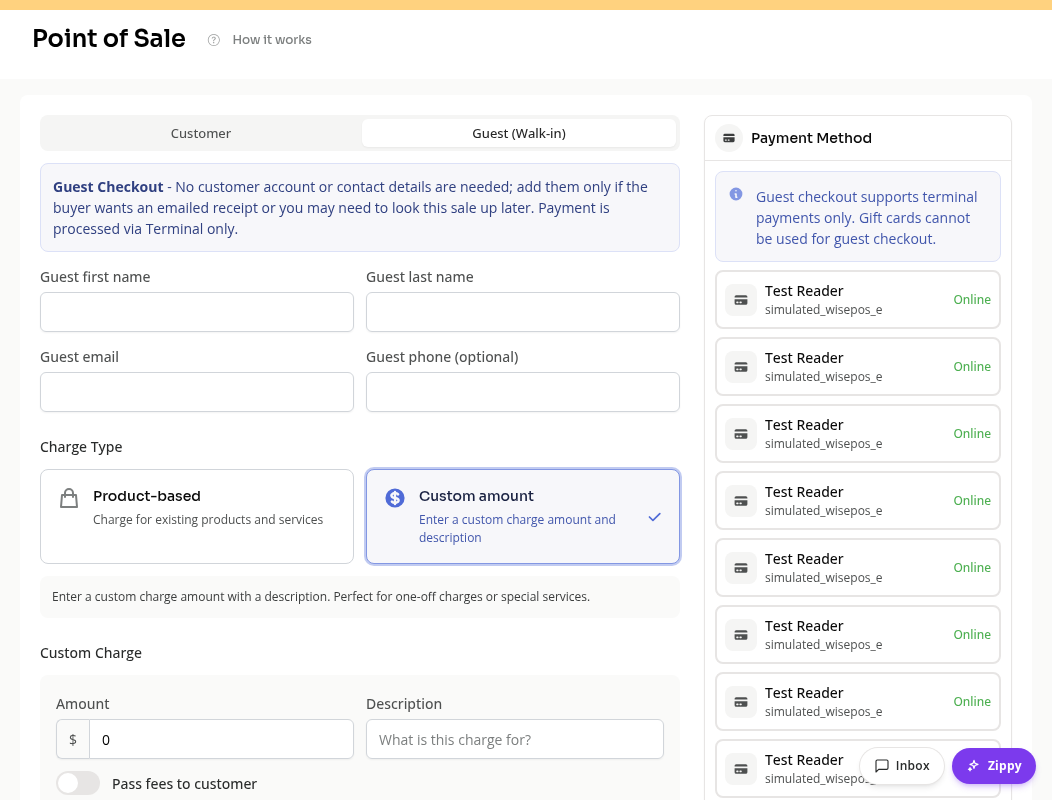
If the two people pay separately, complete one sale and then the next. A cart can contain multiple items when one person pays the combined total, but the sale itself does not identify or register two class attendees.
See Guest Point of Sale Sales Explained for receipts, tax, sale lookup, and mobile examples. Recurring subscriptions require selecting a customer account.
Customer Accounts and Waivers
Create or select a customer account in the registration flow when you need an attendance record, membership, or booking credits. The linked Add guest flow creates an account for the attendee; anonymous Point of Sale checkout does not.
Check each attendee’s required forms and waiver status separately. An anonymous Terminal sale does not prompt the buyer to complete the class’s forms. See Required Forms and Family Waivers Explained.
Need a hand?
Email our team at support@joinzipper.com and we'll usually reply within a few hours.
Was this article helpful?
Thanks for your feedback.