How to Merge Duplicate Customer Accounts
When a customer appears in your system twice, merge them into one record — combining all history, subscriptions, and credits onto a single profile.
Video Walkthrough
What Gets Merged
- All appointments and class registrations
- All subscriptions and booking credits
- Credit balance
- Payment history
- Tags, notes, and purchase history
The duplicate record is archived after the merge.
Two Ways to Start a Merge
From a Customer Profile
- Open either of the two duplicate profiles in Contacts
- Click the overflow menu (three dots) near the top of the profile, then Merge with another customer.
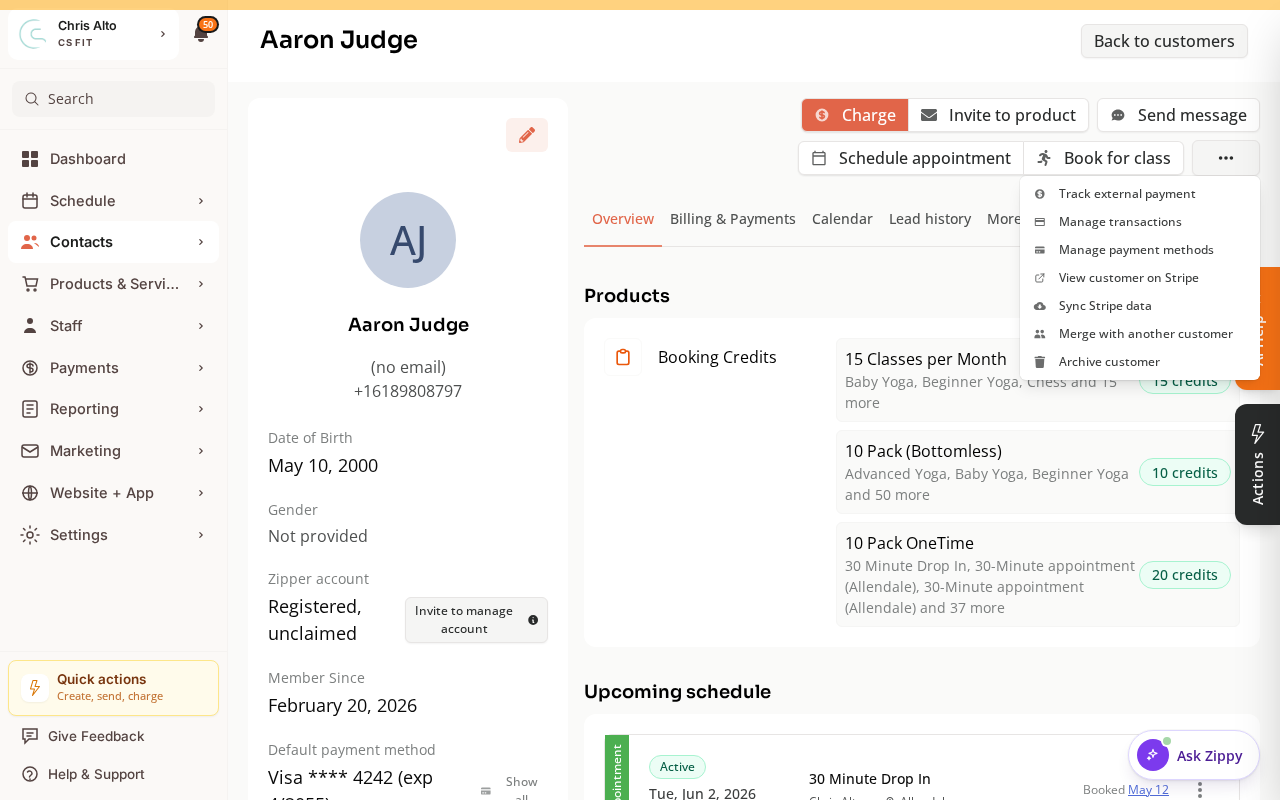
- Expected: The Merge modal opens — search for the other duplicate.
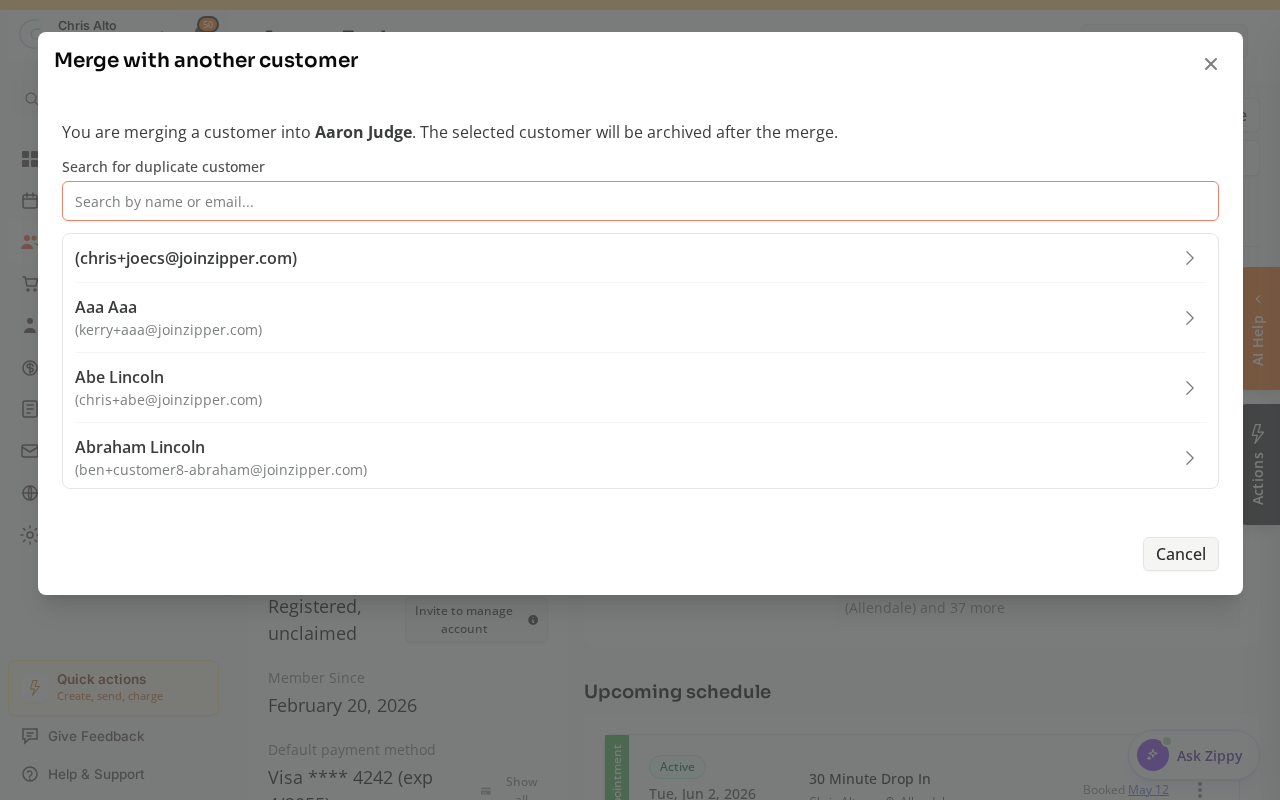
From the Contacts List
- In Contacts, select exactly 2 customers using the checkboxes
- Look for the Merge action in the bulk actions bar
Steps in the Merge Modal
Step 1: Identify the two records
The modal shows both customer profiles side by side. Confirm these are the two you want to merge.
Step 2: Choose the “keeper” (surviving record)
- Select which record to keep as the primary profile
- The other record will be archived
- Tip: Keep the record that has the most complete data (phone number, correct email, existing payment method)
Step 3: Review what will be combined
- All history from the archived record is transferred to the keeper
- Review for any conflicts (e.g., two different emails)
Step 4: Confirm the merge
- Click: Merge
On Mobile
Same steps — Merge works on mobile browser.
Tips
- Merges are permanent: The archived record cannot be unarchived easily. Double-check you’re merging the right two records.
- Subscription conflicts: If both records have active subscriptions, both transfer to the keeper. Review and cancel any redundant subscriptions after merging.
- Different emails: The keeper’s email is used going forward. The old email still maps to the same profile internally.
Troubleshooting
I can’t find the “Merge with another customer” option. You need Admin or Manager role with CRM access. Also confirm you’re looking in the overflow (three-dot) menu on the customer profile, not the profile header.
Merge button is grayed out when I select 2 customers. Make sure both are active (not archived). Also confirm you’ve selected exactly 2 — no more, no less.
Need a hand?
Email our team at support@joinzipper.com and we'll usually reply within a few hours.
Was this article helpful?
Thanks for your feedback.