How to Keep Drop-Ins and Intro Buyers as Leads
Set up an automation that moves anyone who buys a drop-in or intro offer into your CRM lead pipeline automatically — so staff can follow up and convert them to members.
Before You Start
- A Workflow (lead pipeline) with at least one stage for new prospects (e.g., “New Lead” or “Intro Buyer”)
- A drop-in or intro offer product in your product catalog
- Admin or manager access to Automations
Steps
Step 1: Create a new automation
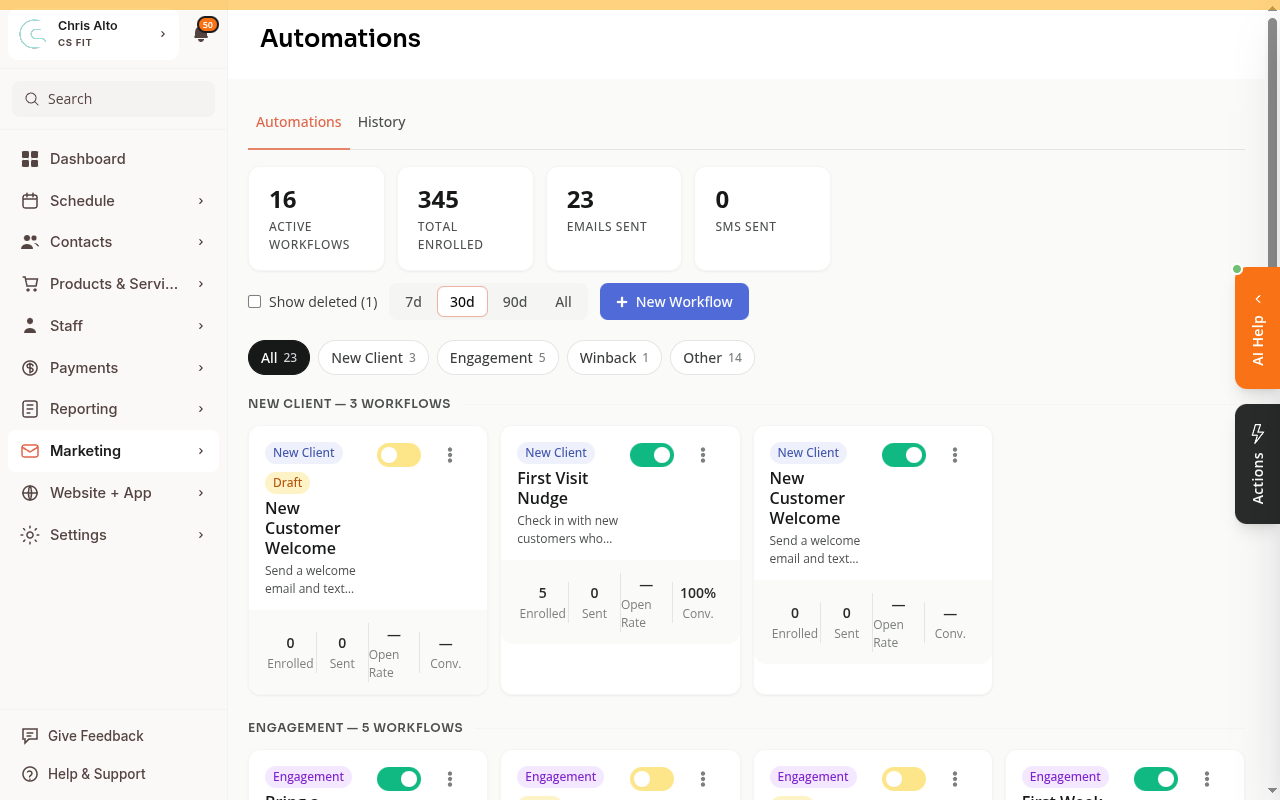
- Navigate to: Marketing > Automations
- Click: New Workflow (or Create Automation) → Start from Scratch
Step 2: Set the trigger
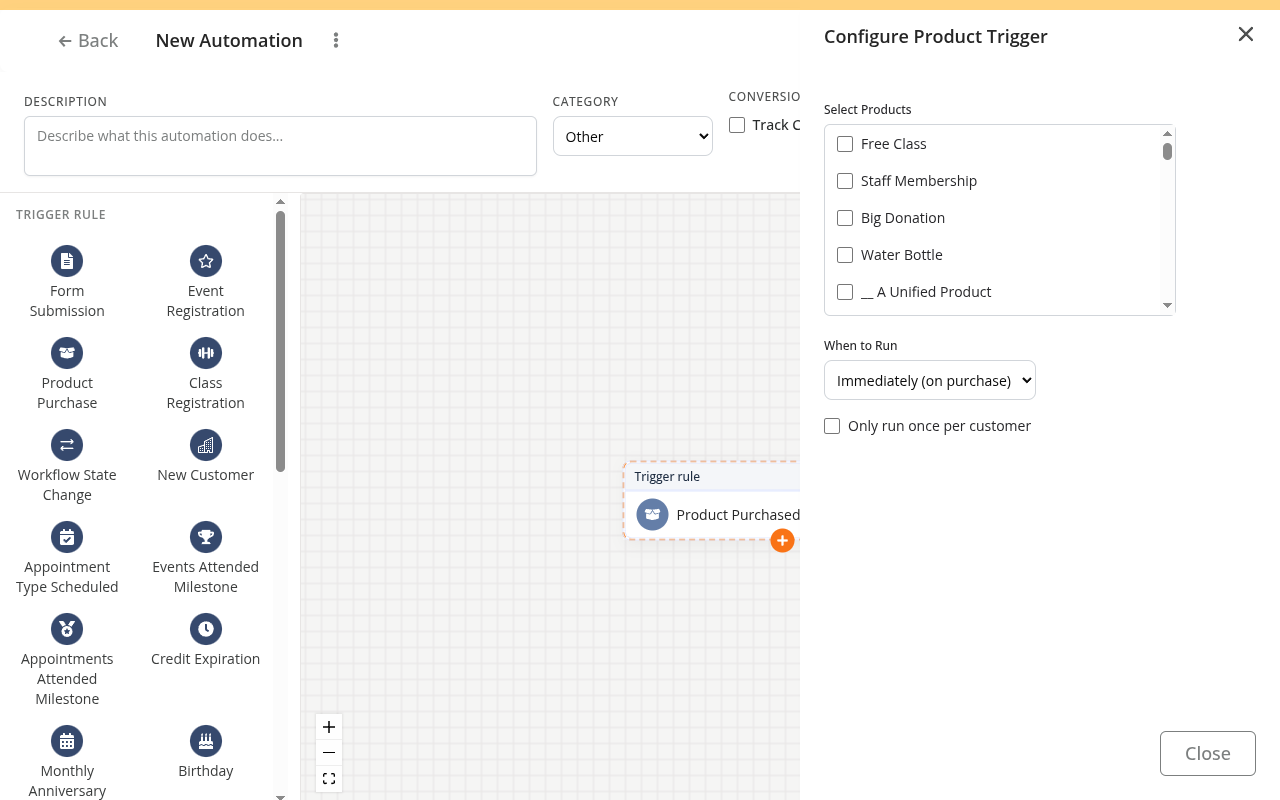
In the automation builder, click Product Purchase as the trigger, then select the specific drop-in or intro offer product. For multiple drop-in products, either create separate automations or check if multiple products can be selected.
Step 3: Add actions
- Click Add Action → Move to Workflow State → choose the workflow and stage (e.g., “Sales Pipeline” / “Intro Buyer”).
- (Optional) Add Action → Add Tag → enter “Drop-In” or “Intro Buyer”.
- (Optional) Add Action → Send Email → write a short nurture email. Set a delay of 1–2 days if you don’t want it sent immediately.
Step 4: Publish
Click: Publish (top right).
Tips
- Existing buyers aren’t affected: Automations only fire for purchases made after publishing. Move existing buyers manually if needed.
- Buyer status unchanged: This adds them to the leads pipeline as a sales opportunity — it doesn’t change their customer status.
- Skip existing members: Check your automation platform for condition filters to avoid tagging customers who already have an active subscription.
Troubleshooting
Automation isn’t firing. Check: (1) it’s published (not draft), (2) the trigger product matches what was purchased, (3) the action is configured correctly.
Buyer appeared in customer list but not in leads pipeline. Confirm the “Move to Workflow State” action has the correct workflow and stage. Check the automation’s History tab for errors.
Need a hand?
Email our team at support@joinzipper.com and we'll usually reply within a few hours.
Was this article helpful?
Thanks for your feedback.