How to Configure Your Business Settings
Set studio information, currency and customer login branding, with the required permissions and migration limits.
How to Configure Your Business Settings
Use a staff account with permission to manage organization branding. Changing the default currency also requires permission to manage organization settings.
Steps
- Navigate to: Settings > Organization Settings. The Company details tab holds your core business information.
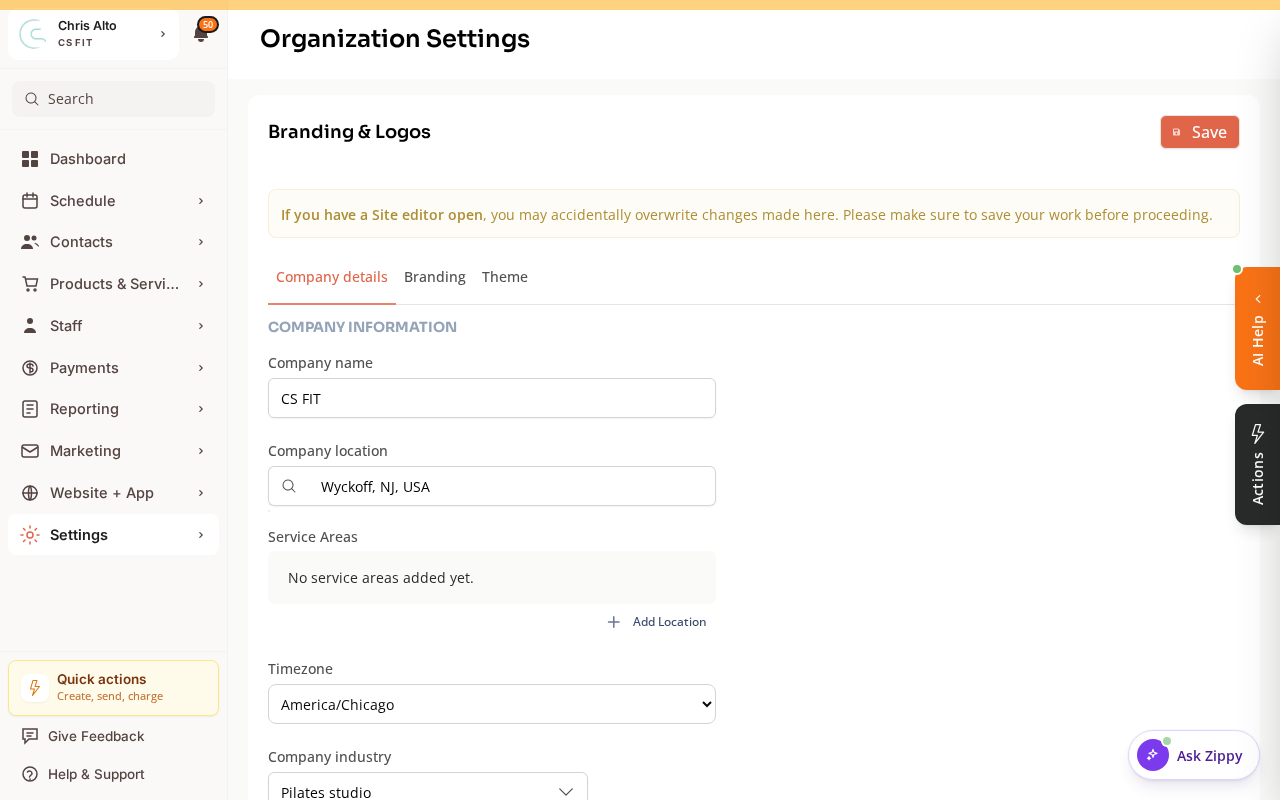
- Update the following:
Business Information
- Company name — appears in emails, notifications, and the customer app
- Company locations — your business address and location information
- Company phone number — contact number shown to customers
- Contact Email — the address customers use to contact you
Timezone
- Timezone — critical for class scheduling, appointment times, and all date/time displays
- Set this to your studio’s local timezone before creating any classes or appointments
Branding
- Logo — upload your logo (appears in the customer app and emails)
- Brand colors — use the Theme tab to set colors for the customer-facing experience
Switch to the Branding tab to upload logos. Use Theme to edit colors:
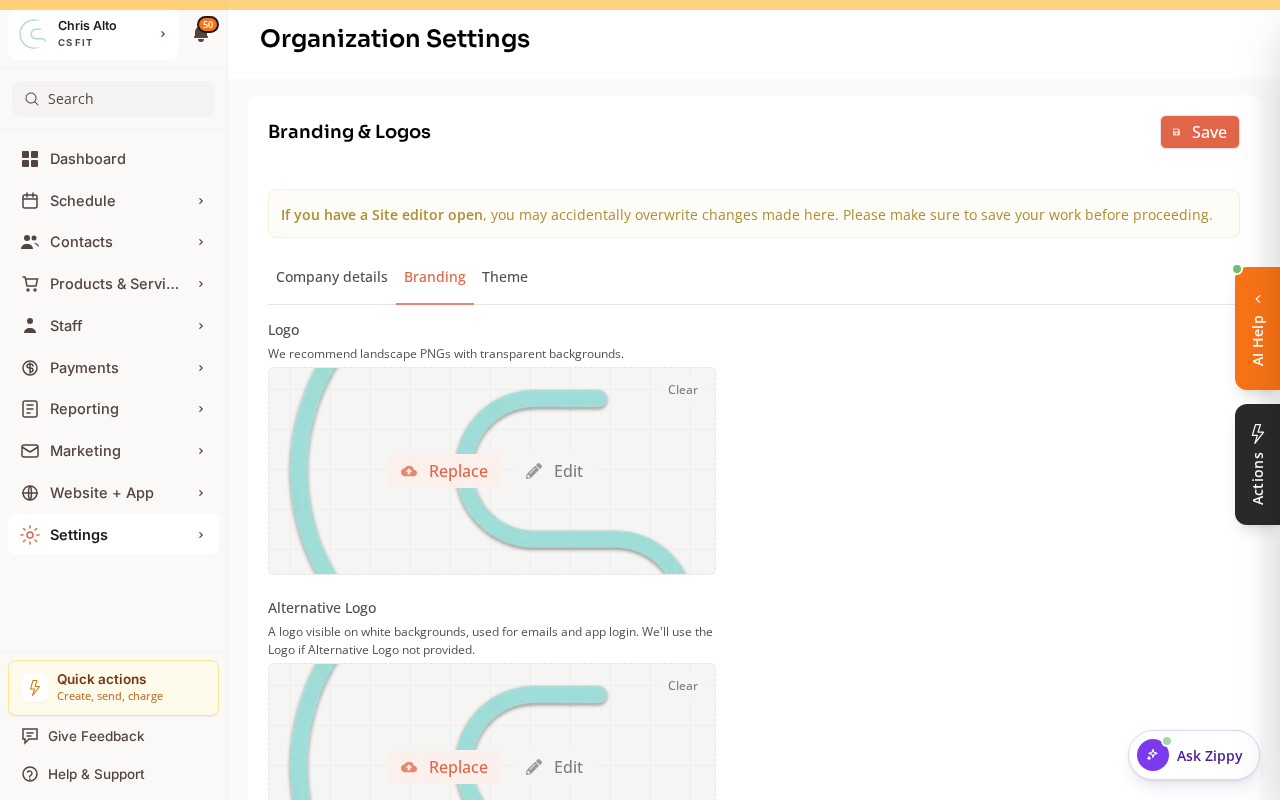
- Click: Save
Tips
- Set timezone first: If you change the timezone after creating classes, the display times may shift. Set it correctly from the start.
- Logo dimensions: Use a square or landscape logo at least 512×512px for best quality across all contexts.
Troubleshooting
Business name updated but still showing the old name in some places. Confirm the save succeeded, then refresh the page. If the old name remains, contact support with the setting and page involved.
Default Currency
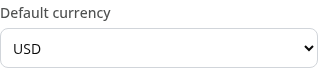
On Company details, use Default currency to choose the studio’s billing currency, including NZD where appropriate. Changing this field requires organization-settings permission.

Set the currency before creating products or taking payments. Zipper blocks currency changes after Stripe transaction activity exists or while products use a different currency. Contact support for a migration if that applies. Changing a dropdown does not convert old payments or existing Stripe prices.
Customer Login Background
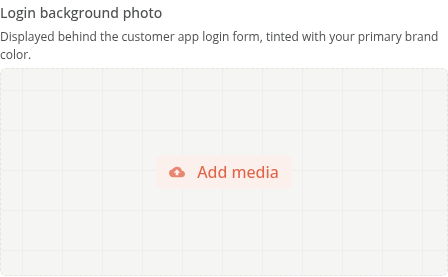
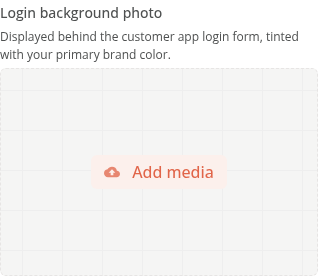
On Branding, use Login background photo for the image behind the customer app login form. It is tinted with the primary brand color. Only the organization owner can change that photo.
Save when the changes are ready. If a site editor is also open, save and close its work first so it does not overwrite changes made in Organization Settings.
Need a hand?
Email our team at support@joinzipper.com and we'll usually reply within a few hours.
Was this article helpful?
Thanks for your feedback.