How to Configure Late Cancel and No-Show Settings
Late cancel and no-show settings are configured per class and per appointment type. There are no org-wide defaults.
For Classes and Events
Step 1: Open the class in Calendar
- Navigate to: Schedule > Classes, then Edit the class. The Registration details card shows the Refund policy (cancellation), No-show fee, registration window, and waitlist rules. Click Edit on that card to change them.
Step 2: Set late cancellation handling
In Cancellation & no-show policies, open Default settings and find Late cancellation handling. Choose one of four options:
- Always return credit — the default rule returns a used credit regardless of cancellation timing and applies no default cancellation fee. Class access-specific credit and fee rules can change the outcome.
- Do not return credit for late cancellations — the default rule keeps the used credit for a late cancellation and charges no default cancellation fee.
- Automatically charge a fee for late cancellations — attempts the configured cash fee for a late cancellation. The default credit behavior returns the credit, unless a class credit-pack rule forfeits it. This reveals two sub-fields:
- Refund cutoff: How far before class start the window closes (options: 2h, 4h, 6h, 8h, 12h, 24h, 3 days, 7 days)
- Cancellation fee amount: Amount to charge
- Add to manual review queue — records the configured cancellation fee for staff to charge or dismiss later. Also shows Refund cutoff and Cancellation fee amount.
For classes/events, check the other access tabs too:
- All-access: Enable all-access fee rules to configure separate cancellation and no-show cash fees. When disabled, these bookings have no cancellation or no-show cash fee.
- Credit packs: Use Enable credit rules to choose Return the credit, Forfeit the credit, or the existing/default credit behavior separately for late cancellations and no-shows. Default cash fees still apply. With no override, late-cancel credits follow the default cancellation rule and no-shows forfeit the credit.
Existing class registrations with a saved booking policy retain that policy; changing these settings does not necessarily change the fees or credit consequences of an earlier booking.
Step 3: Set no-show handling
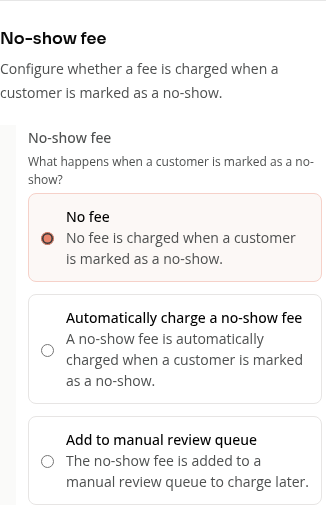
Find No-show fee. Options:
-
No fee — no cash fee when staff marks the customer as a no-show. This does not promise that a used credit is returned.
-
Automatically charge a no-show fee — attempts the amount in No-show fee amount when staff marks a no-show.
-
Add to manual review queue — records the no-show fee for staff to charge or dismiss later.
-
Save the settings
For Appointment Types
Step 1: Open the appointment type and set fees
- Navigate to: Schedule > Appointments → open the appointment type to edit
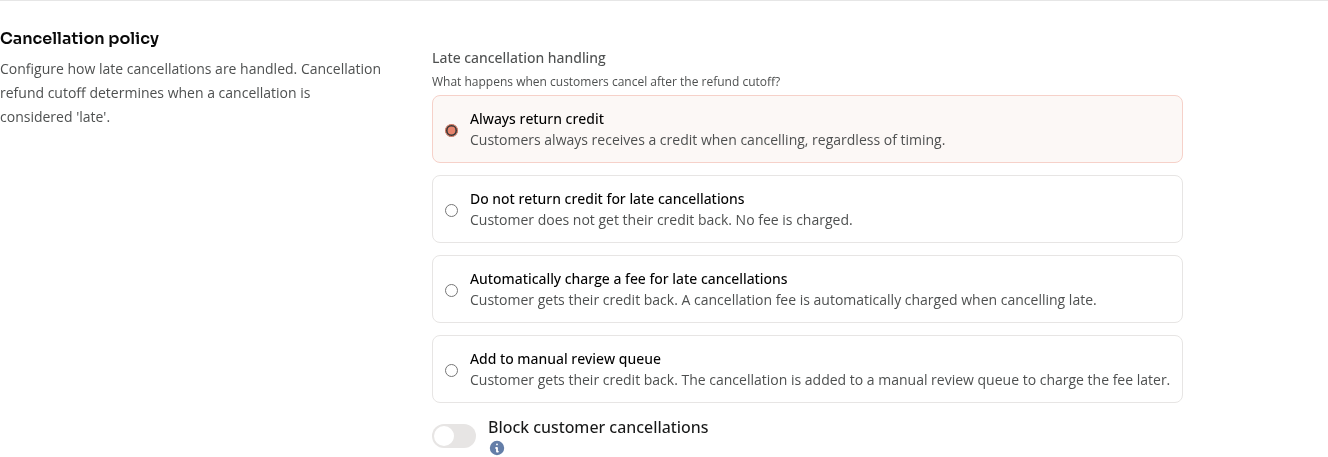
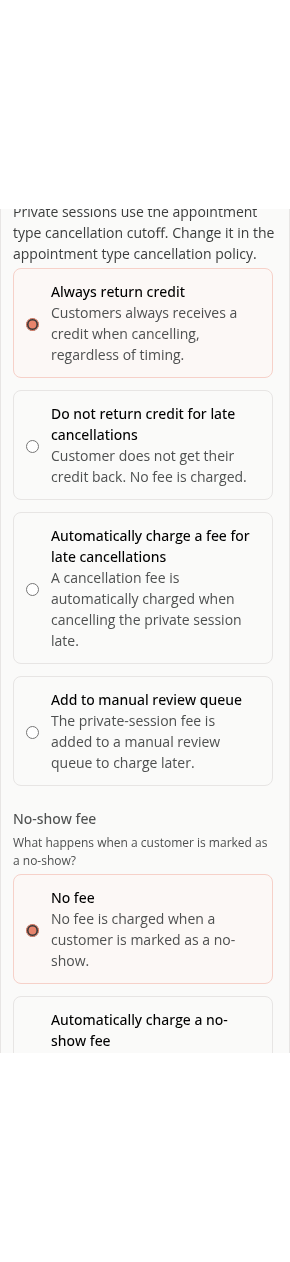
- Under Cancellation policy, choose one of the four Late cancellation handling options above. Refund cutoff appears for the keep-credit or fee rules; enter Cancellation fee amount for automatic charging or manual review.
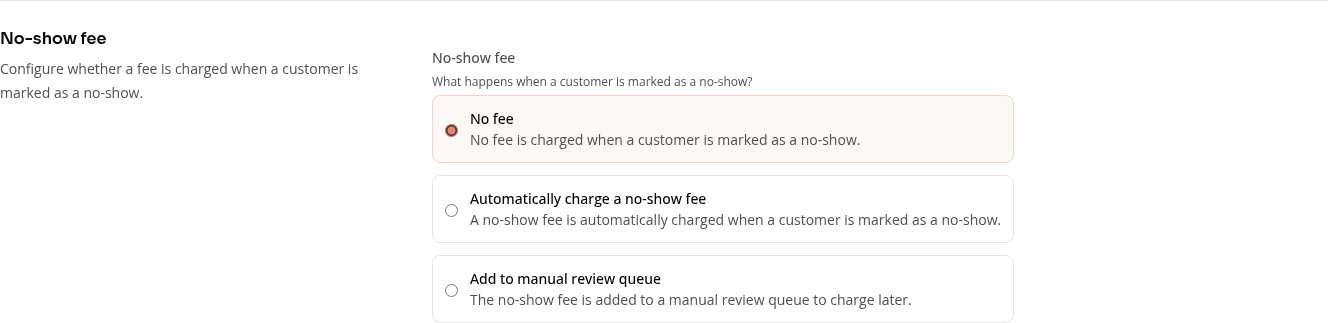
- Under No-show fee, choose No fee, Automatically charge a no-show fee, or Add to manual review queue. Enter No-show fee amount for either fee option.
- Block customer cancellations prevents customers from canceling appointments of this type; staff can still cancel them.
- Save
Private-session buyout fees
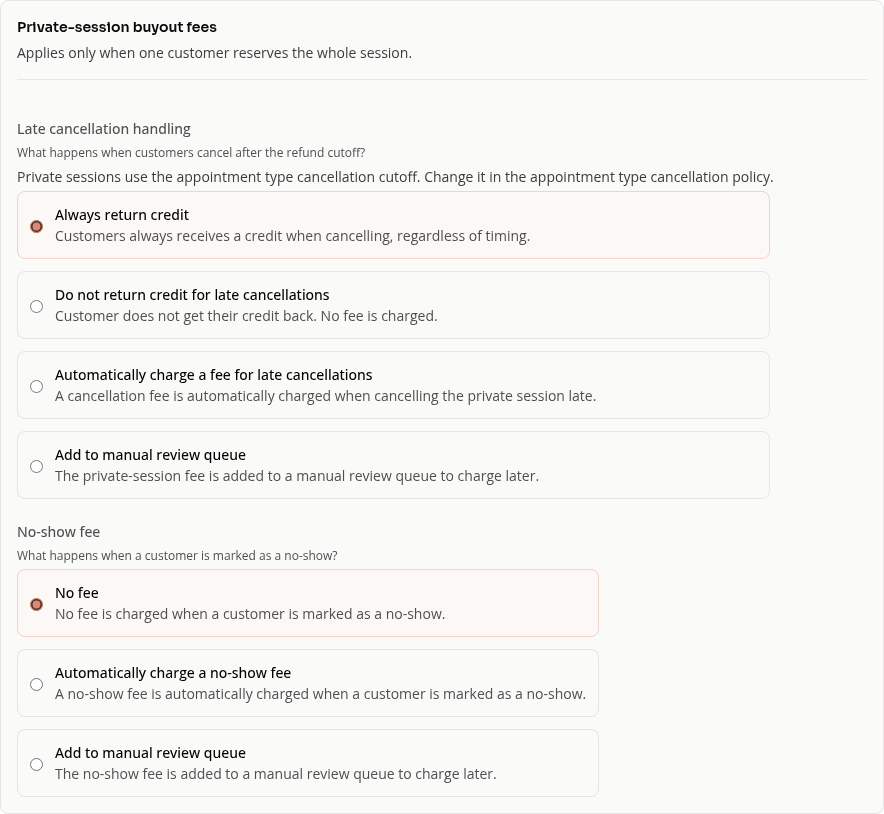
When private sessions are enabled, Private-session buyout fees applies only when one customer reserves the whole session. Configure its cancellation and no-show fee rules separately. Private sessions inherit the host class’s cutoff from its Registration details settings, or the appointment type’s cutoff from Cancellation policy; this section does not create a separate private-session cutoff. Unset buyout fee settings fall back to the host’s fee settings.
For regular class credit-pack bookings, choose Forfeit the credit under Credit packs when that is the intended penalty. A configured class cash fee can still apply.
On Mobile
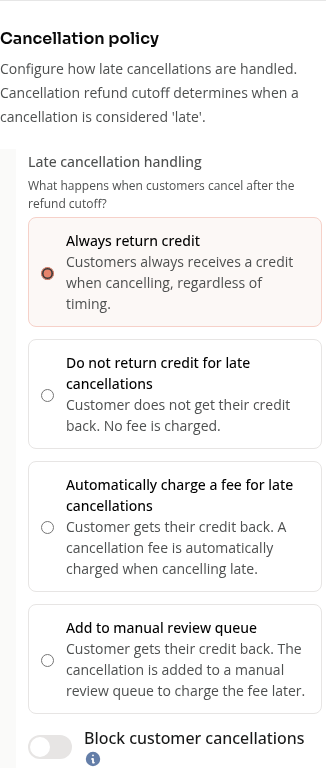
The same appointment policy controls are available in a mobile browser.
Tips
- Test your settings before going live: make a test booking and cancel it late (or mark a test no-show) to verify the fee fires correctly.
- Communicate the policy to members: Include cancellation policy details in your class descriptions and confirmation emails so members aren’t surprised.
Troubleshooting
The cancellation fee isn’t appearing. Check the applicable default, access-specific, or private-session policy: select automatic charging or manual review, set a positive fee amount and cutoff, save the change, and confirm the individual cancellation happened after its cutoff. Do not return credit for late cancellations alone does not create a cash fee. An unsuccessful automatic collection can appear in Payments > Payment Collector > Unpaid Fees.
No-shows aren’t being charged. Staff must mark the customer as a no-show; ending the session or leaving the customer unchecked-in does not automatically mark a no-show. Check the applicable no-show policy and positive fee amount, then review Unpaid Fees if automatic collection did not succeed.
Need a hand?
Email our team at support@joinzipper.com and we'll usually reply within a few hours.
Was this article helpful?
Thanks for your feedback.