How to Charge an Unpaid Appointment
Sometimes a customer books an appointment but doesn't pay at the time. Use the Payment Collector to charge them later — by credit card, booking credits credit, or cash.
Steps
Step 1: Go to Payments → Payment Collector
In the left sidebar, click Payments, then choose Payment Collector.
Step 2: Click the Unpaid Appointments tab
At the top of the page, click the Unpaid Appointments tab.
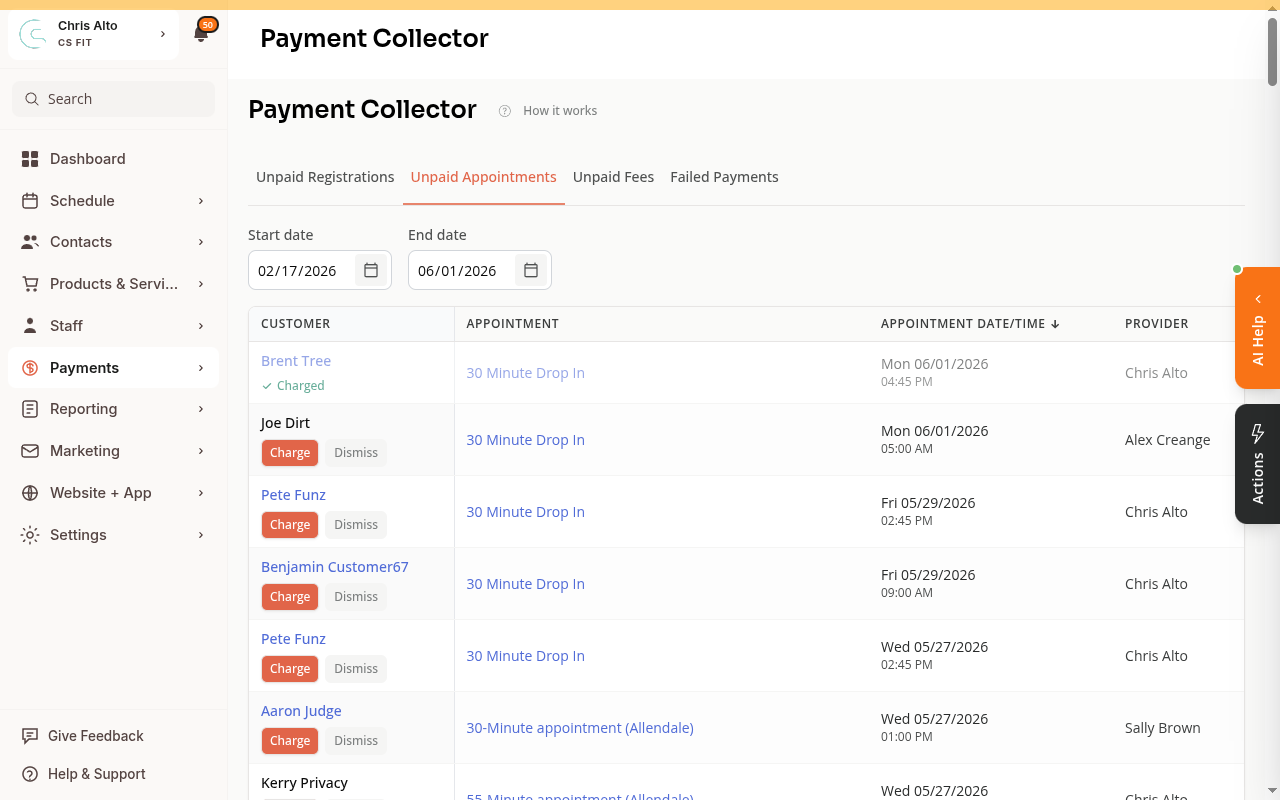
You’ll see a table of appointments that haven’t been paid. By default it shows the last 90 days and up to 14 days ahead.
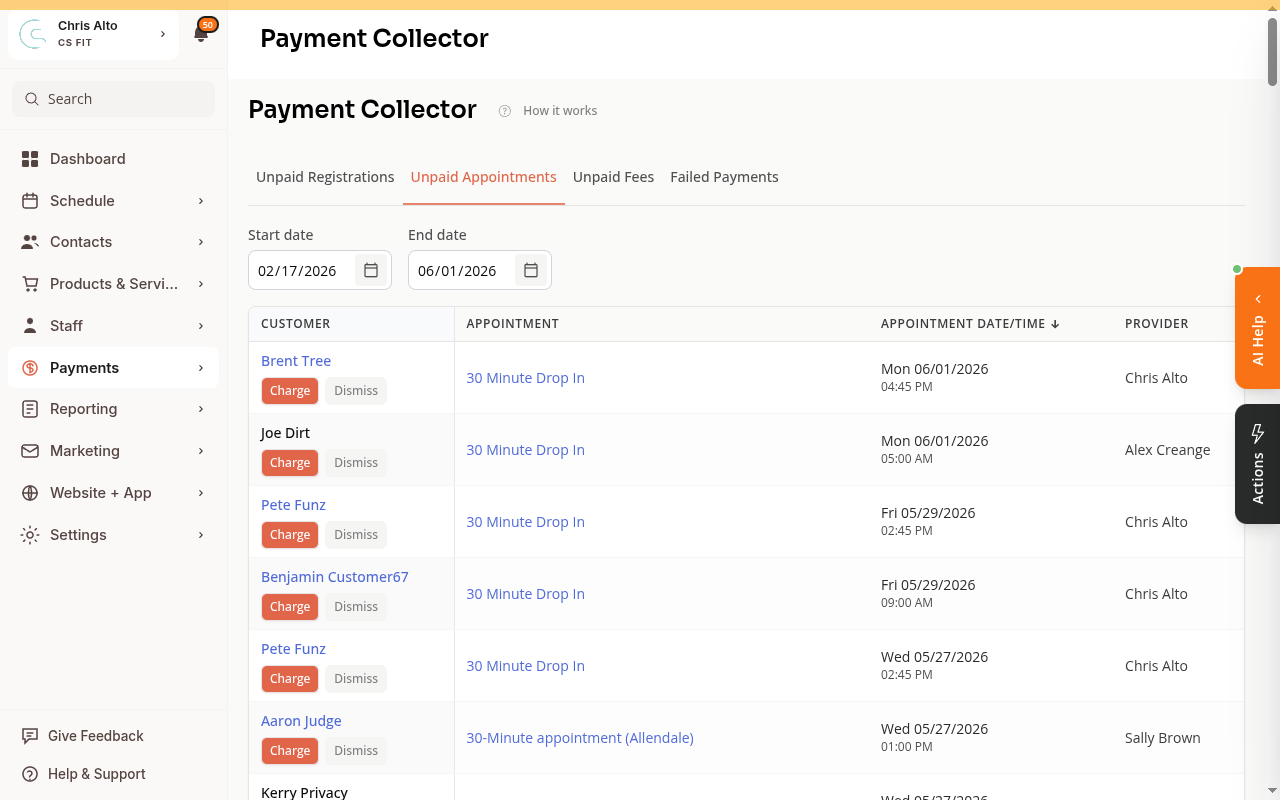
Step 3: Click Charge next to the customer
Find the customer in the table, then click the orange Charge button next to their name.
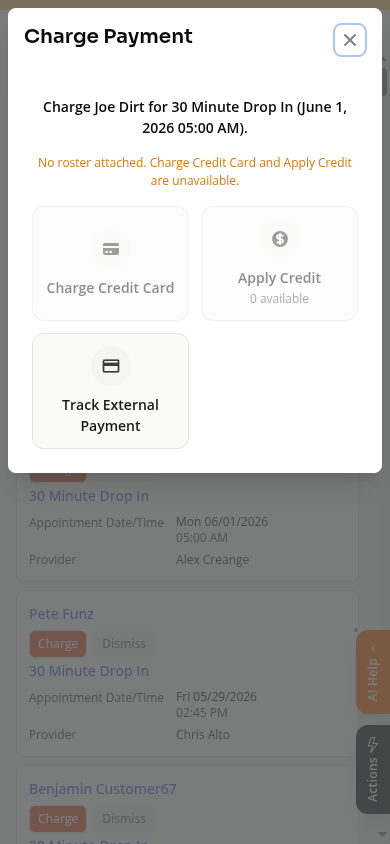
A popup will open showing three payment options.
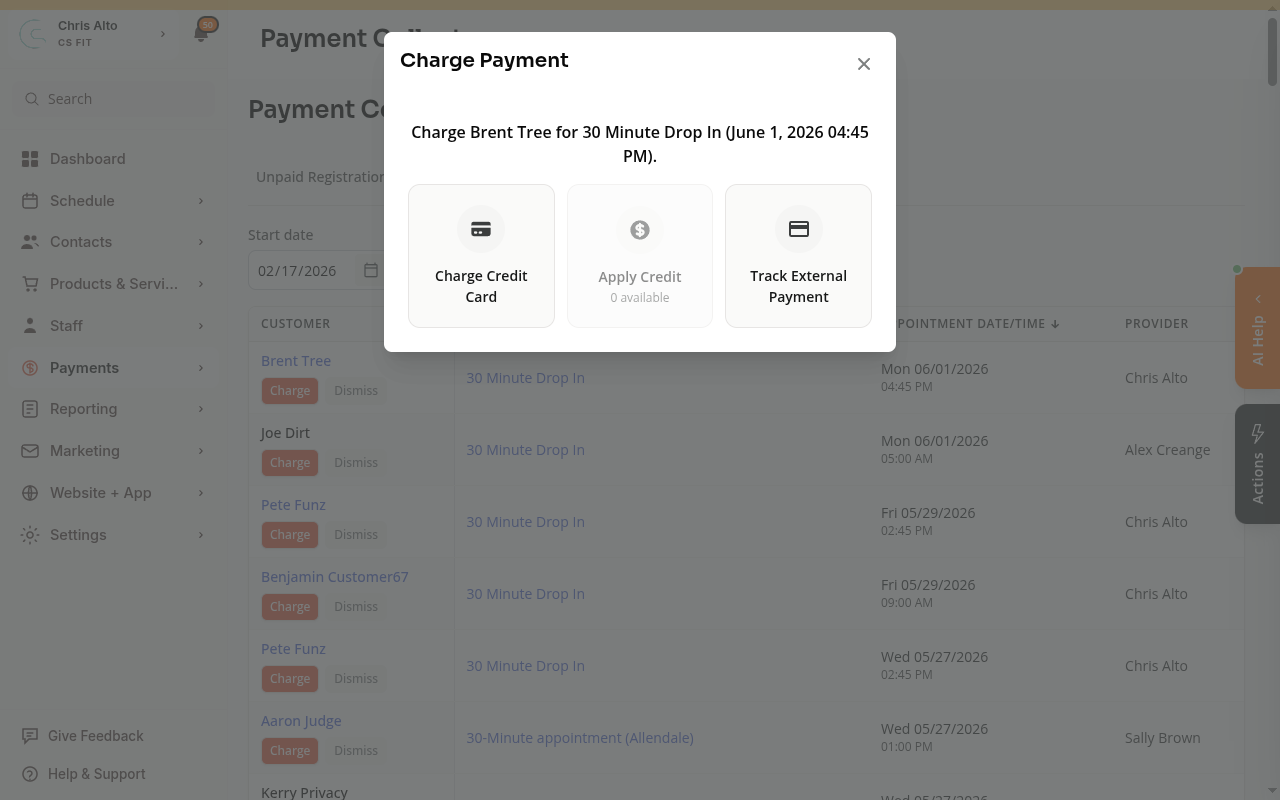
Step 4: Choose how the customer is paying
Pick the option that matches how the customer is paying:
- Charge Credit Card — charges a saved card through Stripe
- Apply Credit — uses booking credits from their account
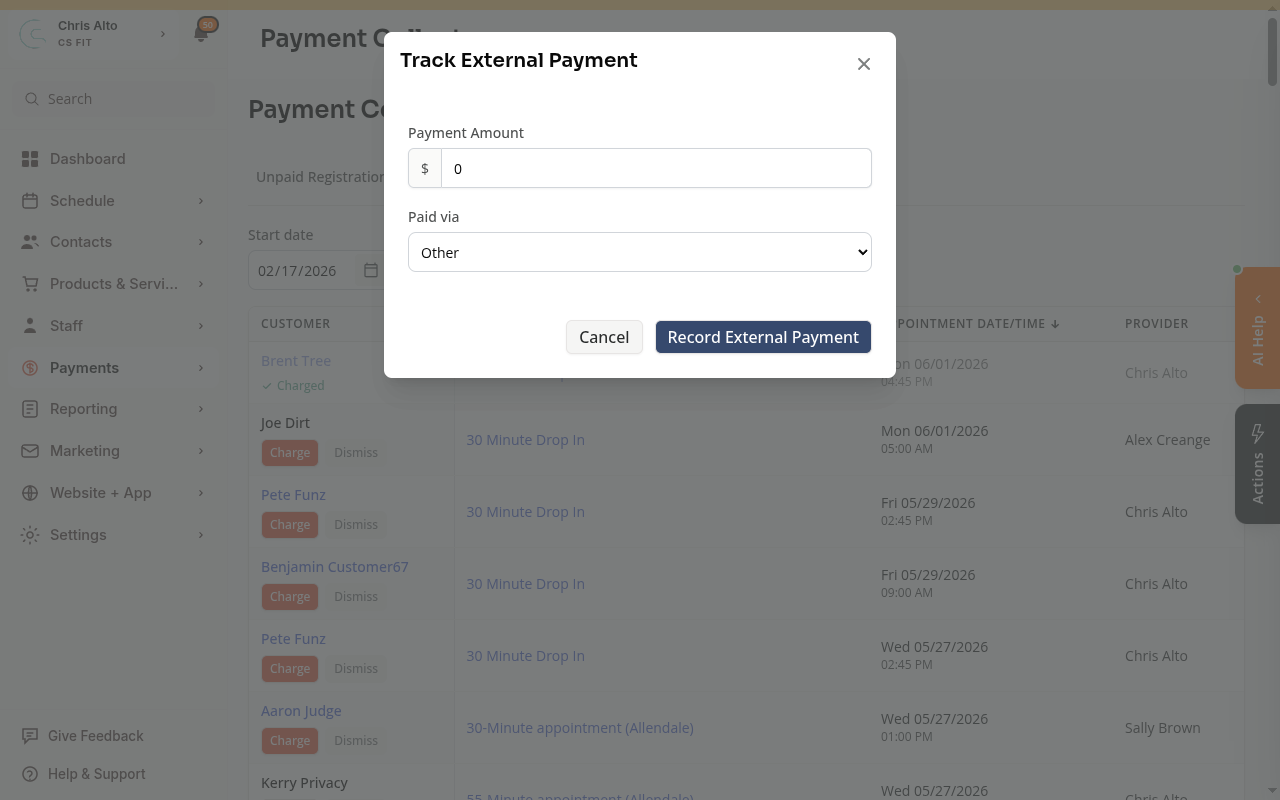
- Track External Payment — records cash, Venmo, check, or other payments
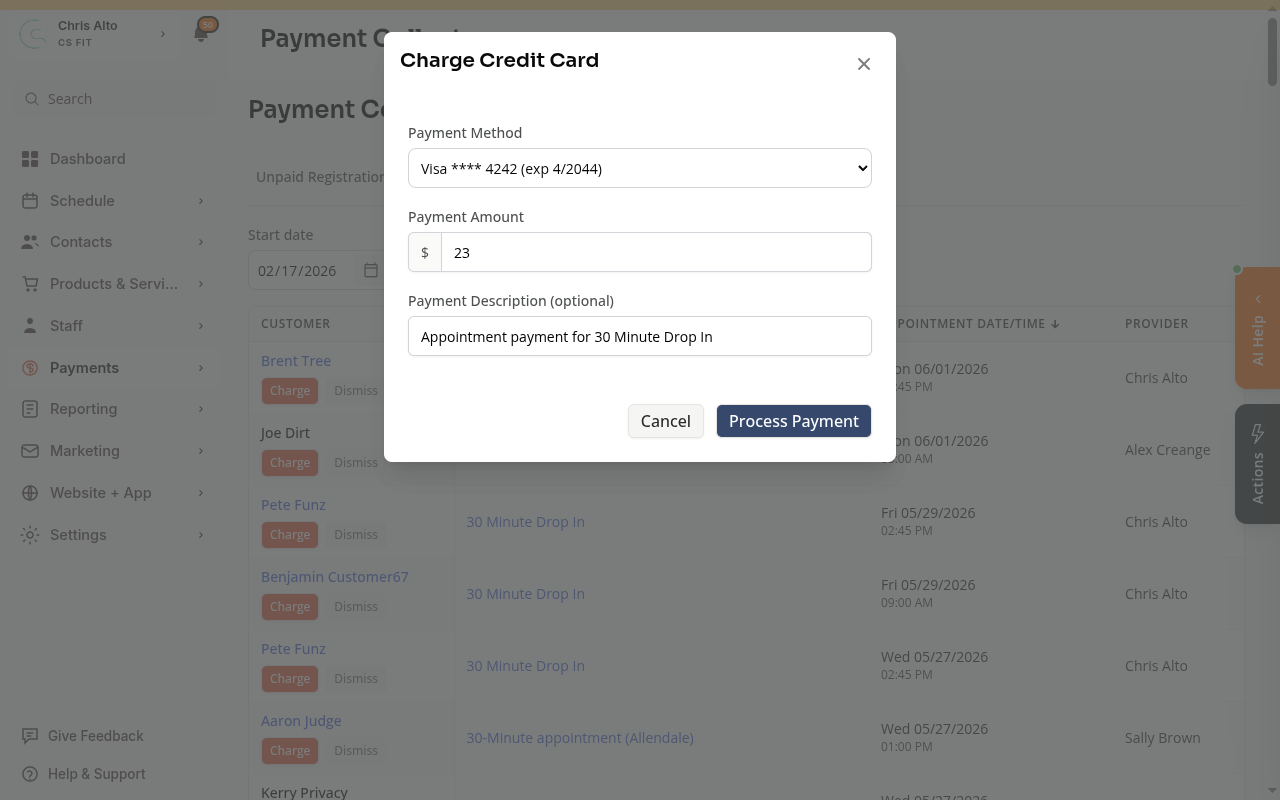
If charging a credit card:
Select the customer’s card from the Payment Method dropdown. The amount is pre-filled. Click Process Payment.
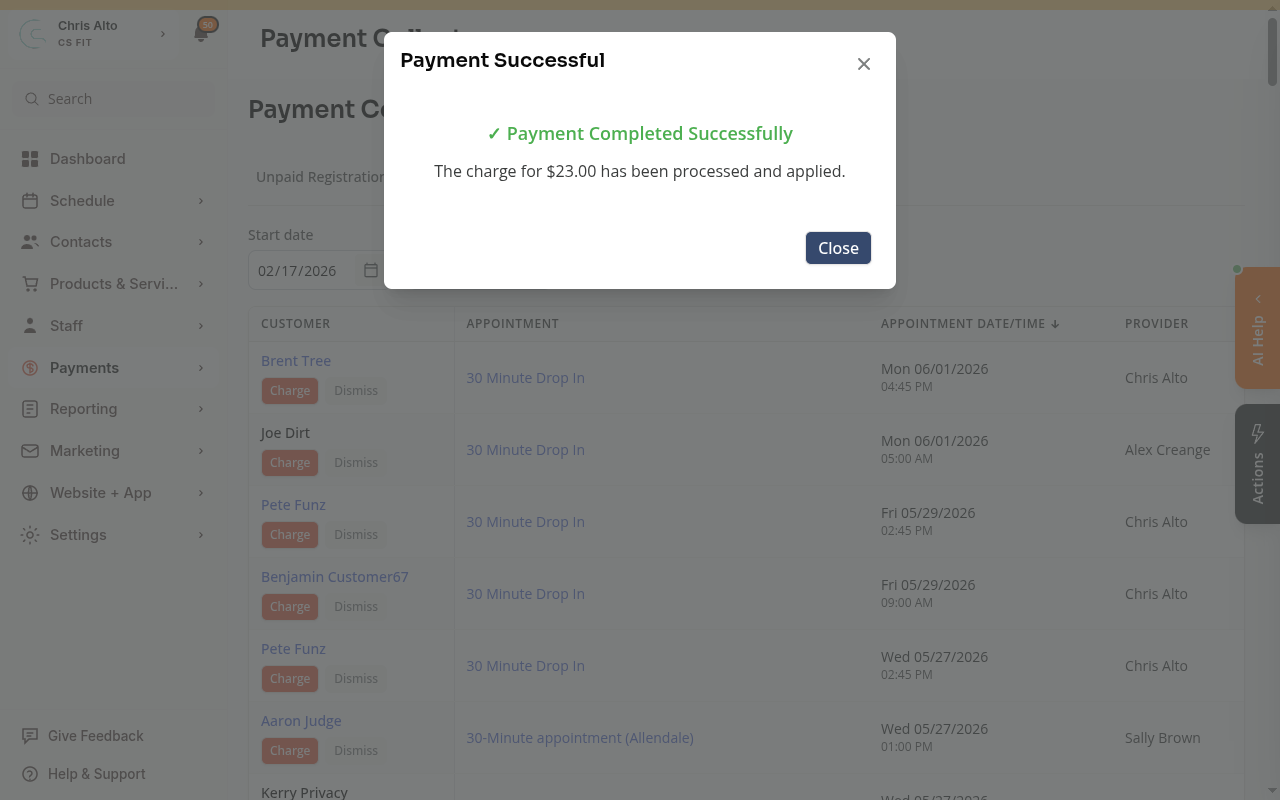
You’ll see a confirmation screen when it’s done.
If recording an external payment (cash, Venmo, etc.):
Enter the amount, choose the payment type from the Paid via dropdown, then click Record External Payment.
Step 5: Confirm the payment went through
Close the popup. The customer’s row in the table will now show a green Charged badge.
On Mobile
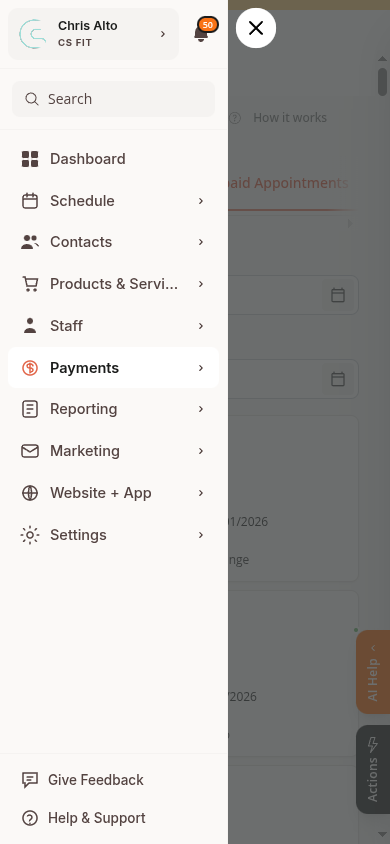
Open the hamburger menu at the top left, then tap Payments → Payment Collector.
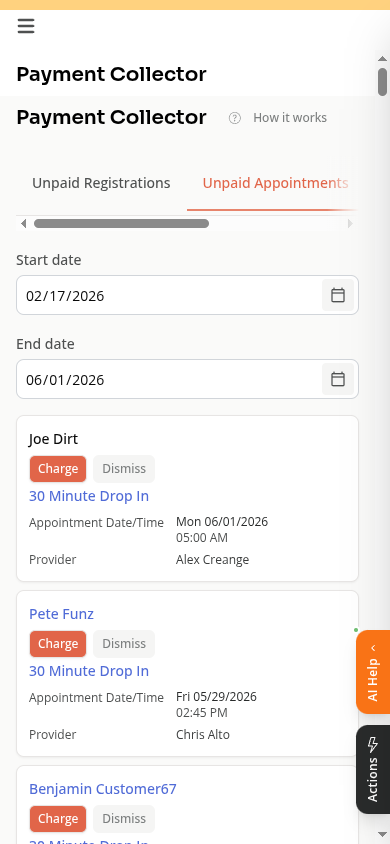
The appointments show as cards instead of a table. Tap Charge on the card for the appointment you want to collect.
The same payment options appear in a popup.
Tips
- If the appointment is older than 90 days, adjust the Start date filter at the top of the page to find it
- The amount is pre-filled based on the appointment price — you can edit it if needed
- Apply Credit shows how many booking credits are available next to the button
Troubleshooting
Charge Credit Card is grayed out The customer doesn’t have a customer profile linked to this appointment. Use Track External Payment instead, or add a card to their profile first.
Apply Credit shows 0 available The customer has no booking credits. Use Charge Credit Card or Track External Payment.
The appointment isn’t showing in the list The default date range is 90 days back to 14 days ahead. Adjust the Start date or End date filter to expand the search window.
Need a hand?
Email our team at support@joinzipper.com and we'll usually reply within a few hours.
Was this article helpful?
Thanks for your feedback.