How to Bulk Update Capacity and Instructor
Two approaches: copy settings from one class to many others (Sync Settings), or apply a capacity/instructor change across all future sessions of a timeslot.
Approach A: Sync Settings (Copy to Multiple Classes)
Use this to push payment and registration settings (including capacity) from one source class to many others at once.
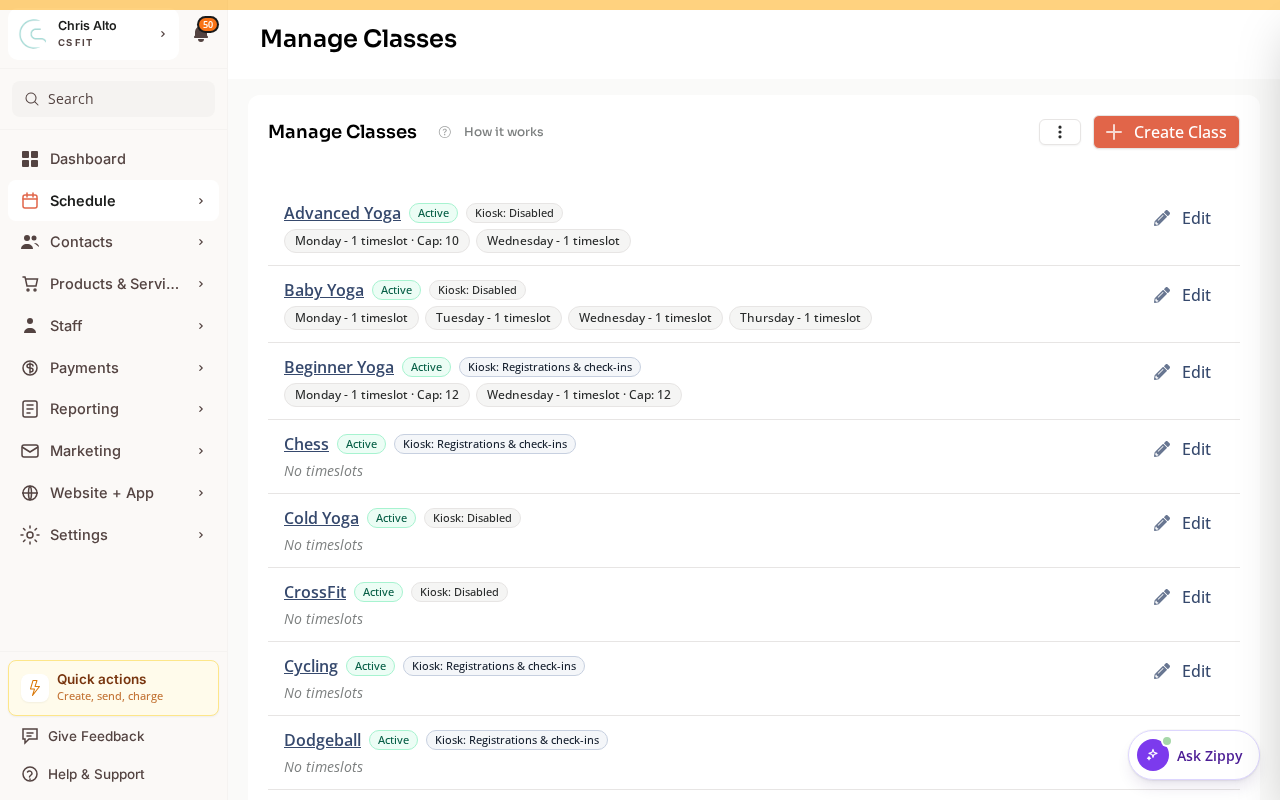
Step 1: Go to Manage Classes
- Navigate to: Schedule > Classes (Manage Classes)
- Expected: List of all your class types
Step 2: Open Sync Settings
- Find the … (three-dot) actions menu in the top right of the Manage Classes view
- Click: Sync Settings
Step 3: Select source and target classes
- Source: Choose the class with the correct settings (the one you want to copy from)
- Target: Check the classes you want to update
- Settings to sync: Choose what to sync (payment tiers, registration settings, capacity, etc.)
- Click: Sync
Approach B: Timeslot Schedule Change (For One Timeslot, Future Sessions)
Use this to update the instructor or capacity across all future sessions of a specific timeslot.
Step 1: Open the class timeslot
- Navigate to: Manage Classes → Edit the class. Each timeslot shows its Instructor and Cap (capacity) in the timeslots table.
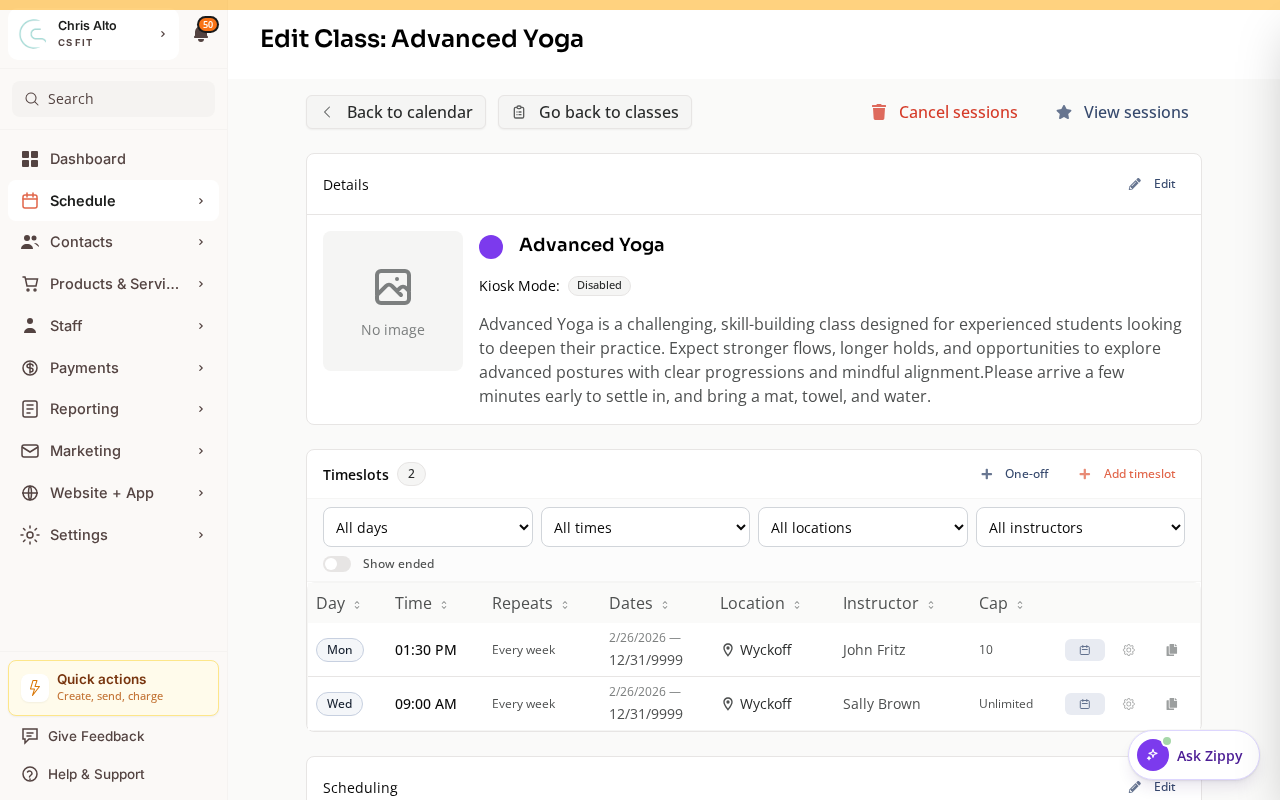
- Click the timeslot’s edit control to change its instructor or capacity for all future sessions.
Step 2: Add a schedule change
- Find Add schedule change or similar option
- Set what to change: instructor, capacity, or both
- Set the date range: from today/a future date, running indefinitely or to an end date
- Save
On Mobile
Both approaches work on mobile browser — Manage Classes and class editing are mobile-accessible.
Troubleshooting
Sync Settings isn’t showing. Check that you’re in the Manage Classes view (the class list), not on a specific class’s detail page. Look for the ”…” or actions menu at the top of the list.
Only some sessions updated after a schedule change. Verify the date range in the schedule change. If you set an end date, sessions after that date won’t be affected.
Need a hand?
Email our team at support@joinzipper.com and we'll usually reply within a few hours.
Was this article helpful?
Thanks for your feedback.