How to Adjust and Reassign Member Credits
Manually add, deduct, transfer, or correct a member's booking credits from their CRM profile.
How to Adjust and Reassign Member Credits
Use the customer’s Booking Credits to issue credits, record use, correct dates, or transfer available visits to an eligible family member or linked guest. These actions change booking credits; cash balance is a separate account-money wallet.
Open Credit Management
- Go to Contacts > Customers, find the customer, and open their profile.
- Open Billing & Payments and find Booking Credits.
- Choose Manage on the relevant credit card or pack. Check its product, balance, and date range before opening Actions.
The available actions depend on the credit’s status and expiry policy.
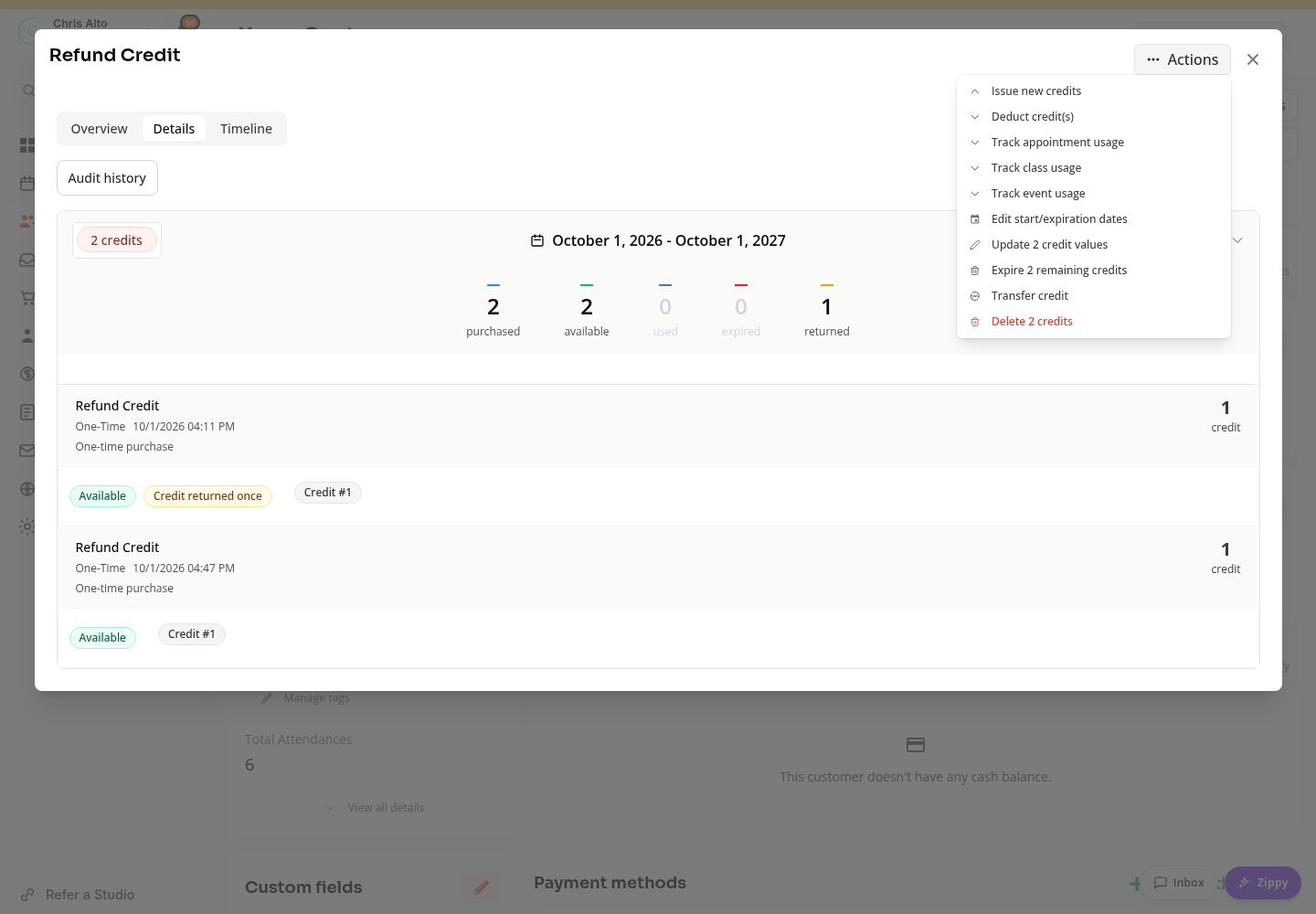
Add Credits
To add a new product’s credits, choose Issue new Booking Credits and select the product. For an existing pack, use Actions > Issue new credits.
- Enter how many credits to issue.
- Enter the purchase price for the credits being recorded; use $0 for a free comp or correction.
- Set the optional start and expiration dates when offered, and add a note explaining the adjustment.
- Review the customer, product, quantity, and dates, then click Add credits.
Some policies do not offer manual dates. A never-expiring or unlimited group uses its displayed expiration policy. When attendance-based expiry allows a chosen issue date, the form explains that choosing an expiration replaces that attendance-based expiry for the issued credits.
Deduct Credits or Record Manual Use
Use Deduct credit(s) in the pack’s Actions menu to open manual credit-use tracking. Enter how many available credits to mark as used, add the optional note, and click Track usage.
Deduction records use; it does not delete an incorrectly issued credit from the account. To remove an erroneous issuance, review the separate Delete credit action and its confirmation. Deletion cannot be undone and removes that credit and its usage from credit views and reports.
Attach a Credit to an Existing Booking
Use Track class usage, Track event usage, or Track appointment usage, or open Track credit use from the card’s Actions menu.
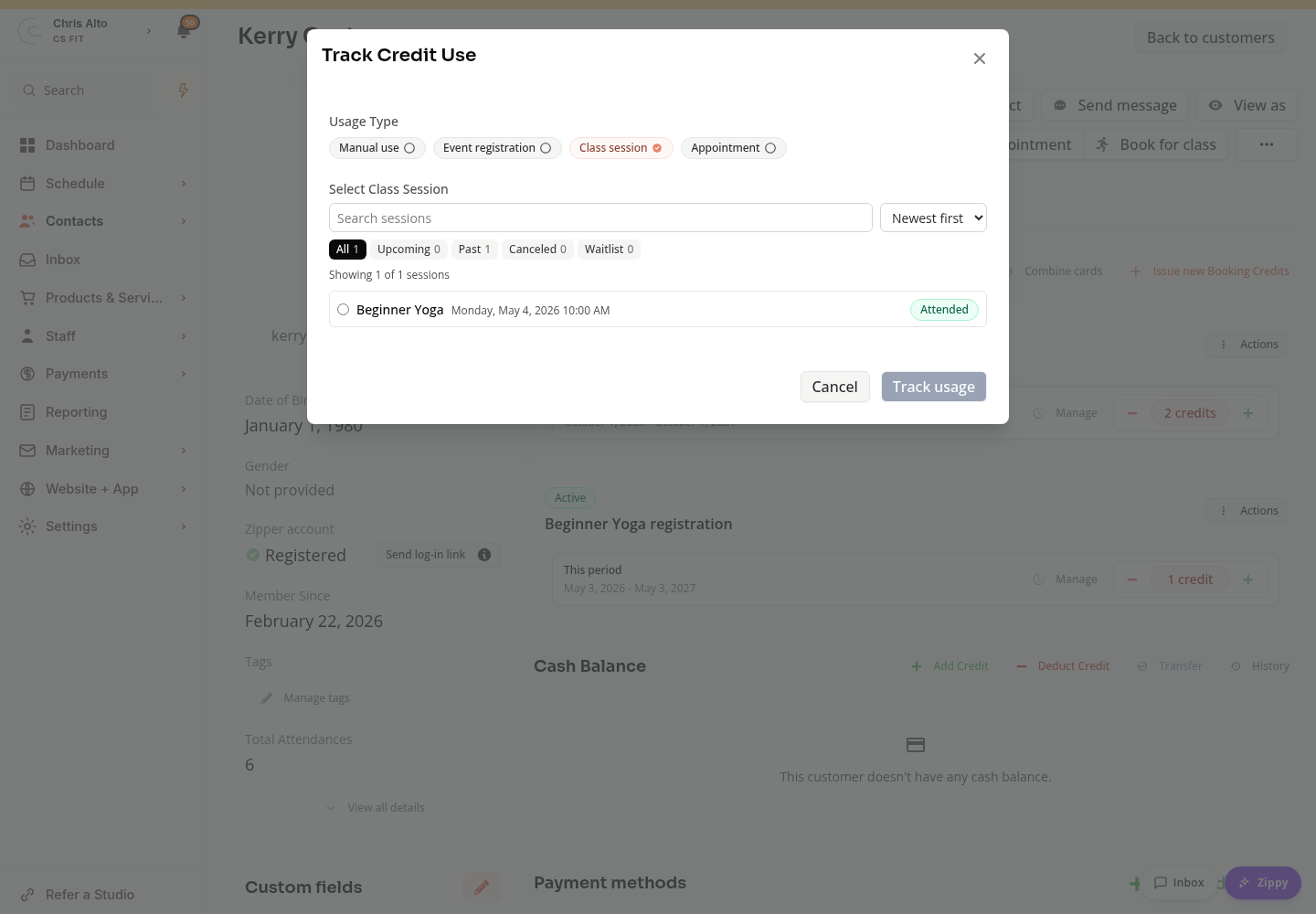
- In Track Credit Use, choose Class session, Event registration, or Appointment as appropriate.
- Search for the customer’s existing booking. The session picker starts with Newest first and offers All, Upcoming, Past, Canceled, and Waitlist filters. Use Oldest first if helpful.
- Select the booking, review the credit and attendee, then click Track usage. A flow opened for one selected credit may use Save instead.
The picker links a credit to an existing registration or appointment. It does not create a new class booking. Registrations already attached to another booking credit are excluded, as are canceled class events. An unavailable or already used credit cannot be attached again.
Correct Start or Expiration Dates
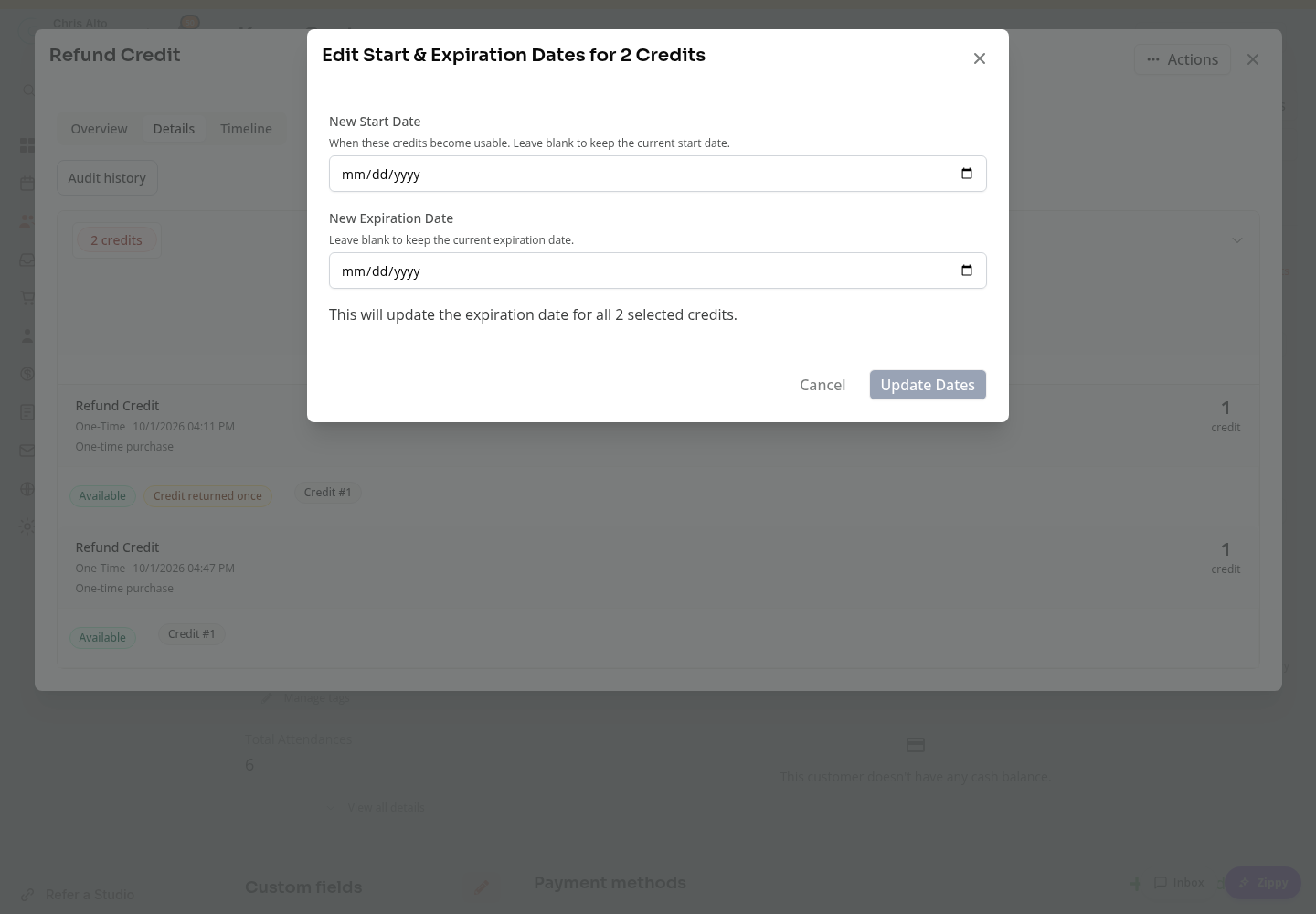
When the credit group offers Actions > Edit start/expiration dates:
- Enter New Start Date, New Expiration Date, or both.
- Leave a field blank to keep that existing date.
- Review how many credits the change will affect, then choose Update Dates.
The new start date must not be after the credits’ expiration. The expiration editor requires a complete future date; use the separate Expire remaining credits action when you intend to end availability now.
Attendance-controlled groups do not offer this bulk date-edit action. Check the group’s policy rather than deducting and reissuing credits just because the date control is absent.
Transfer Credits to a Family Member or Guest
- Open Actions > Transfer credit on the source pack or an available credit.
- Select a recipient under Transfer to.
- Choose Credits to transfer, or review the single selected credit if you opened the action from a credit row.
- Review the source customer, recipient, and quantity, then click Transfer credit or Transfer credits.
- Check the transfer confirmation and the recipient’s credit account.
The picker includes family members when the family relationship allows credit sharing, and guests linked to the source customer in this business. It is not a picker for arbitrary unrelated customers. If it shows No family members or guests with credit sharing available, check the relationship and business context first.
Only available credits can transfer. Used, expired, already transferred, or frozen credits are excluded. A visit-credit transfer is different from moving cash balance or using a sponsor’s credit while booking a linked guest.
Correct the Product Instead of the Customer
Transfer credit chooses a recipient, not a different product. If a credit was recorded against the wrong product, issue the appropriate credits on the correct product and correct the original issuance separately. Review the credit history and any existing booking before deducting or deleting it.
On Mobile
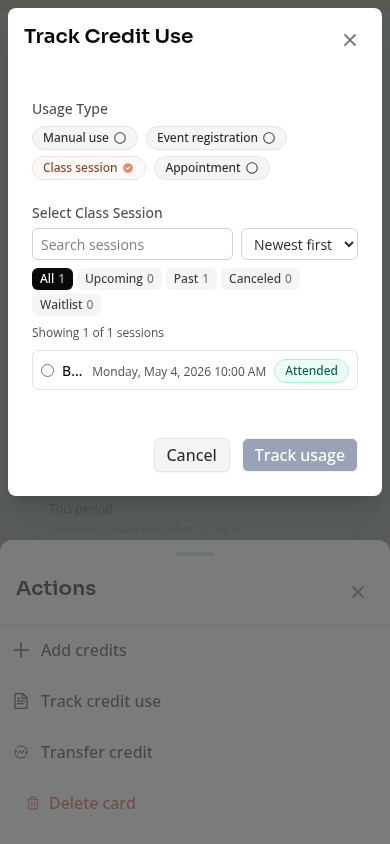
Open the same customer’s credit card and its Actions menu. Track credit use opens a compact picker with the same search, sort, and booking-status choices.
Troubleshooting
The session is missing. Clear the search/status filters, check that it belongs to this customer, and confirm it is not already attached to a credit. A canceled class event is not an eligible destination.
The date editor is missing. Check the group’s expiration policy, remaining credits, and whether attendance-based expiry controls the dates.
Transfer has no recipients. Confirm the customer has an eligible family-sharing relationship or linked guest in this business.
The list did not refresh after adding credits. The form distinguishes a completed issue from a refresh failure. Refresh the list and check the balance before issuing again.
Need a hand?
Email our team at support@joinzipper.com and we'll usually reply within a few hours.
Was this article helpful?
Thanks for your feedback.