How to Add a Member's Guest to a Class
Register a member's guest for an upcoming class when you're planning ahead from the admin — not at the door.
How to Add a Member’s Guest to a Class
Staff can book a linked guest for a class using an eligible credit owned by the member bringing them. The guest is recorded as the attendee, while the booking credit stays on the member’s account.
Step 1: Open the Class Roster
- Go to Schedule > Calendar and open the class session.
- Open the Registered roster and click Add registration.
- Choose Book guest.
- Search for and select the member under Credit owner.
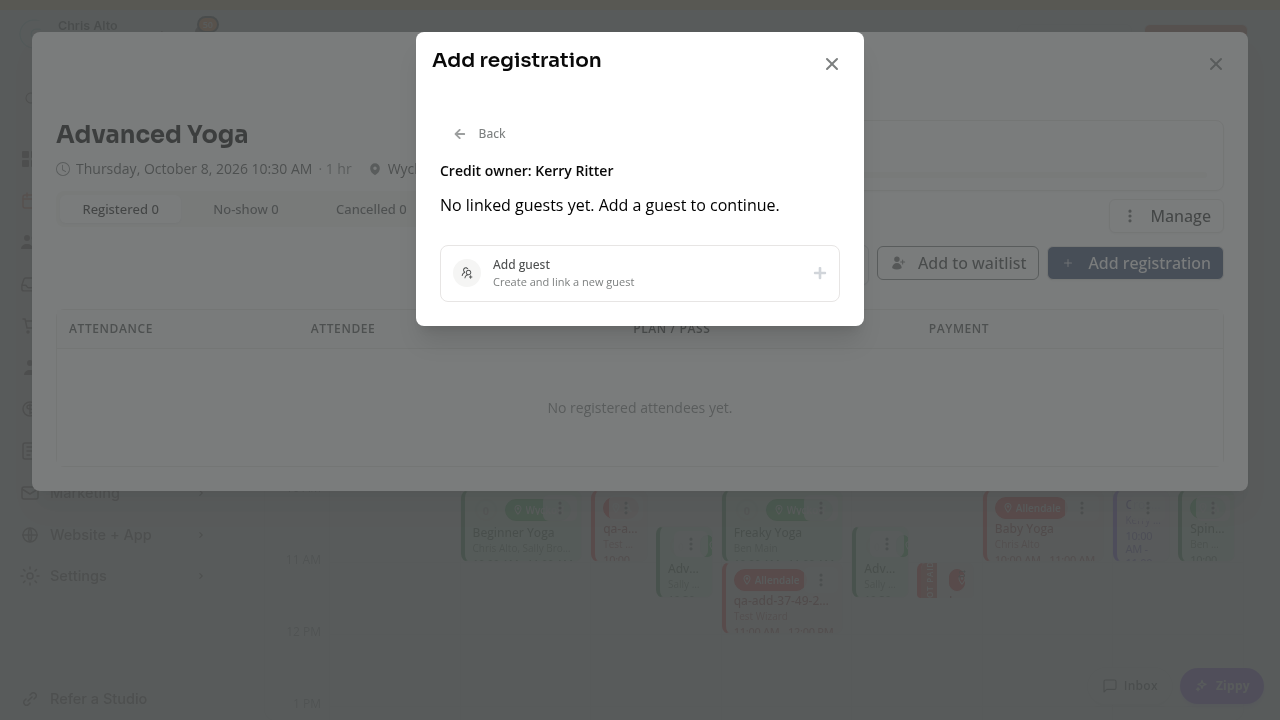
Step 2: Choose or Add the Guest
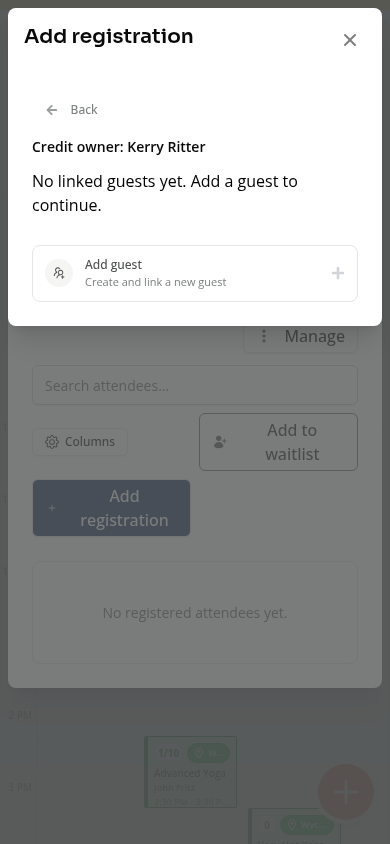
Select the friend from the member’s linked guests. The list is scoped to the business where you are booking.
If the guest is not listed:
- Click Add guest.
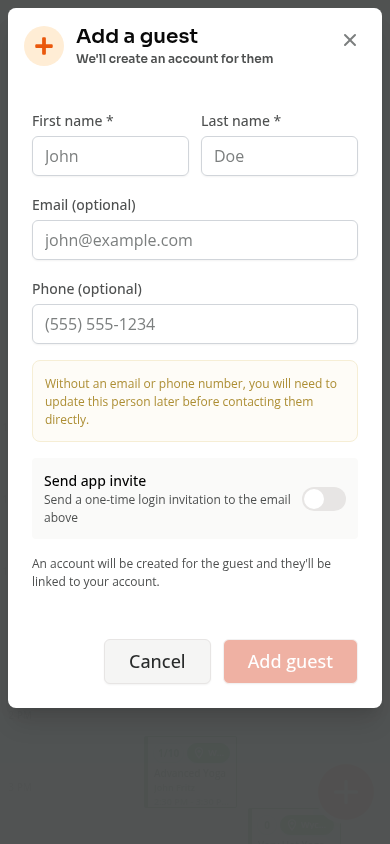
- Enter the guest’s first and last name. Email and phone are optional.
- Turn on Send app invite if you want to send a login invitation; this requires an email address.
- Click Add guest. If there are no contact details, review and confirm Add without contact. Without contact details, direct app invites, waiver messages, and notifications are unavailable until you add them.
- If the email belongs to an existing account, use the explicit existing-account confirmation rather than creating a duplicate.
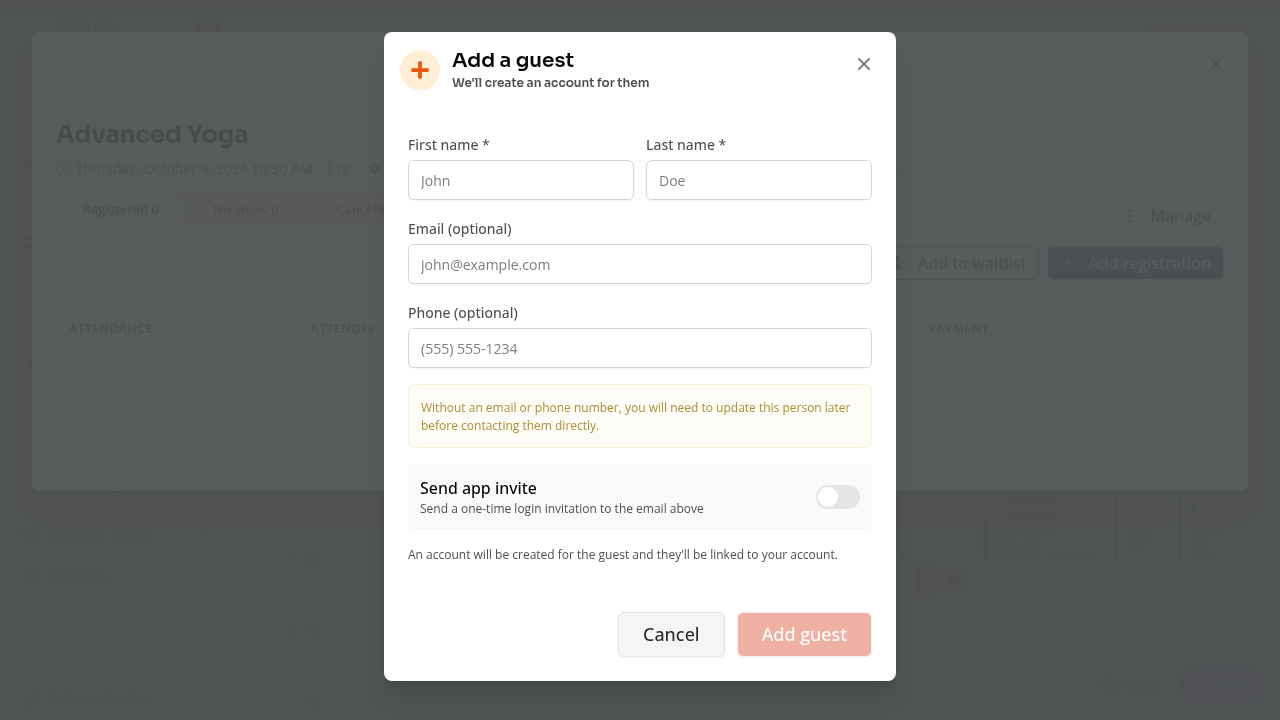
Adding a guest here creates or links an attendee account. It is different from anonymous Guest (Walk-in) checkout in Point of Sale.
Step 3: Use an Eligible Credit and Finish the Booking
- Review the Guest and Credit owner shown in the booking panel.
- Select an eligible booking credit from the available payment options. A product must allow sharing with guests, and the guest must still be linked to that credit owner in this business.
- Complete the registration and check the confirmation.
- Confirm that the guest appears in the class roster. The payment information can show the Credit owner separately from the attendee, and the guest can be checked in like another registrant.
The member’s credit is used for the guest’s booking without transferring it to the guest’s account. Book sponsored guest credits one class occurrence at a time; recurring guest credit bookings are not supported by this flow.
This registers the guest only. Register the member separately if they will also attend.
When the Guest Pays for Their Own Booking
Use Book customer and select the guest’s own customer account when they will use their own eligible credits or pay for their own drop-in booking. The Book guest path above is for selecting a sponsoring credit owner and their linked guest.
For a separate in-person sale without a customer account, see Guest Point of Sale Sales Explained.
On Mobile
The same Book guest and Credit owner flow is available in the mobile class roster. The guest picker and form fit the narrower screen:
Forms and Troubleshooting
Review the guest’s form and waiver status before attendance. Staff booking and customer booking can have different form requirements; see Required Forms and Family Waivers Explained.
The guest is missing. Check that you selected the correct credit owner and that the guest is linked to that member in this business. Use Add guest for a new link.
No suitable credit is available. Check the credit’s class eligibility and the product’s guest-sharing settings. Owning a product called a guest pass does not make every credit eligible for every class.
The class is full. Use Add to waitlist when the class offers it, or choose another session. Increasing capacity is not a prerequisite for opening the guest picker.
Need a hand?
Email our team at support@joinzipper.com and we'll usually reply within a few hours.
Was this article helpful?
Thanks for your feedback.