How Failed Payment and Expired Card Notifications Work
When a member's payment fails, Zipper automatically notifies both the member and your staff. Here's what happens and where to see failed payments.
What Triggers a Failed Payment Notification
A failed payment notification fires when:
- A subscription renewal fails (card declined, card expired, insufficient funds)
- A one-time charge attempt fails
- A book-ahead renewal fails while the member has upcoming bookings (see below)
Who Gets Notified
The customer (member) receives:
- Email, SMS, or push notification (depending on your notification settings)
- Message tells them their payment failed and prompts them to update their card
- Includes your studio name so they know who to follow up with
Your staff receives:
- Email, SMS, or push notification (depending on staff notification settings)
- Message includes the member’s name so you can follow up quickly
Book-Ahead Failures (When Members Have Upcoming Bookings at Risk)
If a member booked upcoming classes or appointments using pending book-ahead credits for a renewal that then fails, those bookings enter a grace period:
- The member’s upcoming bookings are temporarily held
- Zipper notifies the member that payment failed and their bookings may be canceled
- Updating a payment method alone does not confirm payment. When the renewal invoice is successfully paid before final cleanup, Zipper clears the payment-failure grace state and keeps the affected bookings.
- If the grace period expires or the renewal reaches final failure, Zipper cancels the affected bookings and revokes the matching unpaid book-ahead credits. Those credits do not become available to spend again.
- Payment received after final cleanup does not automatically restore canceled bookings. Review whether a new booking is needed.
What staff see during a book-ahead failure:
The member’s subscription can show Past Due, or Lapsed once it is unpaid. Review the failed invoice and affected bookings. Use Retry Charge in Failed Payments when available, or Retry for a retryable item in Lapsed Subscriptions. A retry request or a changed card is not proof that the invoice has been paid.
Where to See Failed Payments in the Dashboard
1. Payment Collector → Failed Payments tab
- Navigate to: Payments > Payment Collector, then the Failed Payments tab (alongside Unpaid Registrations, Unpaid Appointments, Unpaid Fees and Lapsed Subscriptions).
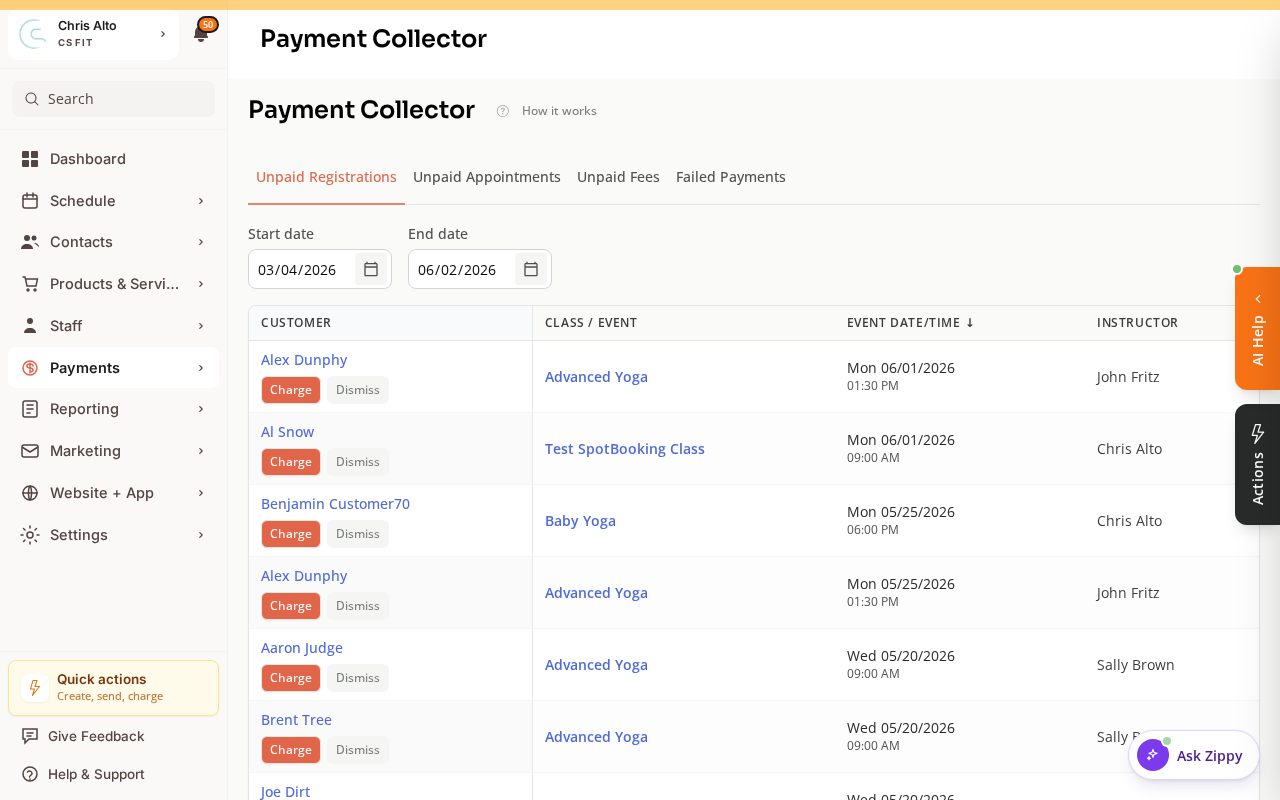
- Shows failed purchase attempts in the selected From and To date range, with customer, product, amount, card, last attempt and failure reason. Related retries can share one row; a Failed Nx badge shows multiple attempts.
- Retry Charge appears for an associated invoice and is disabled if the subscription is canceled. Read the payment result before trying again.
- Dismiss clears the failed-payment alert without collecting or waiving money. Dismissed alerts and cancellation/no-show or pause-fee failures are excluded from this list.
- A Paid date can appear beside a past failure. A historical failure can remain visible after a later successful payment.
2. Dashboard home — “Needs Attention” widget
- The main dashboard home shows a Failed Payments count in the alerts area
- Click it to go directly to the Failed Payments list
Pending ACH and Bank-Payment Failures
A Pending ACH payment is still processing, rather than a confirmed success or failure. From Contacts > Customers, open the customer profile’s overflow menu, choose Manage transactions, then Pending ACH. This tab is available to staff.
Click Pending or Processing to open Pending ACH payment details. It shows the current status, amount, initiation time, expected debit date, bank, account type and account ending. Missing bank or timing fields say Not available. The expected debit date is not a guarantee that the payment will succeed.
If an ACH invoice payment fails after credits were issued, the team can receive Bank Payment Failed After Credits (Team) instead of the generic team failure alert. It includes the product, payment amount, credits issued, credits already used and failure reason when available. Review the actual credits and bookings before deciding what to do next.
About Expiring Cards
Stripe automatically emails cardholders when their card is about to expire — Zipper doesn’t send a separate expiring-card notification. However:
- When an expiring card causes a payment to fail, the normal failed payment notifications fire
- Members can update their card anytime from their account profile
Tips
- Configure SMS + push for payment failures — faster response than email for time-sensitive billing.
- Follow up same day: reaching out within 24 hours of a failure improves collection rates.
Troubleshooting
Staff aren’t receiving failed payment notifications? Check Settings > Organization Notifications under Payments and Subscriptions. Review Payment Failed (Team), Bank Payment Failed (Team), Bank Payment Failed After Credits (Team) and Renewal Payment Failed (Team) as applicable. Staff should also review Settings > My Notifications and their contact details.
Member paid but subscription still shows “Past Due”? Open the customer profile’s overflow menu, choose Manage Stripe integration, then Sync Stripe data. Wait for the sync result and review the invoice and subscription status. This refreshes Stripe records; it does not collect a payment.
Need a hand?
Email our team at support@joinzipper.com and we'll usually reply within a few hours.
Was this article helpful?
Thanks for your feedback.