Launch Day: Testing the Customer Booking Flow
Before announcing to members, run through the full booking experience yourself using a test customer account. This catches the issues that matter most: can a customer actually find, book, and confirm a class or appointment?
Before You Start
- Your Zipper site is published with your custom domain live
- At least one class or appointment has upcoming sessions available
- A test email address you control (different from your admin account)
- A payment method to test a paid booking
The Test Checklist
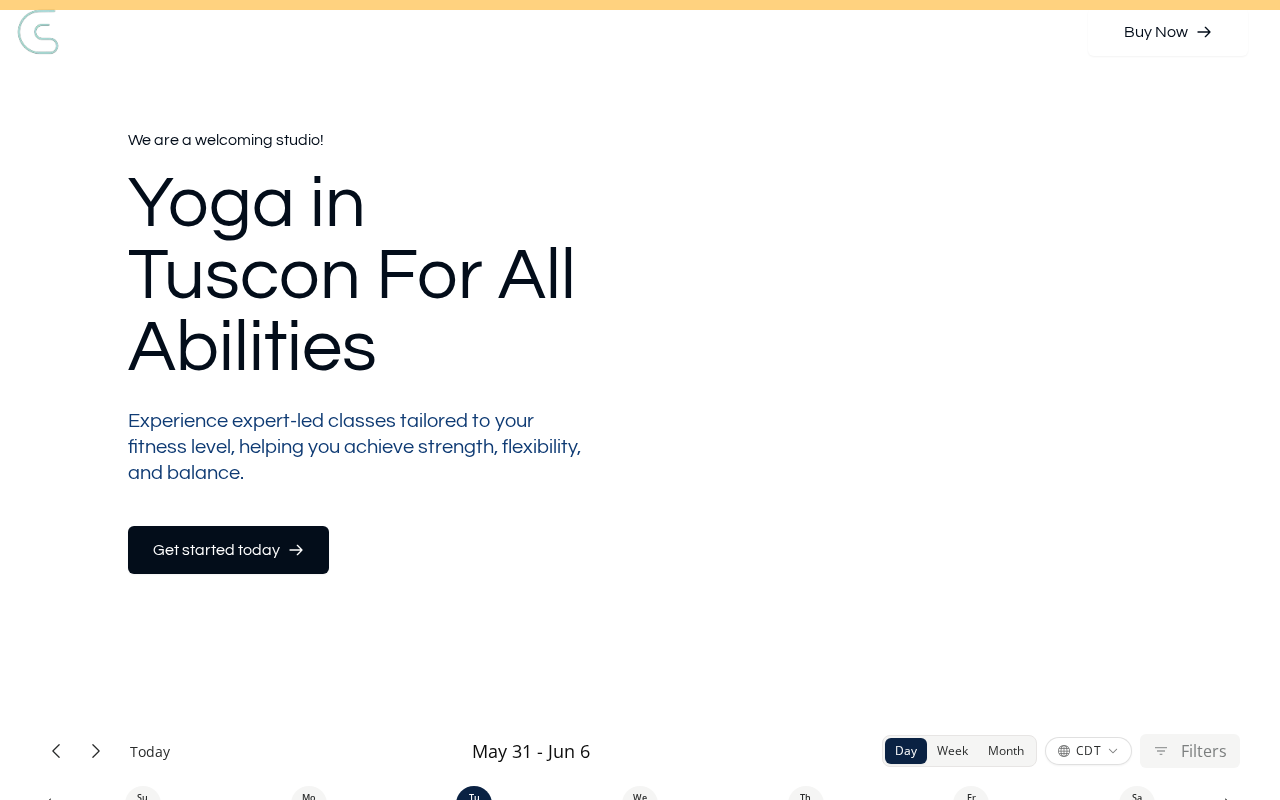
1. Booking page loads
- Visit your custom domain (e.g.,
yourstudio.com) - Page loads with your logo, colors, and class schedule visible
- No broken images or missing sections
2. Account creation
- Click Sign up / Create account on the booking page
- Enter your test email and complete the form
- Welcome/confirmation email arrives in your test inbox
- Account created successfully — logged in and can see the schedule
3. Schedule is visible and accurate
- Classes and appointments show at the correct times
- Class names, instructors, and locations are correct
- Upcoming dates are shown (not past sessions only)
- Products/prices look correct
4. Book a class
- Click on an upcoming class
- Select a payment option (booking credits, subscription, or drop-in)
- Complete the checkout
- Booking confirmation appears on screen
- Confirmation email arrives in your test inbox with the correct class details
5. (If applicable) Book an appointment
- Navigate to appointment booking
- Select an instructor, date, and time
- Complete the checkout
- Appointment confirmation email received
6. Payment processed correctly
- If paid: check that the correct amount was charged
- No duplicate charges
- Stripe dashboard (or Payment Collector) shows the transaction
7. Booking visible in admin
- Log into the Zipper admin
- Find the test booking in Schedule > Calendar → class registrants (or Contacts > Customers → customer profile → Calendar tab)
- Test customer appears in the customer list
8. Booking visible in customer account
- Log back into the test customer account
- Go to My Schedule or Upcoming Bookings
- The booked class or appointment shows correctly
If Something Fails
| What failed | Where to look |
|---|---|
| Page won’t load / custom domain broken | Website + App > Domains → verify DNS is pointing correctly |
| Can’t create an account | Check if email confirmation is required; try a different email |
| Schedule not showing | Confirm classes are published (not draft) and Show in app is on |
| Payment won’t go through | Verify Stripe is connected: Settings > Integrations → Stripe |
| Confirmation email didn’t arrive | Check spam; verify the test email address is correct |
| Booking not showing in admin | Hard-refresh the calendar; search by test customer email in Contacts > Customers |
After Completing the Test
- Cancel the test booking to free up the spot for real members
- Archive or delete the test customer account (or leave it for future testing)
- Send the go-live announcement to your member base
Tips
- Test on both desktop and mobile — the booking flow should work on any device
- Test with a real payment card if you can — test cards sometimes behave differently than live cards
- Time yourself — the full booking flow should take under 3 minutes for a new customer. If it takes longer, something may be confusing
Troubleshooting
The custom domain shows a “site not found” error. DNS propagation can take up to 48 hours. Check your DNS settings with your domain registrar. Contact your Zipper onboarding rep if DNS appears correct but the site still won’t load.
The payment gateway shows a different amount than expected. Check your product pricing in Products & Services. Also verify that Stripe tax settings match your expectations.
Need a hand?
Email our team at support@joinzipper.com and we'll usually reply within a few hours.
Was this article helpful?
Thanks for your feedback.