How to Verify Your Class Schedule Is Correct
Before launch day, confirm every class shows up at the right time and with the right details.
Checklist
1. Check classes in the admin calendar
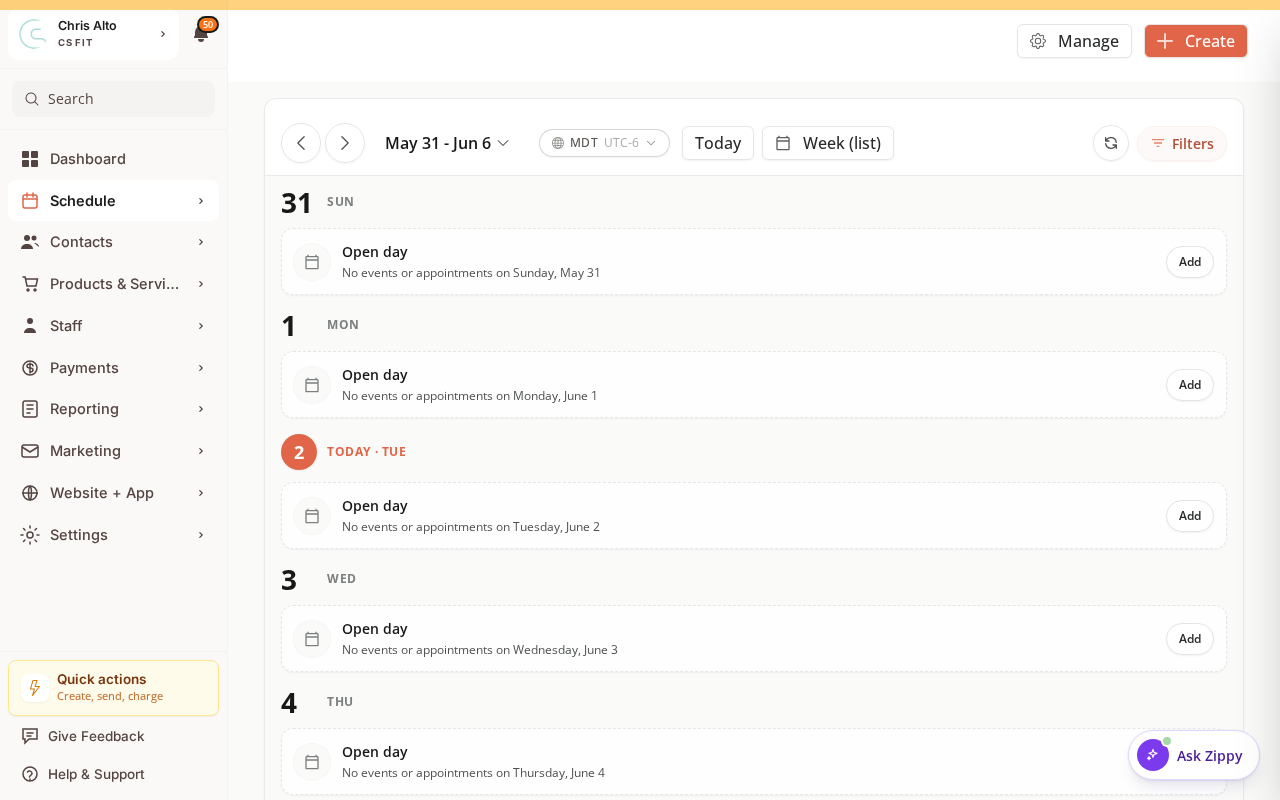
- Navigate to: Schedule > Calendar
- Switch to Week or List view
- Scroll through the next 4–6 weeks
- For each class, verify:
- ✅ Correct day(s) of the week
- ✅ Correct start and end times
- ✅ Correct timezone (check Settings > Organization Settings > Timezone)
- ✅ Correct instructor assigned
- ✅ Correct location/room
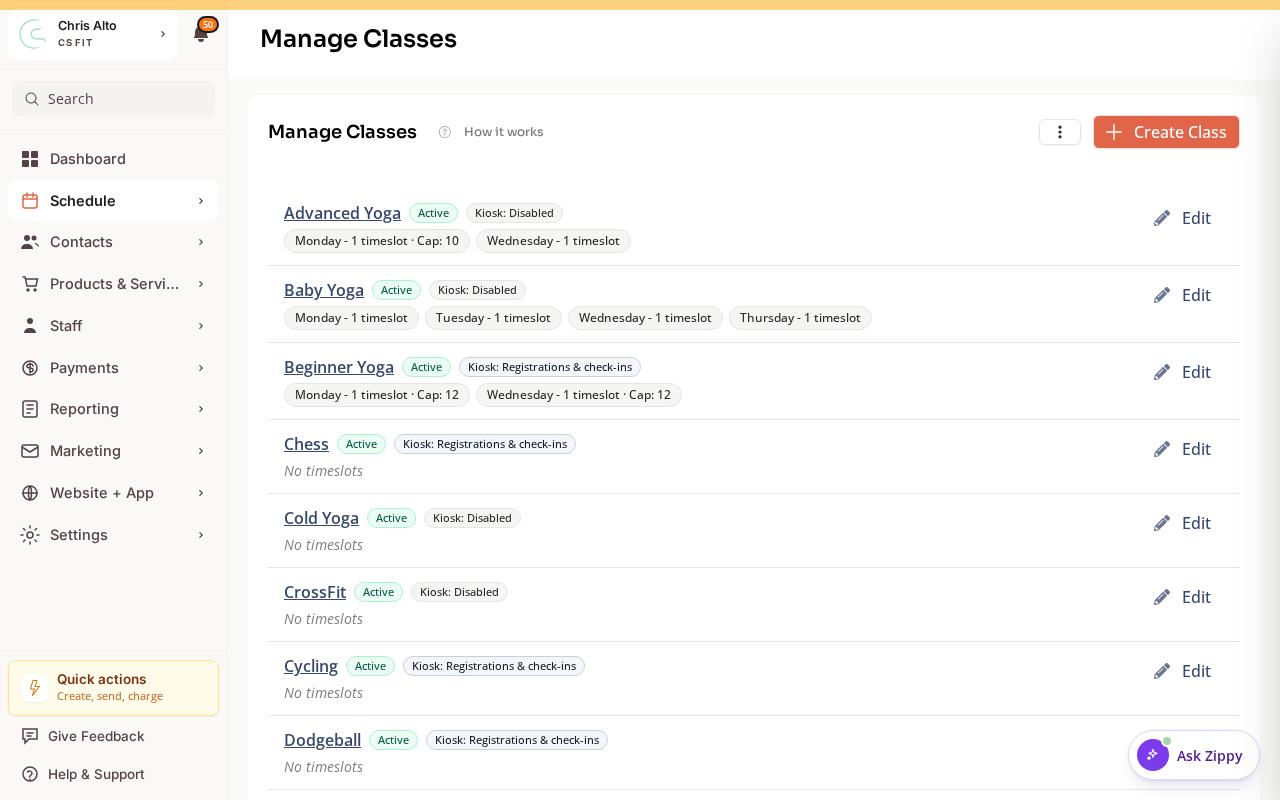
For a series-level overview, open Schedule > Classes (Manage Classes). Each class series shows its active time slots, capacity, kiosk setting, and an Edit link.
2. Verify classes appear in the customer shop
- Visit your Zipper booking page (your custom domain or Zipper subdomain)
- Log in as a test customer (or use incognito mode)
- Browse the schedule
- Confirm the same classes from the admin calendar appear here
3. Check for missing classes
Compare your expected schedule against what Zipper shows:
- If a class is missing: it may have a past end date, be in draft, or have “Show in app” turned off
- Check the class settings: Schedule > Calendar → click the class → verify registration is open
4. Check class names and descriptions
- Do class names match what you want customers to see?
- Are descriptions accurate?
- Is the capacity set correctly?
5. Test a booking
- Log in as a test customer
- Book a class from the schedule
- Confirm: confirmation email received, booking shows in the admin calendar
Common Issues Found
| Issue | Where to fix |
|---|---|
| Class at wrong time | Edit the timeslot in Schedule > Calendar |
| Class not showing for customers | Check “Show in app” toggle and registration open status |
| Wrong timezone | Settings > Organization Settings |
| Missing classes | Check if the class series has an end date that’s passed |
Need a hand?
Email our team at support@joinzipper.com and we'll usually reply within a few hours.
Was this article helpful?
Thanks for your feedback.