How to Spot-Check Member Accounts After Migration
Before announcing go-live, spend 30 minutes spot-checking a sample of member records. Catching data issues now prevents billing problems and confused members on day one.
What to Check Per Member
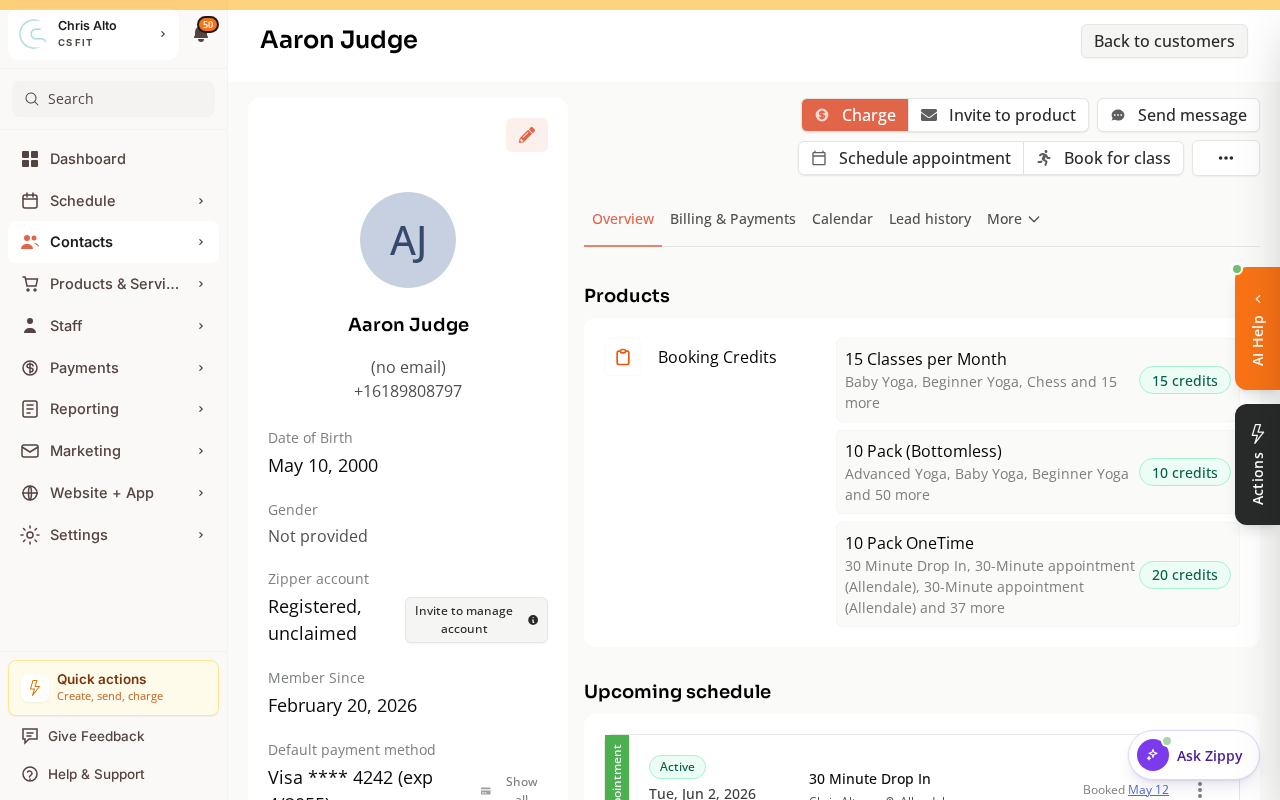
- Name and email are correct
- Phone number is on file (if you had it)
- Account claim status is correct (see below)
- Active subscriptions show the right plan name and amount
- Booking credits / booking credit balance is correct
- Tags are applied (if you used tags during import)
- Family/dependent links are correct (for family plan members)
Understanding Account Claim Status
| Status | What it means |
|---|---|
| Not registered | No Zipper account created yet — member hasn’t been invited or hasn’t signed up |
| Registered, unclaimed | A Zipper account exists for this email but isn’t connected to this profile yet |
| Registered ✓ | Member has an active Zipper account linked to this profile |
On launch day, most members will show “Not registered” until they claim their account. That’s expected — invite emails go out separately.
Steps
Step 1: Navigate to Contacts
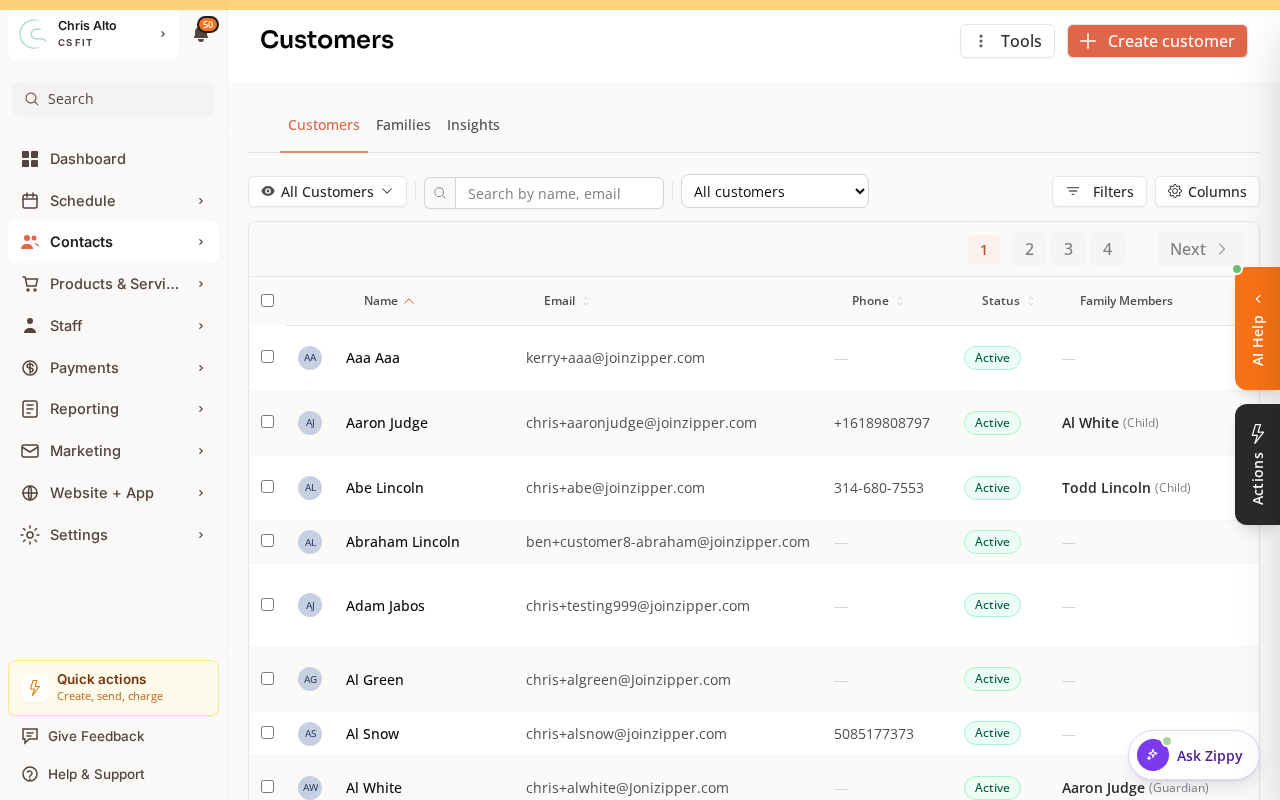
- Navigate to: Contacts > Customers
Step 2: Sample your active subscribers first (highest priority)
These are the members who will be billed on day one — any errors here matter most.
- Use the filter bar to narrow to members with active subscriptions
- Spot-check 10–15 subscribers from different membership tiers and verify the checklist above for each
Step 3: Check a sample of booking credits holders
- Filter by members with remaining booking credits
- Spot-check 5–10 records — verify correct product name and credit balance
Step 4: Check family accounts
- Search for members with dependents and open 3–5 family accounts to verify parent-child relationships
Step 5: Check a sample of non-paying members
- Browse a few inactive or unsubscribed members and verify basic profile data (name, email)
Common Issues Found at This Stage
| Issue | What to do |
|---|---|
| Wrong subscription amount | Update the product price or re-import the subscription row |
| Wrong credit balance | Use Issue new Booking Credits on the customer’s billing tab to adjust |
| Missing member | Search by email — they may have been imported under a different name |
| Family link missing | Set up family account manually: customer profile → Manage family |
| Subscription on wrong product | Cancel and restart with the correct product, or contact your onboarding rep |
How Many to Check?
- Under 100 members: Check all active subscribers + a random 20% sample of the rest
- 100–500 members: Check all active subscribers + a random 10% sample
- Over 500 members: Check all active subscribers + spot-check by tier/type (5–10 per membership type)
Tips
- Have your old platform export open in another tab for comparison while you check
- Log any discrepancies in a simple spreadsheet — member name, what’s wrong, and what the correct value should be
- Bulk issues: If an entire subscription tier imported wrong, your onboarding rep can help with a bulk correction before launch
Troubleshooting
A subscriber’s membership shows as “Canceled.” This sometimes happens if the import date was set in the past. Check with your onboarding rep — a subscription restart may be needed.
I can’t find a member in the CRM. Search by email address (not just name). Check that they were included in the import spreadsheet. If still not found, they may need to be added manually or re-imported.
Need a hand?
Email our team at support@joinzipper.com and we'll usually reply within a few hours.
Was this article helpful?
Thanks for your feedback.