How to Invite Staff and Admins to Zipper
Add a new staff member and send them an invitation to set up their account.
Steps
- Navigate to: Staff > Staff Members.
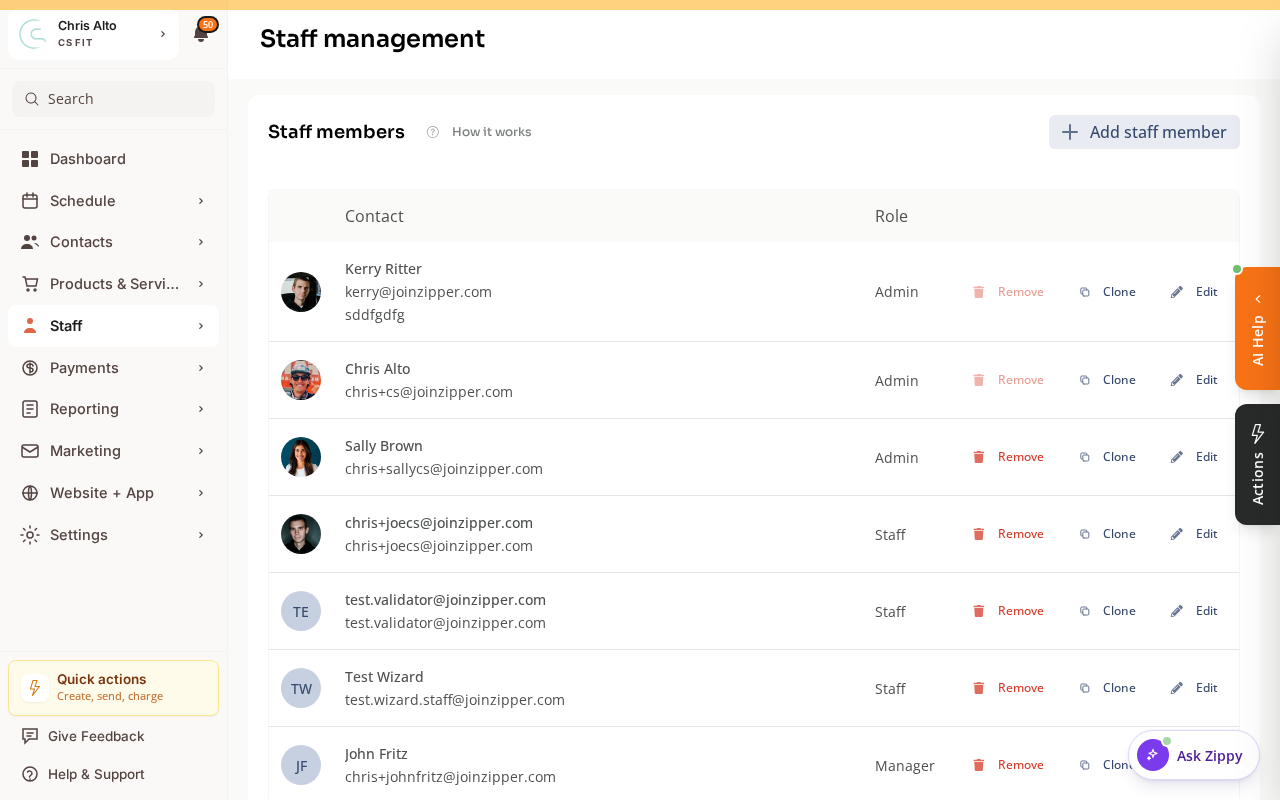
- Click: Add staff member
- Fill in:
- Email address — the email they’ll use to log in
- First name and Last name
- Role — Admin, Manager, or Staff
- Pay rate (optional — can be set later)
- Click: Save
What the Staff Member Receives
The staff member gets an email inviting them to:
- Create a Zipper account (or log in to their existing one)
- Accept the invitation to join your organization
- Access the dashboard with their assigned role
How a Staff Member Claims Their Account
If you’ve added the staff member directly (so their account is already set up in Zipper) and they need to claim it:
- Go to joinzipper.com and click Login
- Click Forgot password or Reset password
- Enter the email address you used when adding them as a staff member
- Check email and follow the reset link to set a password
- Log in at https://app.joinzipper.com/auth/login
Roles
| Role | Access |
|---|---|
| Admin | Full access to all settings and data |
| Manager | Same as Admin, but cannot manage staff |
| Staff | Limited — configure specific permissions via Advanced Permissions |
Bulk Inviting at Launch
If you’re setting up many staff members at once, contact your Zipper onboarding rep — they can assist with bulk staff import.
Troubleshooting
Staff member says they didn’t receive the invite. Check the email address was entered correctly. Ask them to check spam. You can resend the invite from the Staff list → Edit → Resend invite.
Staff member can’t log in after accepting. Verify they’re logging in with the same email address the invite was sent to.
Need a hand?
Email our team at support@joinzipper.com and we'll usually reply within a few hours.
Was this article helpful?
Thanks for your feedback.