How to Fill Out the Zipper Import Spreadsheet
Before your go-live, you'll fill out Zipper's import template with data from your old platform. This guide explains each column and the most common formatting mistakes to avoid.
Before You Start
- Get the import template from your onboarding rep (or download it from the import tool)
- Export your customer data from your old platform
- Have your Zipper product catalog set up (subscription names must match exactly)
Where the Import Tool Lives
- Navigate to: Contacts > Customers > Import/Export. The Import & Export Tools page has tools for importing customers, class registrations, appointments, and Stripe customers.
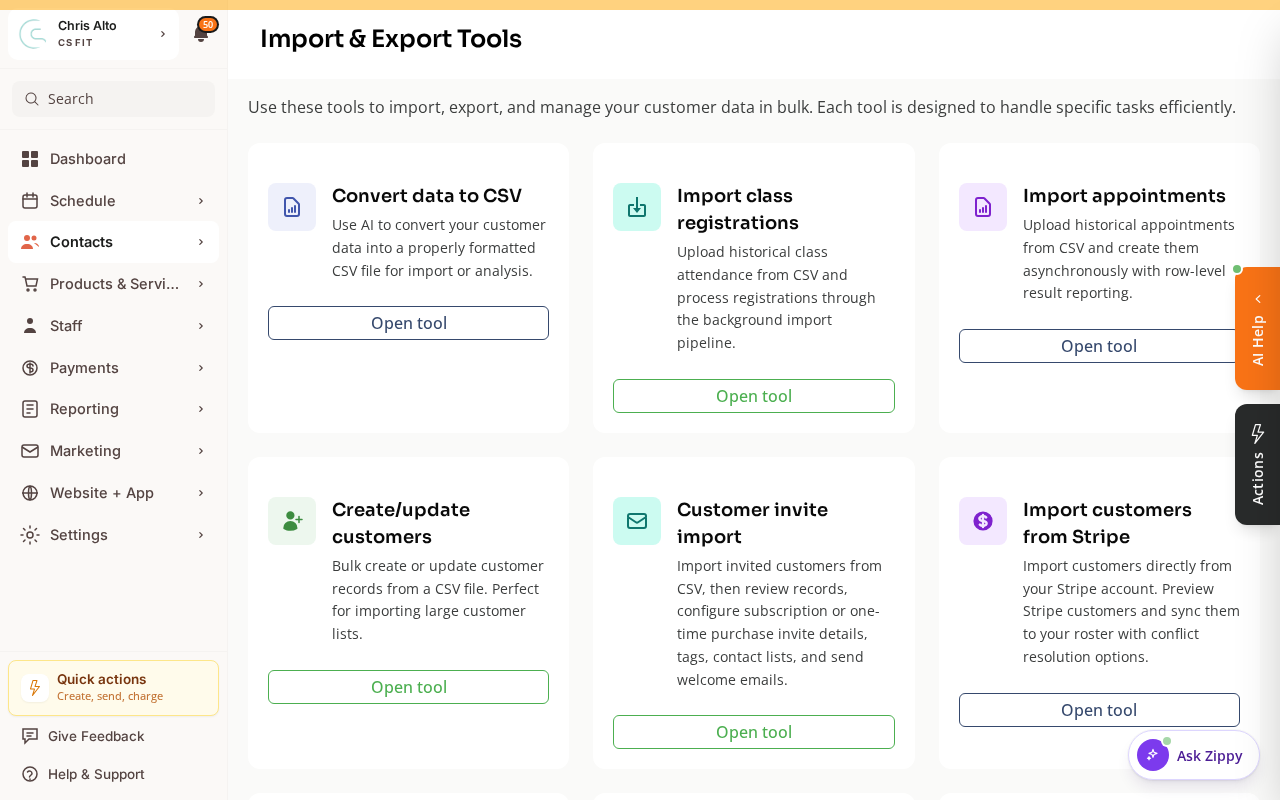
- The relevant tools upload your spreadsheet, preview the data, and load it into Zipper.
The Customers Sheet (Required)
This sheet creates the customer list. Every customer you want in Zipper must appear here.
| Column | What it does | Format |
|---|---|---|
| First name | Customer’s first name | Text |
| Last name | Customer’s last name | Text |
| Email address | Primary email — used as the unique identifier | Valid email (e.g., jane@example.com) |
| Phone number | Customer’s phone number | Any common format (+1XXXXXXXXXX, 555-555-5555, etc.) |
Common mistakes on the Customers sheet
- Duplicate emails: Each row must have a unique email. If you have family members sharing an email, use different emails or the family account structure.
- Extra spaces: Leading or trailing spaces in email cells cause import failures. Use your spreadsheet’s TRIM() function to clean them.
- Special characters in names: Generally fine — just avoid line breaks inside a cell.
The Subscriptions Sheet (Optional)
Use this sheet to bulk-start subscriptions for imported members. Each row starts one subscription for one customer.
| Column | What it does | Required? |
|---|---|---|
| customerEmail | Must match an email from the Customers sheet | Yes |
| productName | Exact name of the Zipper product to enroll them in | Yes |
| action | Always: start-stripe-subscription | Yes |
| startDate | Subscription start date | Yes — format: YYYY/MM/DD |
| endDate | End date (leave blank for open-ended) | No |
| discountType | Leave blank, or percent or amount | No |
| discountAmount | Discount value (e.g., 10 for 10% off) | No (only if discountType is set) |
Common mistakes on the Subscriptions sheet
- Product name mismatch:
productNamemust match your Zipper product name exactly — case-sensitive, including punctuation. Check Products & Services before importing. - Date format: Use YYYY/MM/DD (e.g., 2026/01/15). Excel sometimes reformats dates — double-check cells before uploading.
- Missing customerEmail: Every subscription row needs a matching email from the Customers sheet.
The Booking Credits Sheet (Optional)
Use this sheet to add booking credit balances for imported members.
| Column | What it does |
|---|---|
| customerEmail | Matches the Customers sheet email |
| productName | Exact name of the booking credits product in Zipper |
| credits | Number of remaining credits to import |
| expirationDate | When the credits expire (YYYY/MM/DD or blank) |
Tips for a Clean Import
- Export and clean before importing: Remove test accounts, duplicate members, and outdated entries from your old platform’s export before building the template.
- Match product names exactly: Copy-paste product names from Zipper’s Products & Services page into your spreadsheet rather than typing them.
- Keep emails lowercase: Email matching is case-sensitive in some contexts. Lowercase all emails to be safe.
- Test with a small batch first: Import 5–10 customers first, verify they look correct in Zipper, then import the rest.
- Family accounts: Import each family member as a separate row with their own email. Family relationships are configured separately after import.
Troubleshooting
Import fails with “product not found.” Open your Zipper product list and copy the exact product name — including spaces, capitalization, and punctuation — into your spreadsheet.
A customer’s subscription didn’t import. Check that their email matches exactly between the Customers sheet and the Subscriptions sheet. Then confirm the product name exists in Zipper.
Import completed but some customers are missing. Check the import results screen — it shows which rows succeeded and which failed with reasons. Fix the errors and re-import just the failed rows.
Need a hand?
Email our team at support@joinzipper.com and we'll usually reply within a few hours.
Was this article helpful?
Thanks for your feedback.