How to Configure Staff Roles and Permissions
Zipper has three built-in roles with different levels of access. You can also use Advanced Permissions to customize exactly what each staff member can do.
The Three Roles
| Role | What they can do |
|---|---|
| Admin | Everything — full access to all settings, data, and features |
| Manager | Same as Admin, except they cannot manage other staff members |
| Staff | Limited — can teach classes and book appointments, but can’t access settings, customer data, or financials by default |
Most studios use: Admin for owners, Manager for lead staff, and Staff for instructors and contractors.
How to Change a Staff Member’s Role
Step 1: Go to Staff Management
- Navigate to: Staff > Staff Members
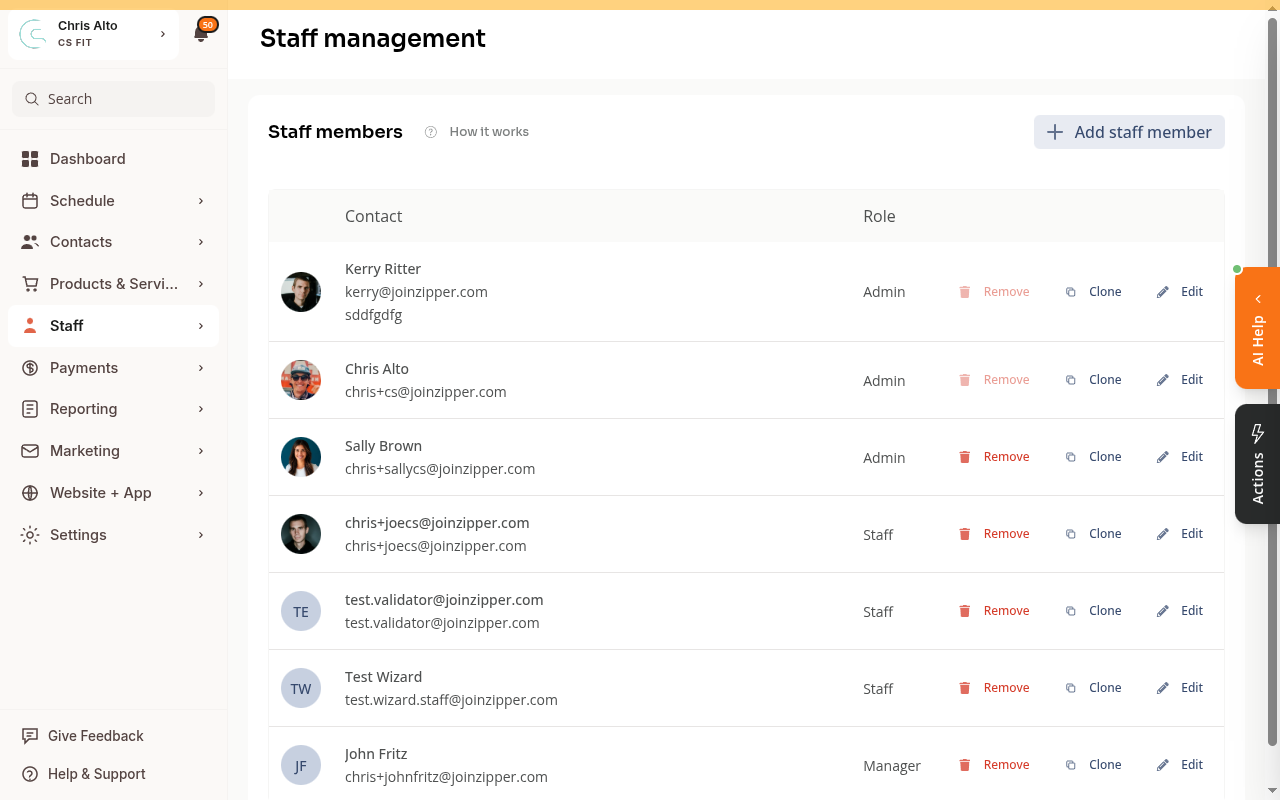
Step 2: Edit the staff member
- Find the staff member in the list
- Click: Edit
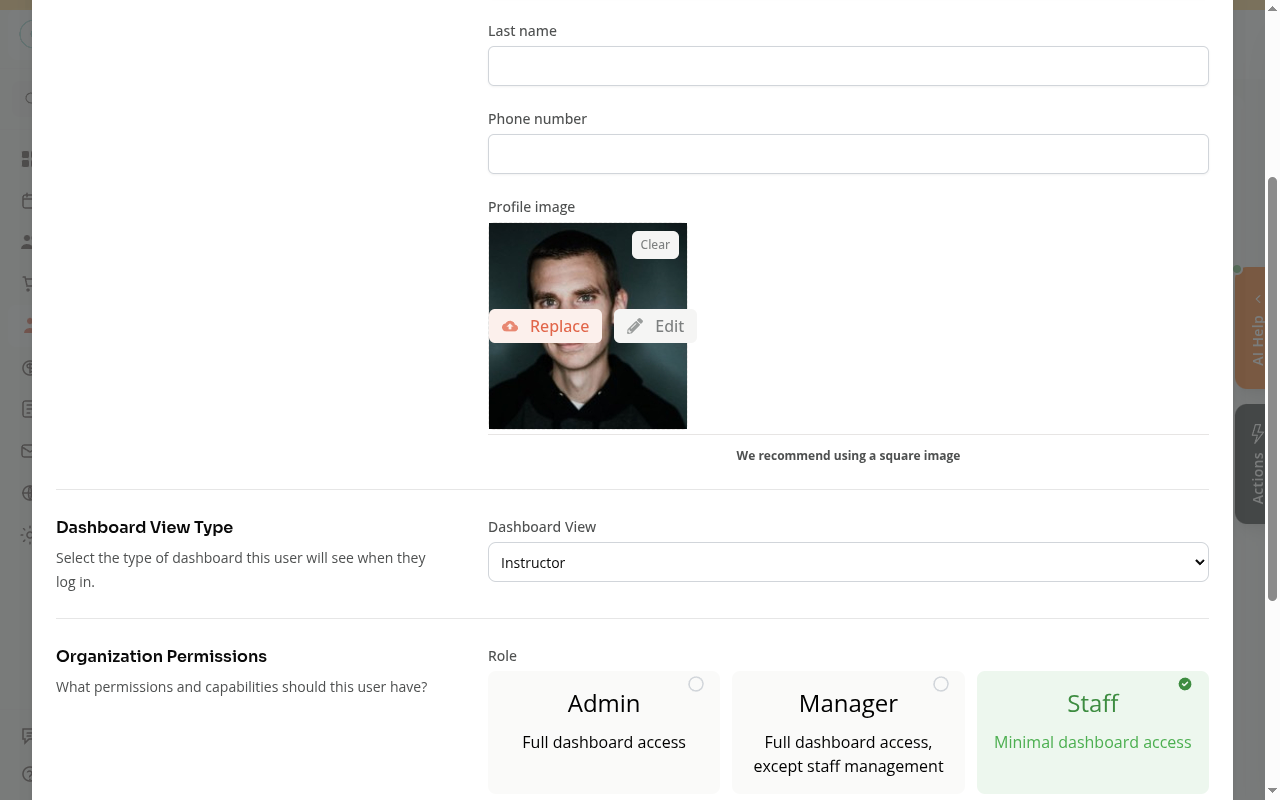
Step 3: Change the role
- In the Organization Permissions section, find the Role dropdown
- Select: Admin, Manager, or Staff
- Click: Save
Fine-Tuning with Advanced Permissions
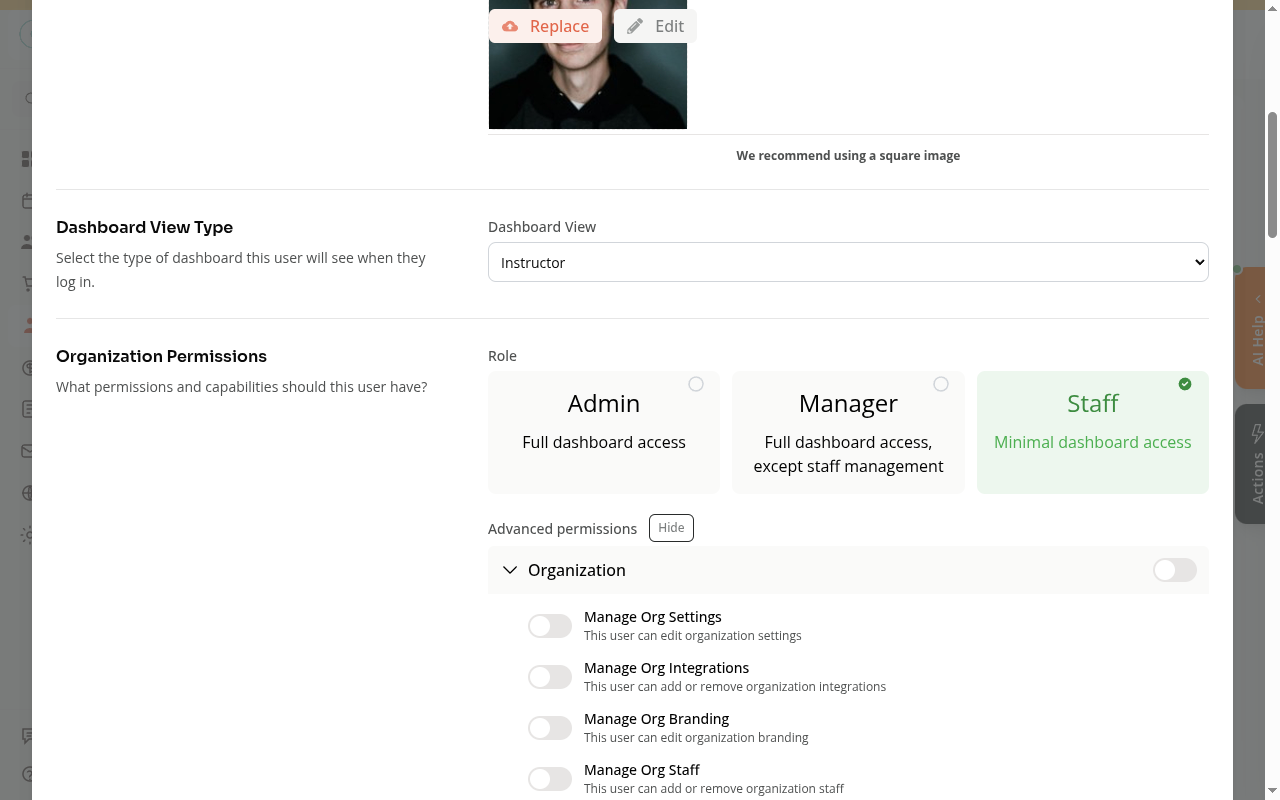
For Staff-role members who need access to specific features (but not full Manager access), use Advanced Permissions.
How to open Advanced Permissions
- In the Edit staff member modal, scroll to Advanced permissions
- Click: Show
Most useful permissions for Staff-role members
| Permission | What it unlocks |
|---|---|
view-customers | Can see the customer list in CRM |
manage-customers | Can edit customer profiles |
view-customer-financials | Can see customer billing and payment history |
manage-point-of-sale | Can use the Point-of-Sale to check out customers |
view-payment-collector | Can see unpaid fees and charge customers |
manage-schedule | Can create and edit classes/events |
view-substitution-board | Can see open sub requests |
claim-substitutions | Can claim open sub requests |
post-substitution-board | Can post their own sub requests |
manage-own-time-tracking | Can clock in/out for themselves |
view-org-financials | Can see org-level revenue reports |
How to add a permission
- Find the permission in the Advanced Permissions list
- Toggle it on
- Click: Save
On Mobile
Same steps — staff management and the edit modal work on mobile browser.
Tips
- “Why can’t my instructor see the Calendar?” — If they’re Staff role with no extra permissions, they may not have
manage-schedule. Add it via Advanced Permissions. - “An admin can’t add staff” — Check if they’re Manager (not Admin). Managers can’t manage other staff by design. Upgrade to Admin if needed.
- Contractors / sub board: Contractors need
view-substitution-board+claim-substitutions. See: How to Enable the Sub Board for Independent Contractors. - Changes take effect immediately — no need to log the staff member out and back in.
Troubleshooting
Staff member can’t see the feature I enabled. After saving the permission change, have them refresh their browser. If it still doesn’t show, confirm the permission was saved by reopening the Edit modal.
I don’t see the “Advanced permissions” section. It appears in the Edit staff member modal — scroll down below the Role selector. If the modal seems cut off, try expanding your browser window.
Need a hand?
Email our team at support@joinzipper.com and we'll usually reply within a few hours.
Was this article helpful?
Thanks for your feedback.