How to install Zipper as an app
Install the Zipper admin or client booking experience as an app on your iPhone or Android by adding it to your home screen — no App Store or Google Play required.
How to install Zipper as an app
If you run your business on Zipper or manage your booking with Zipper, you can install the admin and booking experience as an app on your iPhone or Android.
Video Walkthrough (Staff App)
1. Open the right login URL
Customers managing payments and booking: navigate to the business’s website with /app appended (for example, www.joesgym.com/app), then log in.
Staff managing their business on Zipper: visit https://app.joinzipper.com/auth/login and log in.
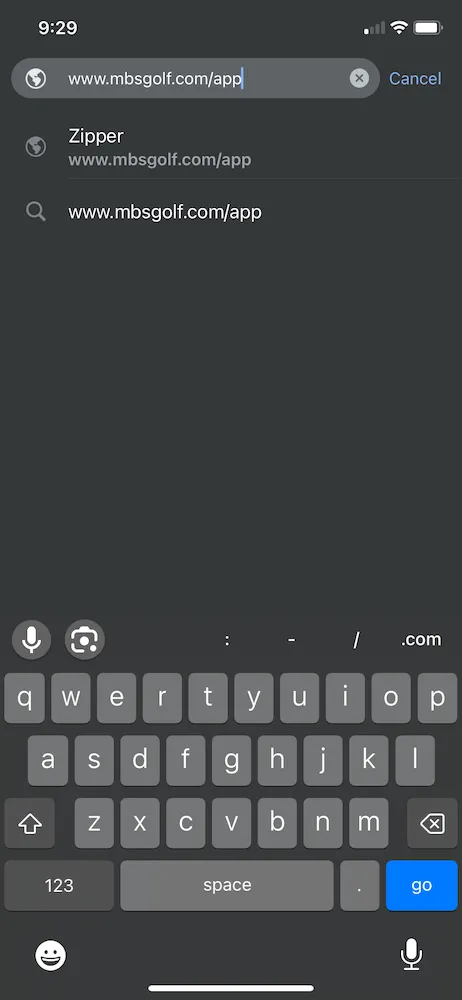
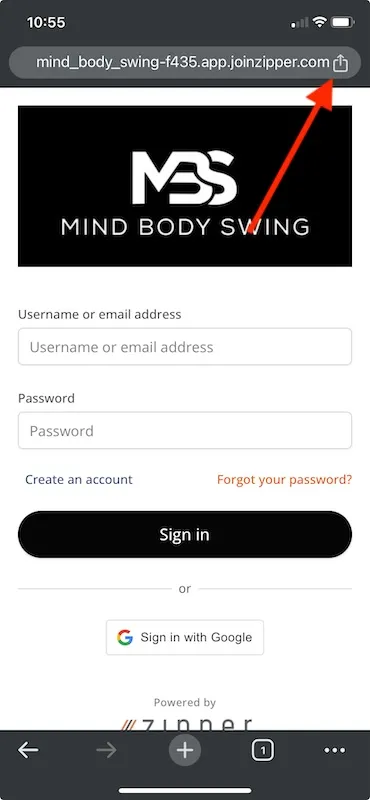
2. Tap Share
On iPhone, tap the Share button. In Chrome it lives in the upper right; in Safari it sits in the bottom navigation bar.
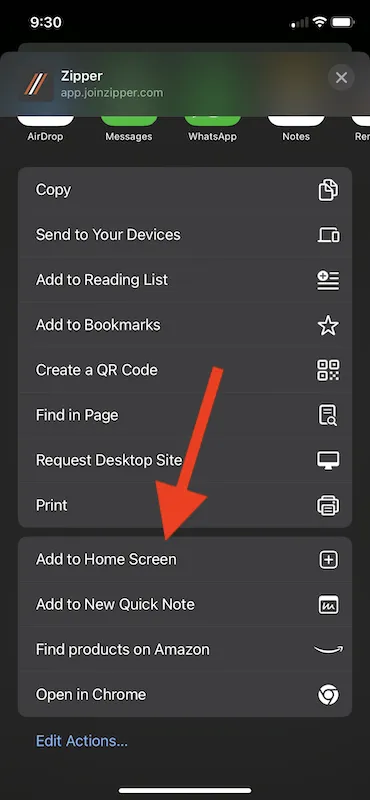
3. Add to Home Screen
Scroll down in the share sheet and tap Add to Home Screen.
4. Open Zipper from your home screen
You now have direct access to Zipper from your phone — no app store download required.
Android users: follow the same steps to add your business URL with /app to your home screen via Chrome’s menu.
FAQ
Does this work like an app from the App Store or Google Play?
Yes. The installed home-screen app behaves the same way — full-screen, fast access, no browser chrome — without the wait for app store approvals.
Will this show my business’s logo instead of Zipper’s logo?
Custom branding for the home-screen icon is in active development.
As a business owner, do I get a different experience than my clients?
Yes. The admin app and the client booking app are different experiences, so make sure you install from the correct URL above.
Need a hand?
Email our team at support@joinzipper.com and we'll usually reply within a few hours.
Was this article helpful?
Thanks for your feedback.